
Knowledge Base · WordPress Guides
How to Install WordPress in One Click (Softaculous or WP Toolkit)
WordPress powers most small-business websites in Kenya. On AutoHost you can install it in about a minute — no file uploads, no database setup. This guide shows the installer step by step and what to do right after.
Before you start
- Point your domain to AutoHost and wait for it to load our default page — see Update your nameservers.
- Get the padlock first if possible (Security → SSL/TLS Status → Run AutoSSL) so WordPress installs on
https://from day one. - Empty the target folder. If
public_htmlcontains an old site, back it up and remove it, or install WordPress in a sub-folder.
Step 1: Open the WordPress installer
In cPanel, go to Software → Softaculous Apps Installer and click the WordPress icon (or type WordPress in its search box). Then click Install Now.
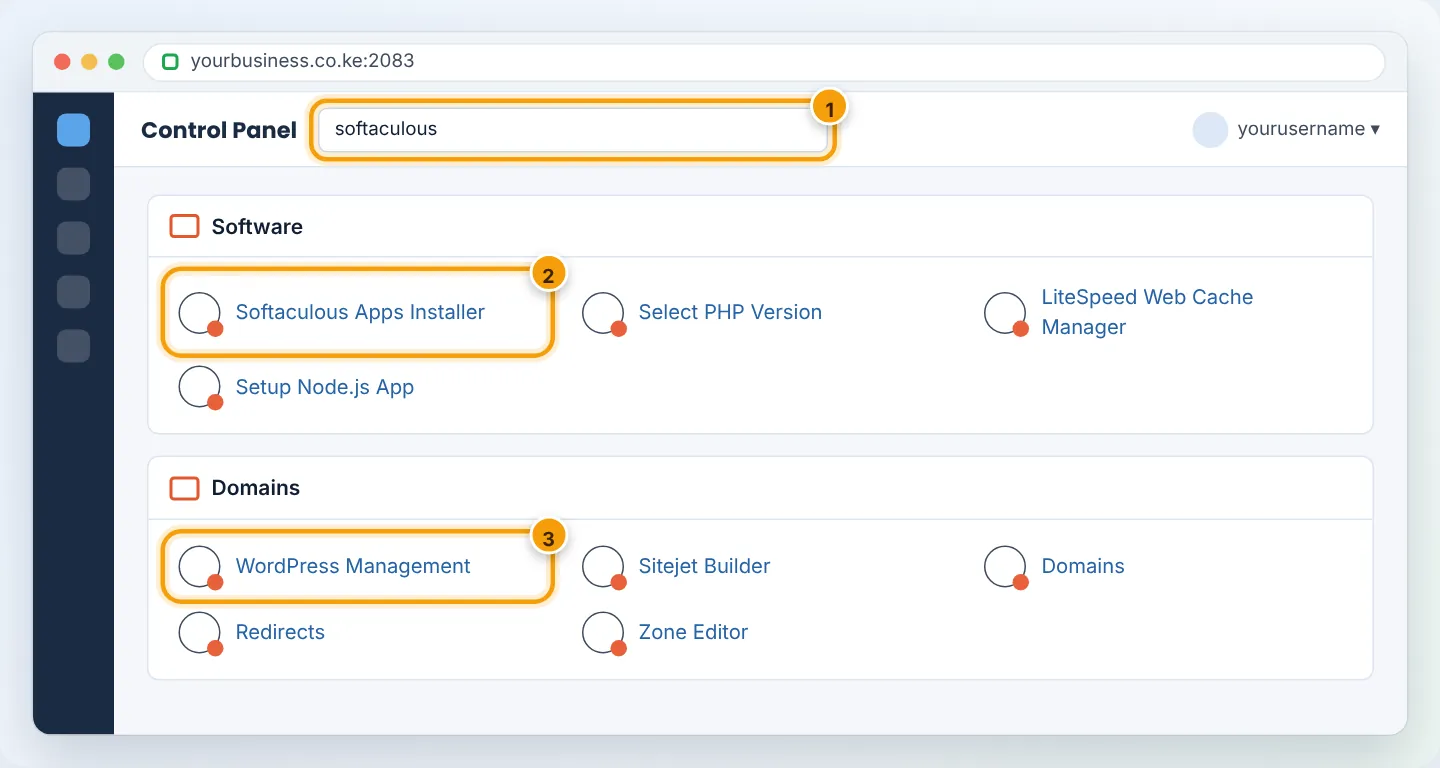
WordPress Management (WP Toolkit) can also install WordPress — click Install there and fill in a similar form. It adds handy extras like one-click staging and security hardening. Either installer is fine; use one consistently.
Step 2: Fill in the installation form
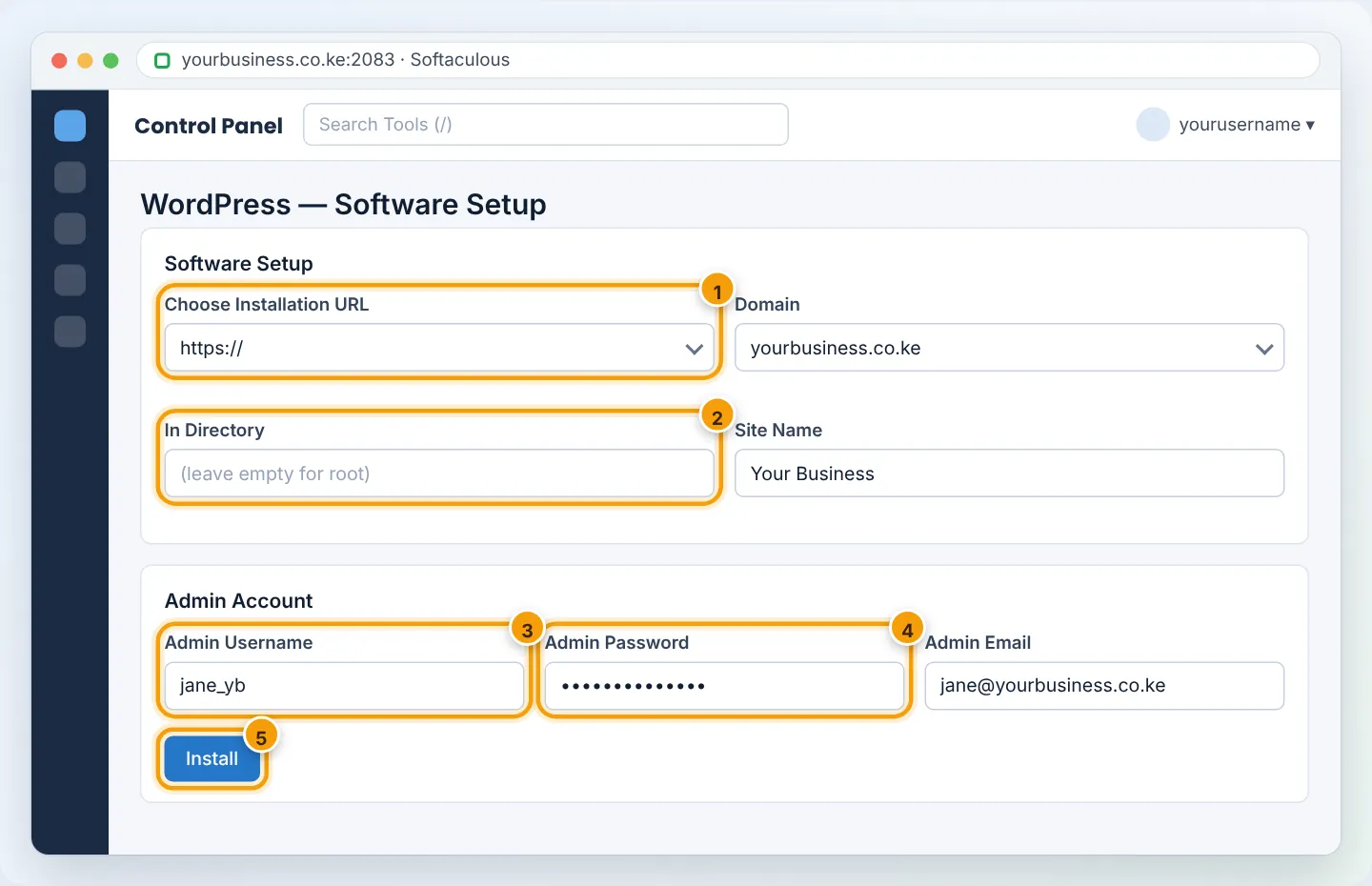
| Field | What to choose |
|---|---|
| Choose Installation URL | https:// (if SSL is active) and your domain. Leave In Directory empty to install at yourbusiness.co.ke. (Type blog to install at /blog.) |
| Site Name / Description | Your business name and a short tagline — changeable later |
| Admin Username | Something unique — not admin (bots try it first) |
| Admin Password | Click the key icon for a strong one; save it in your password manager |
| Admin Email | An address you check — password resets and alerts go here |
| Select Language | English (or your choice) |
| Select Plugins | Optional — Limit Login Attempts is a good tick |
| Advanced Options | Leave the database name as suggested; tick Auto Upgrade for minor versions and Automated backups if offered |
Step 3: Install
Scroll down and click Install. Softaculous creates the database, copies WordPress, writes wp-config.php and sets up your admin account — usually in under a minute. You will see “Congratulations, the software was installed successfully” with two links:
- your website:
https://yourbusiness.co.ke - your dashboard:
https://yourbusiness.co.ke/wp-admin
Step 4: Log in to WordPress
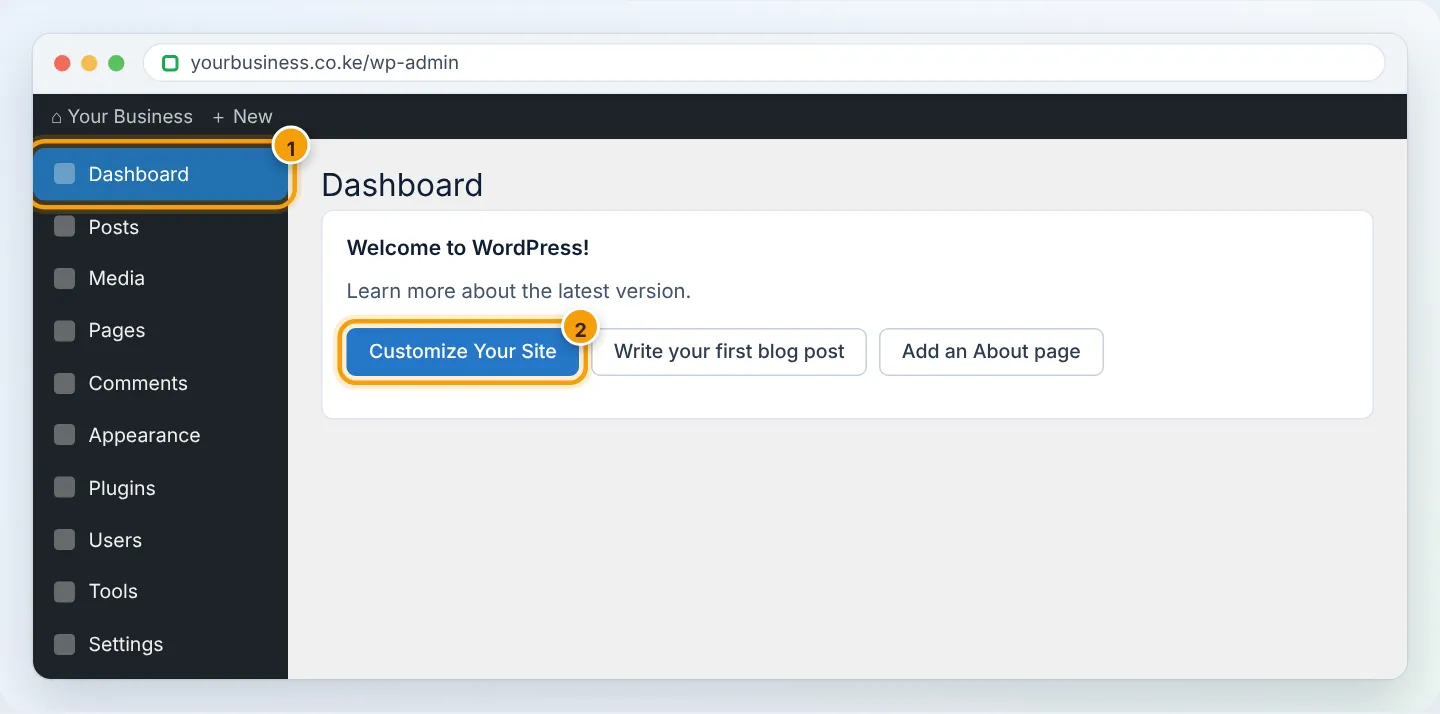
Open https://yourbusiness.co.ke/wp-admin and log in with the admin username and password.
Step 5: First-day setup checklist
- Settings → General — confirm Site Title, Tagline, Timezone (Nairobi) and that both URLs start with
https://. - Settings → Permalinks — choose Post name (clean URLs like
/services/) → Save. - Delete sample content — the Hello world! post, Sample Page and the sample comment.
- Appearance → Themes → Add New — choose a fast theme (Astra, GeneratePress, Kadence or a block theme). Avoid “nulled” premium themes from unofficial sites.
- Plugins — keep it lean. A good starter set:
– LiteSpeed Cache — speed (made for our servers) — see Speed up WordPress
– Wordfence or Solid Security — security — see Secure WordPress
– UpdraftPlus — backups to Google Drive — see Back up WordPress
– Yoast SEO or Rank Math — search engine basics
– WP Mail SMTP — reliable contact-form email - Settings → Reading — choose a static homepage if your site is not a blog.
- Users → Profile — set your display name and turn on 2FA if your security plugin offers it.
Troubleshooting
| Problem | Cause | Fix |
|---|---|---|
| “The directory is not empty” | Old files in public_html |
Back up and remove old files, or tick overwrite only if you are sure |
| Site shows default page after install | Browser cache | Hard refresh (Ctrl+F5) |
| Cannot reach /wp-admin | Domain not pointing to us yet | Wait for DNS; see Website not loading |
| Installed on http:// | SSL was not ready | Run AutoSSL, then change both URLs in Settings → General to https |
| Forgot the admin password | — | See Reset WordPress admin password |
Frequently asked questions
Is WordPress free?
Yes. Some themes and plugins are paid, but WordPress itself is free and included with all plans.
Can I install several WordPress sites?
Yes — one per domain, subdomain or folder, within your plan’s limits.
Figures are simplified illustrations. Your screen may look slightly different depending on your theme and the version of cPanel or the app you use.
Still need help?
Our Kenyan support team is on WhatsApp — real people, not bots. Mon–Sat, 8am–10pm EAT. Tickets are open 24/7.