
Knowledge Base · WordPress Guides
WordPress Security Checklist — Protect Your Site From Hackers
Most hacked WordPress sites were not targeted personally — automated bots found an outdated plugin or a weak password. Work through this checklist once (about an hour) and you close the doors those bots use.
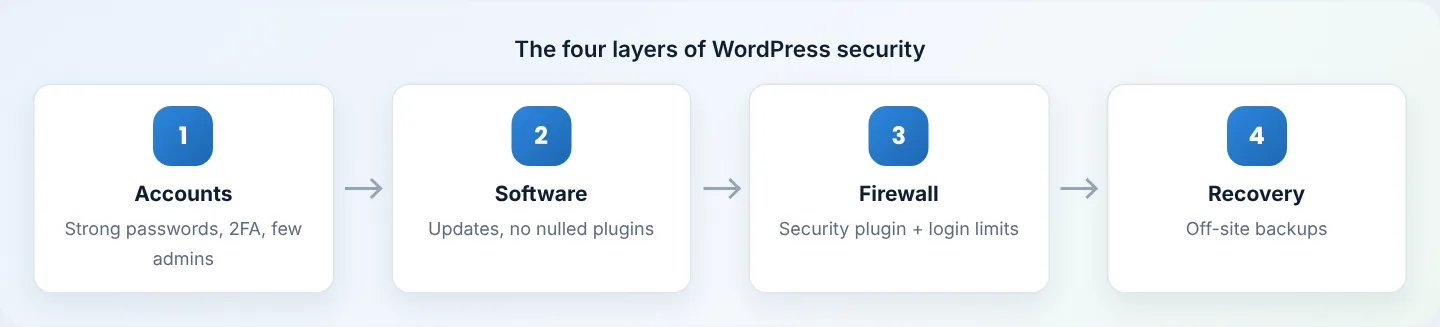
Layer 1 — Accounts and logins
1. Use a unique admin username
If you have a user called admin: create a new Administrator (Users → Add New) with a unique username, log in as it, then delete admin and attribute its content to the new user.
2. Strong, unique passwords for everyone
At least 14 characters, generated by a password manager. Never reuse your WordPress password for email, cPanel or M-Pesa.
3. Turn on two-factor authentication (2FA)
Install Wordfence (Login Security) or WP 2FA and require 2FA for all Administrators and Editors.

4. Limit login attempts
Wordfence and most security plugins lock out an IP after repeated failures (e.g. 5 attempts, 20-minute lockout). Turn it on.
5. Review users regularly
Users → All Users: remove people who have left, and give staff the lowest role they need (Editor or Author, not Administrator).
Layer 2 — Software
6. Keep everything updated
Update WordPress core, plugins and themes at least weekly — most hacks use holes that were already fixed. Follow Update WordPress safely.
7. Delete what you do not use
Deactivated plugins and old themes can still be exploited. Delete them (keep one default theme as a fallback).
8. Never install “nulled” themes or plugins
Free copies of paid plugins from unofficial sites very often contain hidden malware. Buy from the developer or use free alternatives on wordpress.org.
9. Run a supported PHP version
Use PHP 8.2 or 8.3 — see Change PHP version.
Layer 3 — Firewall and hardening
10. Install one security plugin
Wordfence (free) adds a firewall, malware scanner and login security. Run its setup wizard, enable the firewall (Optimize when prompted), and schedule scans. Use one security plugin — two can conflict.
11. Harden wp-config.php
Edit public_html/wp-config.php in File Manager and add above That’s all, stop editing!:
// Stop editing theme/plugin files from the dashboard
define( 'DISALLOW_FILE_EDIT', true );
// Always use HTTPS for the admin area
define( 'FORCE_SSL_ADMIN', true );
Then set wp-config.php permissions to 600 (File Manager → Permissions).
12. Block PHP in the uploads folder
Create a file public_html/wp-content/uploads/.htaccess containing:
<FilesMatch ".(php|phtml|phpd)$">
  Require all denied
</FilesMatch>
Uploads should only contain images and documents — this stops uploaded malware from running.
13. Disable XML-RPC if you don’t need it
Unless you use the WordPress mobile app or Jetpack, block xmlrpc.php (a common brute-force target). Wordfence can do this, or add to public_html/.htaccess:
<Files xmlrpc.php>
  Require all denied
</Files>
14. Protect cPanel and the client area too
An attacker with your cPanel login can bypass all of the above. Turn on cPanel 2FA and client-area 2FA.
Layer 4 — Recovery
15. Back up off-site, automatically
Our daily backups (paid plans, kept 30 days) are your safety net. Add your own: UpdraftPlus scheduled daily (database) and weekly (files) to Google Drive — see Back up and restore WordPress.
Monthly 10-minute check
- [ ] All updates applied
- [ ] Wordfence scan clean
- [ ] No unknown users
- [ ] Backup ran and is in Google Drive
- [ ] Unused plugins deleted
If you think you’ve been hacked
Do not panic — follow My website has been hacked and WhatsApp us on +254 104 666 000.
Figures are simplified illustrations. Your screen may look slightly different depending on your theme and the version of cPanel or the app you use.
Still need help?
Our Kenyan support team is on WhatsApp — real people, not bots. Mon–Sat, 8am–10pm EAT. Tickets are open 24/7.