
Knowledge Base · WordPress Guides
How to Speed Up WordPress With LiteSpeed Cache
AutoHost runs on LiteSpeed servers, and the free LiteSpeed Cache plugin is built to use them. Set it up properly and most WordPress sites load two to five times faster — especially on mobile data.
Before you start
- Take a backup — see Back up WordPress.
- Measure first at pagespeed.web.dev (Mobile) and note the score and LCP, so you can see the improvement.
- Use one caching plugin only. Deactivate and delete WP Super Cache, W3 Total Cache, WP Rocket, etc. before installing LiteSpeed Cache.
Step 1: Install LiteSpeed Cache
Plugins → Add New Plugin → search LiteSpeed Cache → Install Now → Activate. A new LiteSpeed Cache menu appears.
Step 2: Turn on page caching
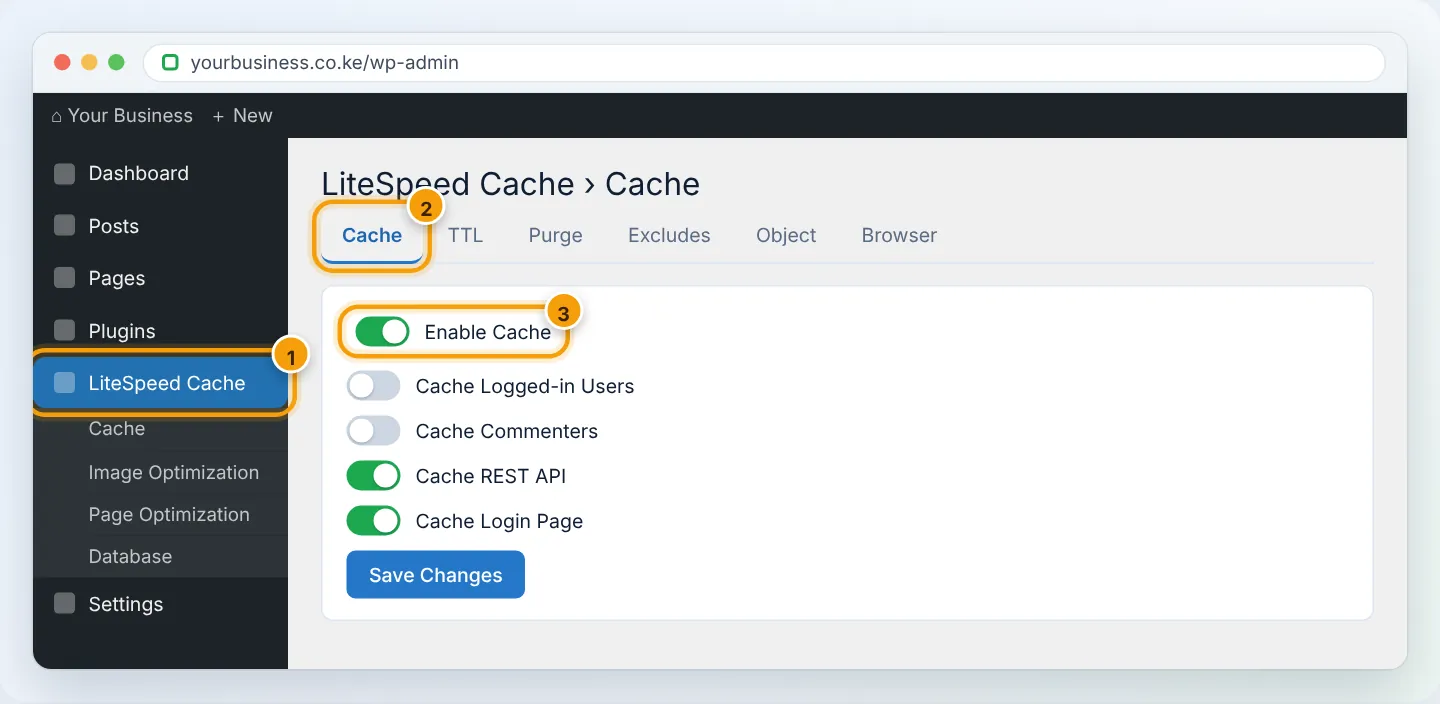
LiteSpeed Cache → Cache → Cache tab:
- Enable Cache: ON
- Cache Logged-in Users: OFF (unless you run a membership site and understand private caching)
- Cache Mobile: ON if your theme serves different mobile pages; otherwise OFF
Save. Page caching alone usually gives the biggest improvement.
WooCommerce shops are handled automatically — LiteSpeed Cache never caches cart, checkout or account pages.
Step 3: Turn on browser cache
Cache → Browser tab → Browser Cache: ON → Save. Returning visitors load images, CSS and JS from their own device.
Step 4: Optimise images (and serve WebP)
Images are usually the heaviest part of a page.
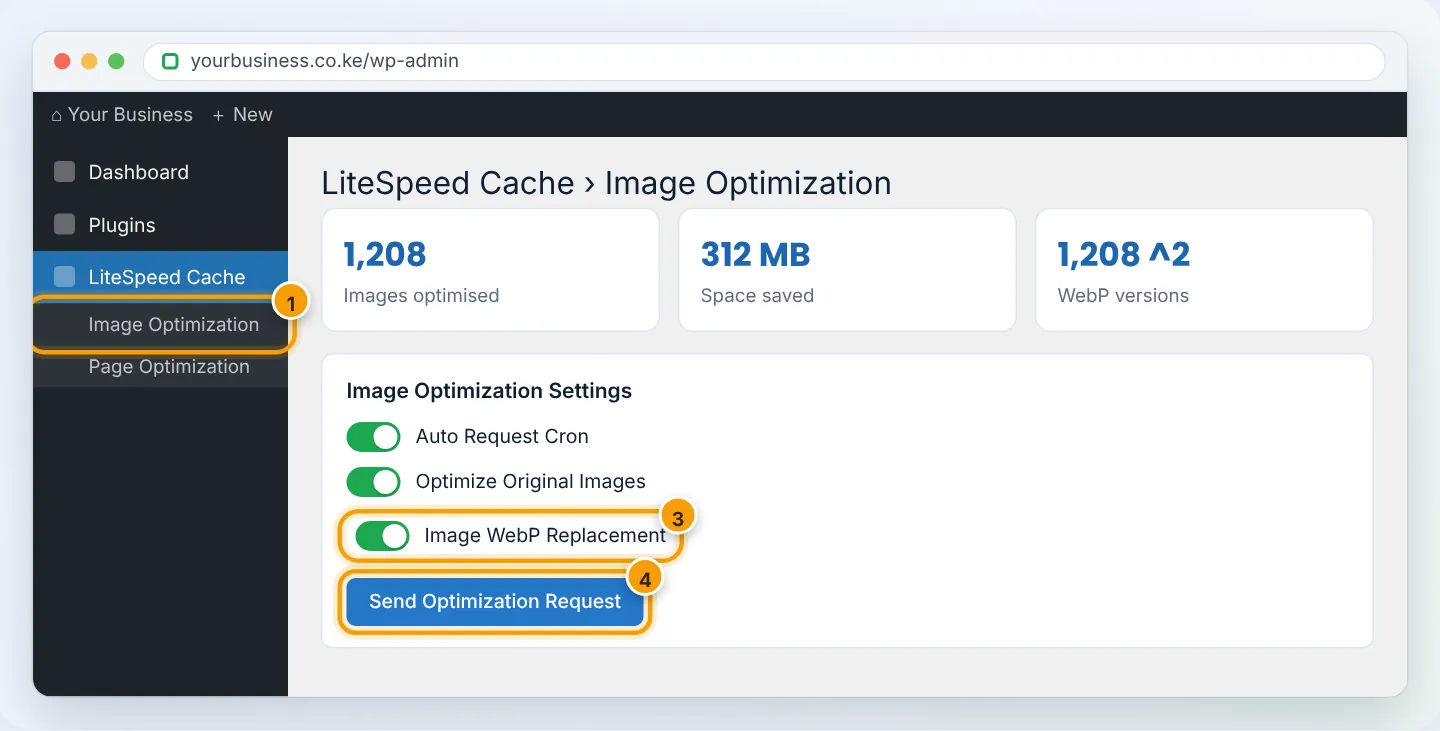
- LiteSpeed Cache → Image Optimization → Image Optimization Settings: turn on Auto Request Cron, Auto Pull Cron, Optimize Original Images, and Image WebP Replacement.
- Image Optimization Summary → Gather Image Data, then Send Optimization Request. (This uses LiteSpeed’s free QUIC.cloud service; you may be asked to link a free domain key.)
- Page Optimization → Media → Lazy Load Images: ON.
Step 5: CSS, JavaScript and HTML (test carefully)
LiteSpeed Cache → Page Optimization. Turn these on one at a time, then check your site in a private window (menus, sliders, forms, checkout):
| Setting | Effect | Risk |
|---|---|---|
| CSS Minify | Smaller CSS | Low |
| JS Minify | Smaller JavaScript | Low |
| HTML Minify | Smaller HTML | Low |
| Load CSS Asynchronously / Generate UCSS | Faster first paint | Medium — can cause flashes of unstyled content |
| JS Deferred | Scripts load after content | Medium — can break sliders or forms; add exceptions |
| Load Google Fonts Asynchronously | Faster fonts | Low |
If something breaks, turn the last setting off, then Toolbox → Purge All.
Step 6: Clean the database
LiteSpeed Cache → Database → Manage: click Clean All (post revisions, auto-drafts, trashed posts, spam comments, expired transients). Back up first. Then in DB Optimization Settings, limit revisions (e.g. keep 5).
Step 7: Object cache (optional, advanced)
Cache → Object tab can use Redis/Memcached if available on your plan — ask support before enabling. If the connection test fails, leave it off.
Step 8: Measure again
Toolbox → Purge All, open your homepage once (to warm the cache), then re-run PageSpeed Insights. Typical results after Steps 2–4: LCP drops by several seconds and the mobile score rises substantially.
Other quick wins
- PHP 8.2/8.3 — Change PHP version.
- A lightweight theme — Astra, GeneratePress, Kadence or a block theme.
- Fewer plugins — every plugin adds code; delete what you do not use.
- Fewer external scripts — chat widgets, social feeds and multiple tracking pixels slow pages.
Troubleshooting
| Problem | Cause | Fix |
|---|---|---|
| Changes to the site don’t show | Cached page | Purge All from the admin bar |
| Layout broken after optimisation | CSS/JS settings | Disable the last Page Optimization setting; Purge All |
| Logged-in users see others’ carts | Wrong private cache settings | Turn off Cache Logged-in Users; Purge All |
| Images not converting | QUIC.cloud key not linked | Link the free domain key in General settings |
| Admin area still slow | Heavy plugins/old PHP | Remove plugins; upgrade PHP; check Resource Usage |
Figures are simplified illustrations. Your screen may look slightly different depending on your theme and the version of cPanel or the app you use.
Still need help?
Our Kenyan support team is on WhatsApp — real people, not bots. Mon–Sat, 8am–10pm EAT. Tickets are open 24/7.