
Knowledge Base · WordPress Guides
How to Back Up and Restore a WordPress Website
A backup is the difference between a five-minute fix and losing your website. This guide sets up automatic backups that live off the server, shows how to take one before any risky change, and how to restore — three different ways.
What a WordPress backup must include
| Part | Contains | Changes |
|---|---|---|
| Database | Posts, pages, settings, users, WooCommerce orders, form entries | Every day on active sites |
| wp-content/uploads | Images, PDFs, media | When you upload |
| wp-content/themes and plugins | Design and features | When you update |
| wp-config.php | Database connection and keys | Rarely |
A complete backup = database + files, from the same moment.
Your three safety nets

Method 1: UpdraftPlus to Google Drive (recommended)
Step 1: Install UpdraftPlus
Plugins → Add New Plugin → search UpdraftPlus → Install Now → Activate.
Step 2: Choose schedules
Settings → UpdraftPlus Backups → Settings tab:
- Files backup schedule: Weekly — retain 4 backups.
- Database backup schedule: Daily (online shops: Every 12 hours) — retain 14.
Step 3: Choose remote storage
Click Google Drive (or Dropbox/OneDrive). Scroll down, Save Changes, then follow the pop-up to sign in with Google and allow access, and Complete setup.

Do not store backups only on the same server (UpdraftPlus default “none”). They fill your disk space and disappear with the site if the account is lost.
Step 4: Take a first backup now
Backup / Restore tab → Backup Now → tick Include your database and Include your files → Backup Now. Check Google Drive for an UpdraftPlus folder with the new files.
Before any risky change — a quick manual backup
Before updating WordPress core, a theme, WooCommerce, or changing PHP version: UpdraftPlus → Backup Now. Or use a staging site to test first.
Restore with UpdraftPlus
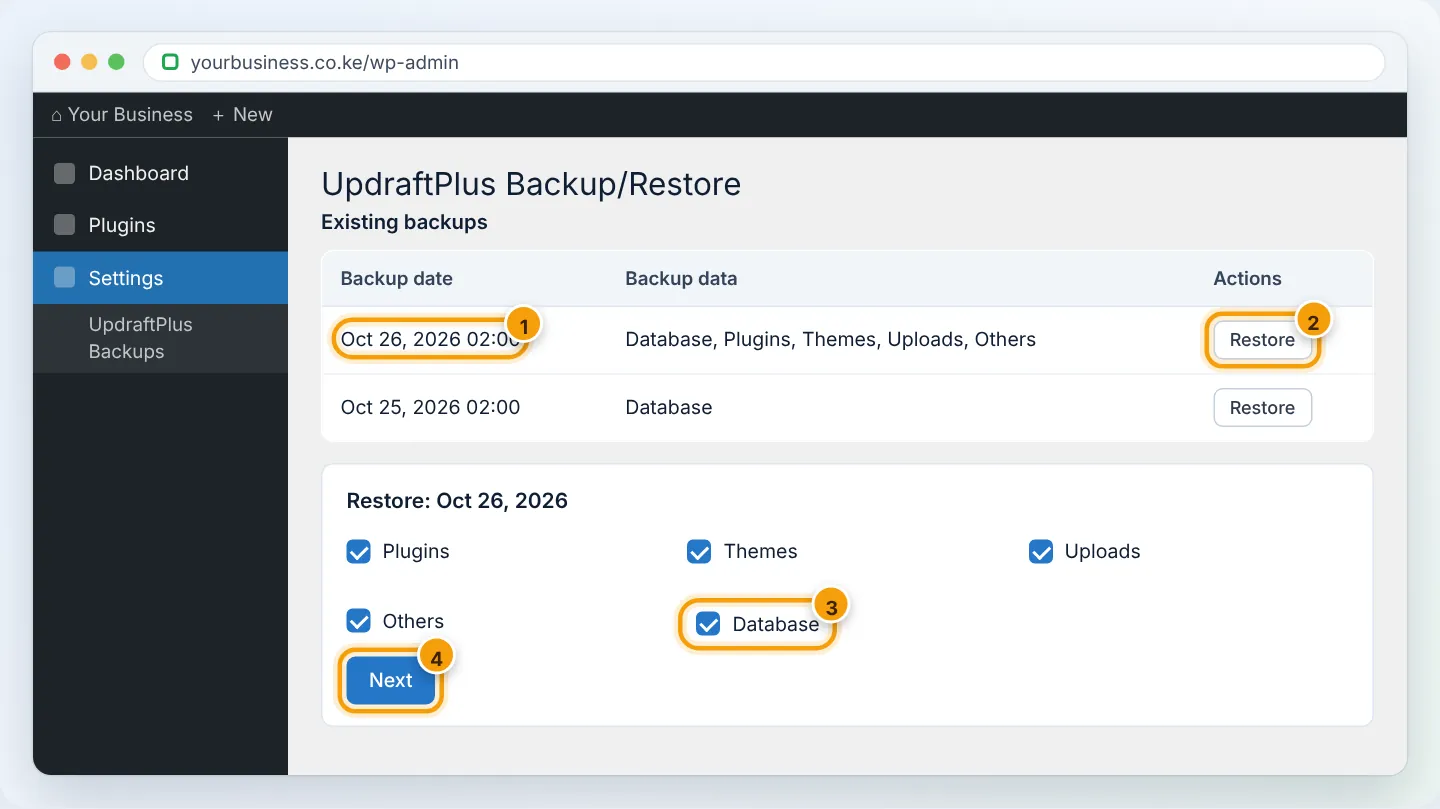
- Settings → UpdraftPlus Backups → Backup / Restore.
- Under Existing backups, find the date you want → Restore.
- Tick the components: Plugins, Themes, Uploads, Others, Database (all, for a full restore).
- Next → Restore. Do not close the page until it says Restore successful.
Site completely broken (can’t log in)? Install a fresh WordPress (Softaculous), install UpdraftPlus, connect the same Google Drive, click Rescan remote storage, and restore.
Method 2: AutoHost daily backups (paid plans)
In cPanel, Files → File and Directory Restoration lets you restore public_html (or just wp-content) and the database from any day in the last 30 days. Restore both from the same date. See Back up and restore in cPanel. For a full-site restore, WhatsApp us — usually done within about 2 hours.
Method 3: WP Toolkit (WordPress Management)
cPanel → Domains → WordPress Management → your site → Backup / Restore → Back Up. Restore points appear in the same place. Handy before updates, but these copies live on the same server — still keep UpdraftPlus off-site copies.
Test your backups
Once every few months, restore a backup to a staging site to confirm it works. A backup you have never tested is a hope, not a plan.
Troubleshooting
| Problem | Cause | Fix |
|---|---|---|
| UpdraftPlus backup stalls | Large site, time limits | Increase max_execution_time (Select PHP Version → Options); exclude cache folders |
| Google Drive authorization expired | Token revoked or password changed | Settings → re-authenticate Google Drive |
| Backups filling disk space | Local copies kept | Use remote storage only; delete local copies |
| Restored site shows old content | Database not included | Restore the database component |
Figures are simplified illustrations. Your screen may look slightly different depending on your theme and the version of cPanel or the app you use.
Still need help?
Our Kenyan support team is on WhatsApp — real people, not bots. Mon–Sat, 8am–10pm EAT. Tickets are open 24/7.