
Knowledge Base · Domain Management
How to Point Your Domain to AutoHost (Update Nameservers)
If your domain is registered somewhere else (another Kenyan registrar, GoDaddy, Namecheap, Truehost…) but your website is hosted with us, you connect them by changing the domain's nameservers. It takes two minutes to change and a few hours for the internet to catch up.
AutoHost nameservers
ns1.asushost.cam
ns2.asushost.cam
Nameservers tell the internet which company’s DNS answers for your domain. Once they point to us, your website, email and DNS records are all managed from your AutoHost cPanel.
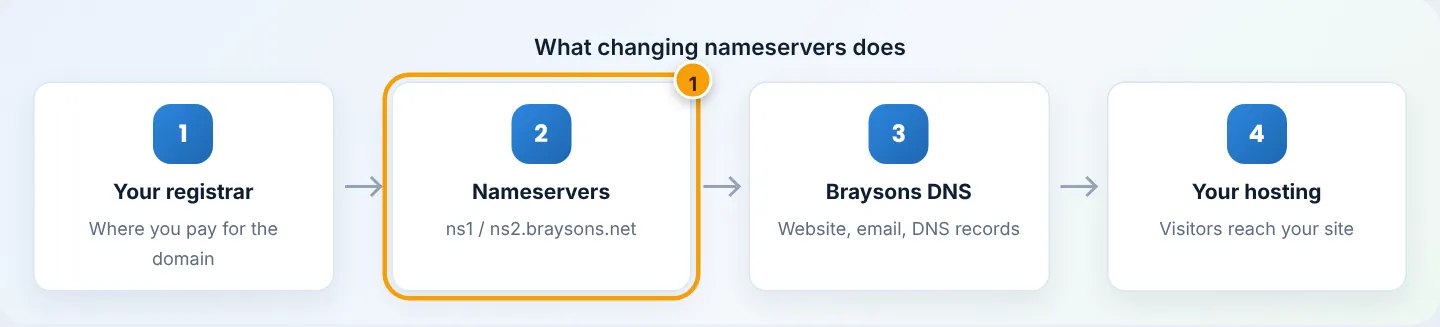
Before you start — avoid downtime
- Have your website ready on AutoHost first (uploaded, or migrated by us). Visitors will start arriving as soon as DNS updates.
- Recreate email accounts on AutoHost with the same addresses before switching, if email currently works with another provider. After the switch, new mail arrives at AutoHost.
- Using Google Workspace or Microsoft 365 for email? You will need to re-add their MX records in our Zone Editor after the switch — see Connect Google Workspace or Microsoft 365.
- Note your current DNS records (screenshot the registrar’s DNS page) in case anything custom needs recreating.
Step 1: Log in to your registrar
Log in where you pay for the domain. Not sure who that is? Search your email for the domain’s renewal invoice, or look it up at whois.kenic.or.ke (for .ke) or lookup.icann.org (for .com and others) — the Registrar field tells you.
Step 2: Find the nameserver settings
Every registrar names it slightly differently:
| Registrar wording | Where it usually is |
|---|---|
| Nameservers / Manage Nameservers | Domain list → your domain → Manage |
| Change DNS servers | Domain settings → DNS |
| Use custom nameservers | Next to Use default nameservers |
Step 3: Replace the nameservers
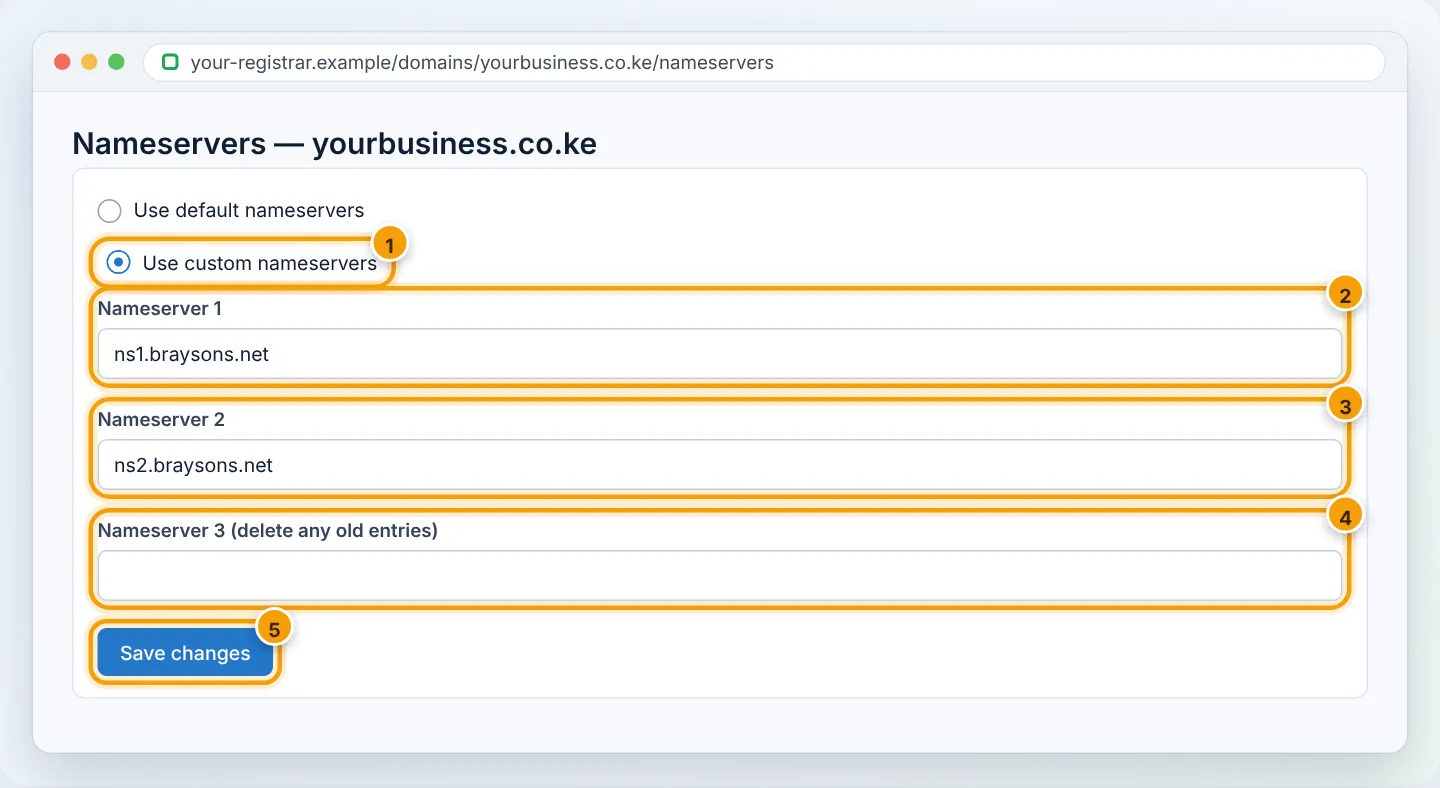
- Choose custom nameservers (not the registrar’s default/parking ones).
- Enter
ns1.asushost.camandns2.asushost.cam. - Delete any other nameservers in the list — mixing providers causes random failures.
- Save. Look for a confirmation message.
Domain registered with AutoHost? You do not need this guide — nameservers are set automatically. To change them (e.g. to Cloudflare), use client area → Domains → My Domains → Manage → Nameservers.
Step 4: Wait for propagation
DNS is cached by internet providers around the world. Typical times:
| Where | Usually updated within |
|---|---|
| Kenyan networks (Safaricom, Airtel, Zuku, Telkom, fibre ISPs) | 2–6 hours |
| Rest of Africa | 6–12 hours |
| Worldwide | Up to 48 hours |
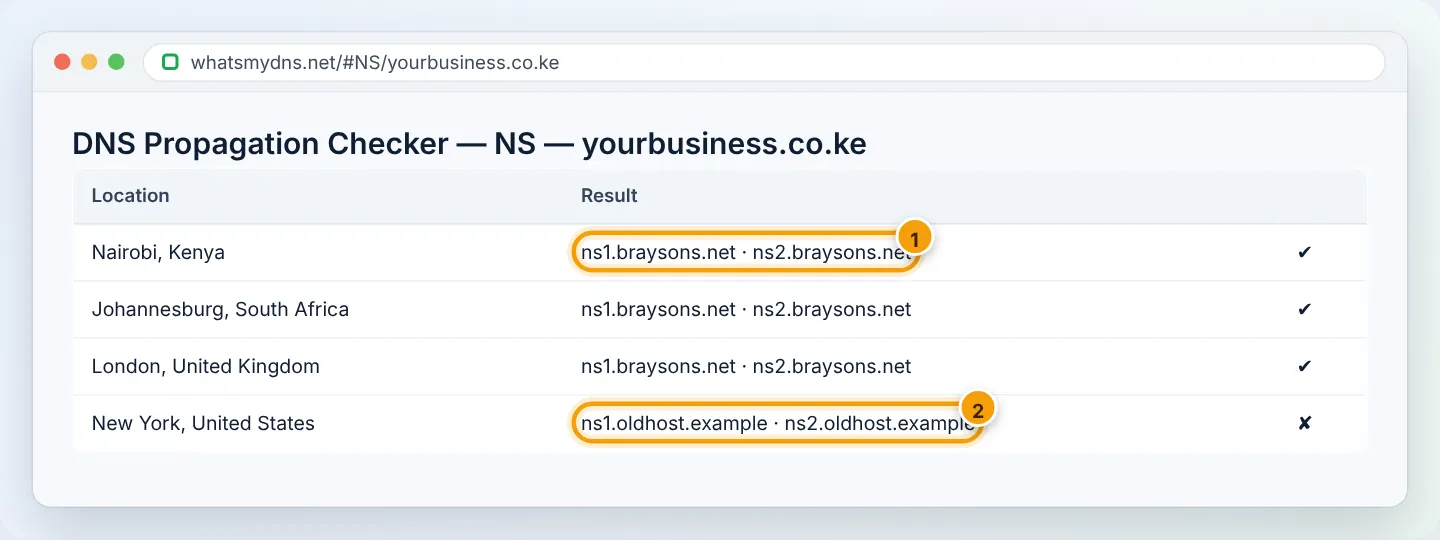
During this time some visitors see the old host and others the new one — this is normal. Plan the switch for an evening or weekend.
Step 5: Check progress
- Go to whatsmydns.net, enter your domain and choose NS. Green ticks showing
ns1.asushost.cammean that location has updated. - Then choose A to see whether your domain resolves to your AutoHost server IP (shown in cPanel’s statistics panel).
Step 6: After it updates
- SSL: cPanel → Security → SSL/TLS Status → Run AutoSSL if the padlock is not yet showing.
- Email apps: make sure they use
mail.yourbusiness.co.ke. - Keep the old hosting for a few days, then cancel it once everything is confirmed.
Common mistakes
| Mistake | Result | Fix |
|---|---|---|
| Old nameserver left in the list | Site works sometimes, fails other times | Remove all but ns1/ns2.asushost.cam |
Typo (ns1.braysons.com, ns1.brayson.net) |
Domain stops resolving | Correct the spelling exactly |
| Changing A records instead of nameservers | Only the website moves; email and DNS stay elsewhere | That is fine if intentional — otherwise change nameservers |
| Domain expired at the registrar | Nothing resolves at all | Renew the domain first |
Frequently asked questions
Will my website go down?
Not if your site is ready on AutoHost before you switch. Visitors simply move to the new server as DNS updates.
Can I keep DNS at Cloudflare instead?
Yes. Keep Cloudflare’s nameservers and add an A record for @ and www pointing to your AutoHost server IP, plus MX/mail records. Set SSL mode to Full (strict).
How do I make it faster?
You cannot speed up other networks’ caches, but you can flush your own — see Website not loading after a domain change.
Figures are simplified illustrations. Your screen may look slightly different depending on your theme and the version of cPanel or the app you use.
Still need help?
Our Kenyan support team is on WhatsApp — real people, not bots. Mon–Sat, 8am–10pm EAT. Tickets are open 24/7.