
Knowledge Base · Hosting Setup Guides
How to Install Your Free SSL Certificate (HTTPS Padlock)
The padlock in the address bar tells visitors your site is genuine and that what they type — passwords, M-Pesa numbers, contact forms — is encrypted. Every AutoHost plan includes free SSL that renews itself. Here is how to switch it on and make sure it covers everything.
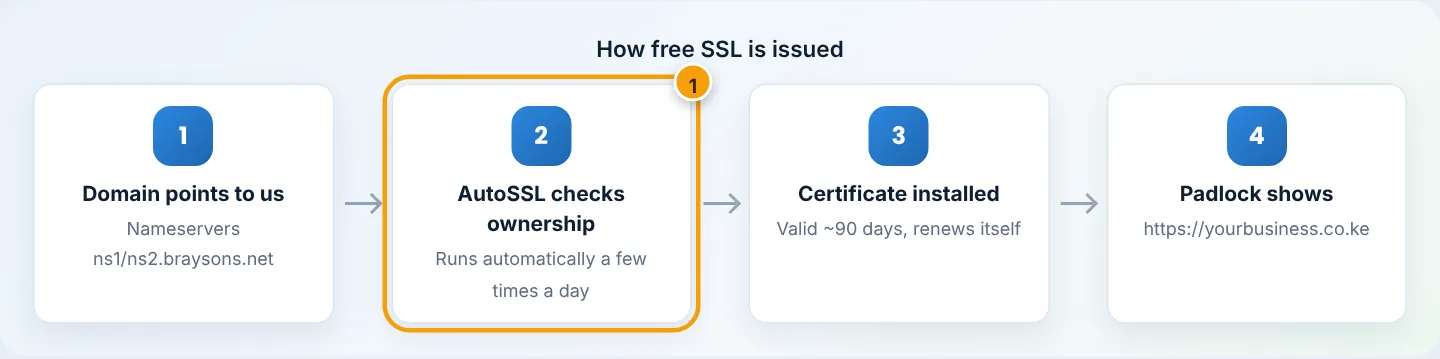
AutoHost uses AutoSSL: cPanel requests a free, browser-trusted certificate for each of your domains and renews it automatically before it expires (certificates last about 90 days). Usually it is already active within an hour of your domain pointing to us — this guide shows how to check, how to trigger it manually, and how to make HTTPS compulsory.
Before you start
- Your domain must point to our servers. AutoSSL proves you control the domain by checking it resolves to your hosting. If you only just changed nameservers to
ns1.asushost.camandns2.asushost.cam, allow time for DNS to update (often 2–6 hours in Kenya, up to 48 hours worldwide). - Both
yourbusiness.co.keandwww.yourbusiness.co.kemust resolve. They do by default on our DNS. If you manage DNS elsewhere (e.g. Cloudflare), make surewwwhas a record too. - No CAA record blocking issuers. If you added a CAA DNS record yourself, it must allow the certificate authority cPanel uses. If unsure, ask us.
Step 1: Check your SSL status
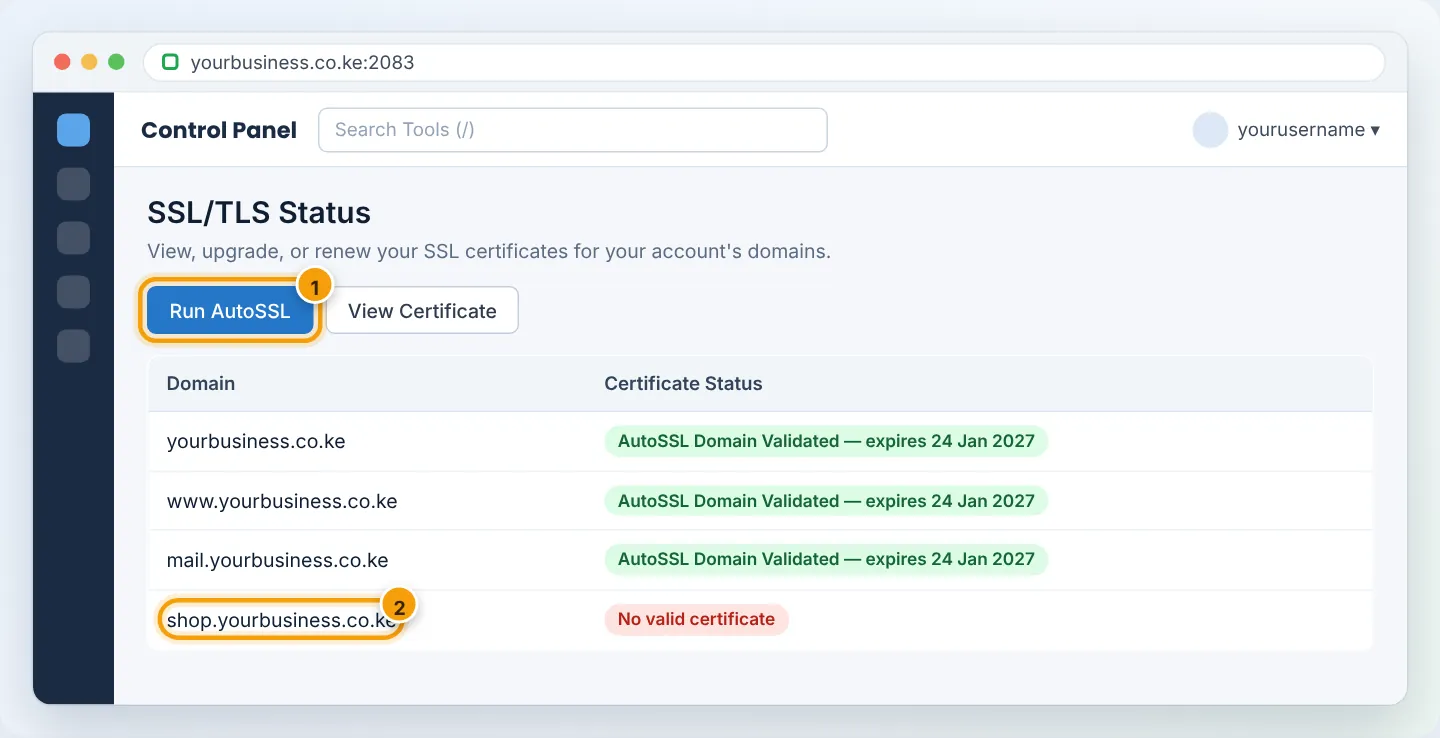
In cPanel, go to Security → SSL/TLS Status. You will see every domain and subdomain on your account with a coloured icon:
- 🟢 Green padlock — AutoSSL Domain Validated: protected. Nothing to do.
- 🟡 Yellow — expiring soon / pending: AutoSSL will renew it on its next run.
- 🔴 Red — not secured / self-signed: no valid certificate yet. Continue to Step 2.
Step 2: Run AutoSSL
Click Run AutoSSL at the top of the page. cPanel contacts the certificate authority and checks each domain. This usually takes 2–5 minutes. Refresh the page — the red items should turn green.
If a domain stays red, hover over or click the status text. cPanel explains why — for example “DNS DCV: The domain resolved to an IP address that does not exist on this server.” That means the domain is not pointing to us yet; see the troubleshooting table below.
Step 3: Force everyone onto HTTPS
Having a certificate is not enough — visitors who type yourbusiness.co.ke without https:// should be redirected automatically.
- Go to Domains → Domains.
- Find your domain and switch Force HTTPS Redirect to On (it turns green).
- Repeat for any addon domains and subdomains.
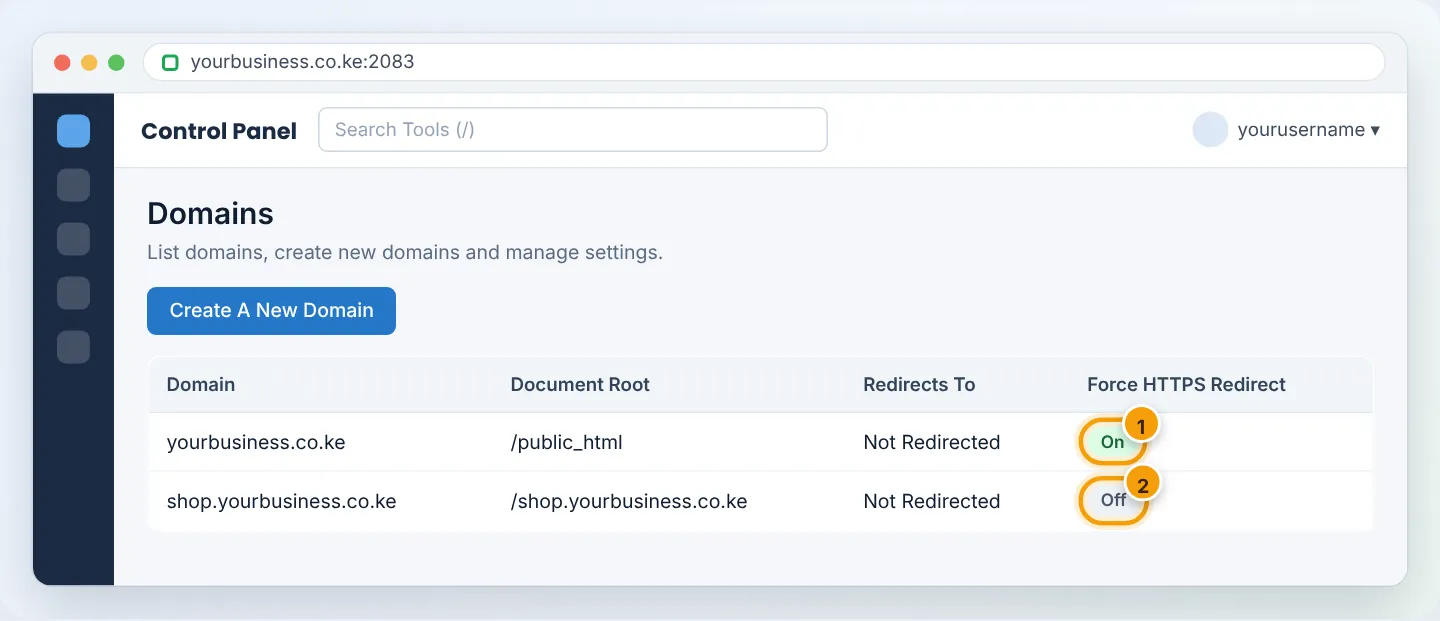
Use only one method to force HTTPS. If you turn on Force HTTPS Redirect and add HTTPS rules to .htaccess or a WordPress plugin, you can create an endless loop (“too many redirects”). If that happens, see Fix too many redirects.
Alternative: force HTTPS with .htaccess
If you prefer code (or use a custom setup), add this at the very top of public_html/.htaccess and leave the cPanel toggle Off:
RewriteEngine On
RewriteCond %{HTTPS} !=on
RewriteRule ^ https://%{HTTP_HOST}%{REQUEST_URI} [L,R=301]
Step 4: WordPress — switch the site address to https
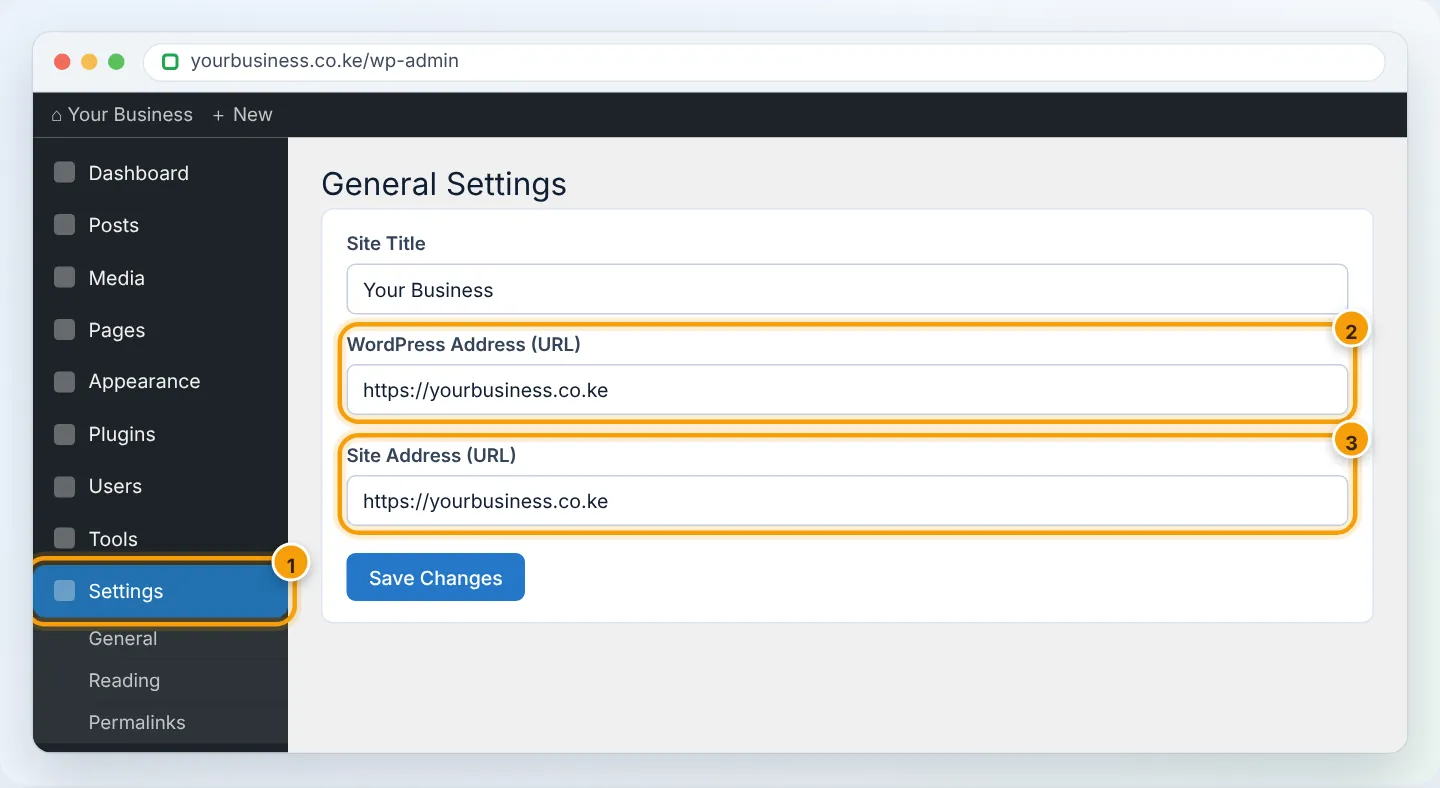
If your site runs WordPress, tell it to use HTTPS too, otherwise some pages and images will still load over http://:
- Log in at
https://yourbusiness.co.ke/wp-admin. - Settings → General. Change WordPress Address (URL) and Site Address (URL) to start with
https://. - Click Save Changes and log in again.
Step 5: Check the padlock
- Open
http://yourbusiness.co.ke(deliberately without the s). It should jump tohttps://and show a padlock. - Click the padlock → Connection is secure → Certificate is valid.
- For a full report, enter your domain at ssllabs.com/ssltest. A grade A is what you want.
- Check a few inner pages and your contact form. If the padlock is missing or shows a warning on some pages, you have mixed content — see Fix mixed content warnings.
Troubleshooting
| Problem | Likely cause | Fix |
|---|---|---|
| AutoSSL says domain “resolved to an IP address that does not exist on this server” | Domain does not point to AutoHost (yet) | Set nameservers to ns1.asushost.cam / ns2.asushost.cam or point the A record to your server IP; wait for DNS, then Run AutoSSL |
www works but bare domain does not (or the reverse) |
Missing DNS record for one of them | Add the missing A/CNAME record in Zone Editor |
| “Too many redirects” after enabling HTTPS | Two redirect methods, or Cloudflare set to Flexible | Keep one method; set Cloudflare SSL mode to Full (strict) |
| Padlock with a warning triangle | Mixed content (http images/scripts) | See Fix mixed content warnings |
| Certificate expired | Domain stopped pointing to us at renewal time | Fix DNS, then Run AutoSSL |
| Need an EV, OV or wildcard certificate | Bank, SACCO or large e-commerce requirements | Ask us — we offer commercial SSL certificates |
Frequently asked questions
Do I have to pay for SSL?
No. Free AutoSSL is included on every plan, including the Free plan, and renews automatically.
Does SSL cover my email too?
Yes — mail.yourbusiness.co.ke gets a certificate as well, so email apps connect securely without warnings.
Will HTTPS affect my Google ranking?
Positively. Google treats HTTPS as a ranking signal and Chrome labels HTTP pages “Not secure”.
Figures are simplified illustrations. Your screen may look slightly different depending on your theme and the version of cPanel or the app you use.
Still need help?
Our Kenyan support team is on WhatsApp — real people, not bots. Mon–Sat, 8am–10pm EAT. Tickets are open 24/7.