
Knowledge Base · Troubleshooting
How to Fix a 500 Internal Server Error
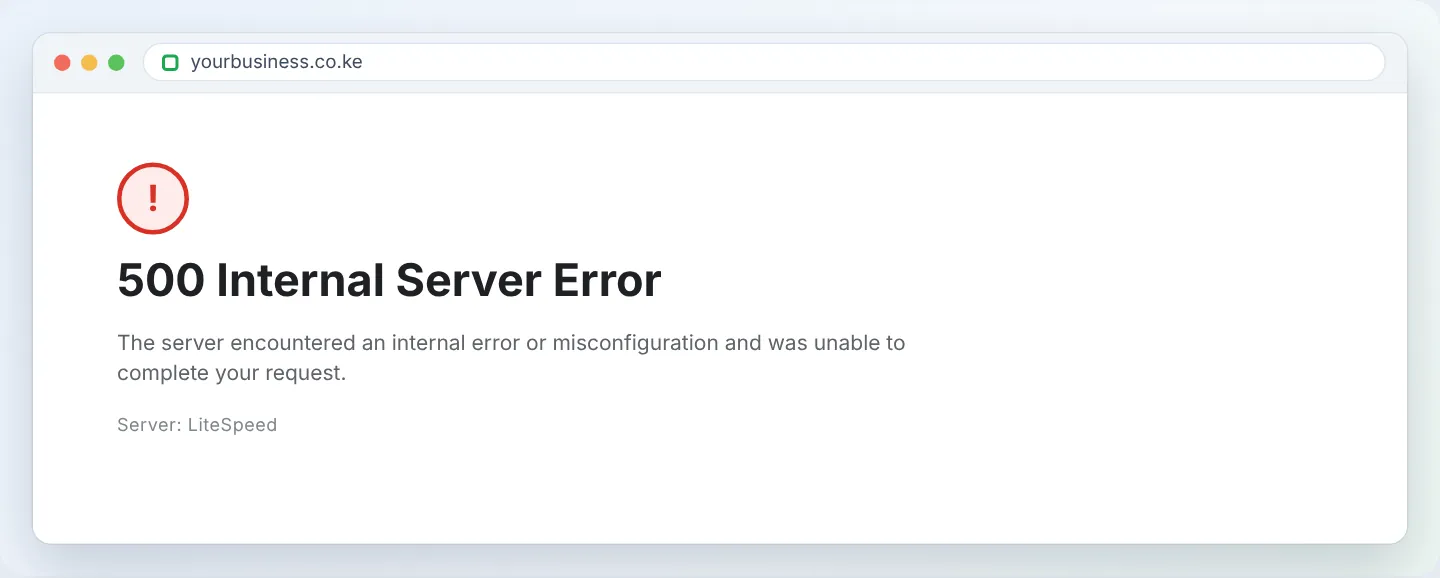
“500 Internal Server Error” means something on the server side stopped your website from running — but it does not say what. The server's error log does. This guide shows you how to read it and fix the five causes behind almost every 500 error.
Quick first checks (1 minute)
- Did you just change something? A new plugin, theme update,
.htaccessedit or PHP version change? Undo it first — that fixes most cases. - Is it the whole site or one page? One page points to that page’s code; the whole site points to
.htaccess, PHP settings or a site-wide plugin. - Did your account hit its limits? Check cPanel’s statistics panel for CPU/Entry Processes in red (see Cause 5).
Step 1: Read the error log
- In cPanel, go to Metrics → Errors. It shows the latest errors from the web server, newest first.
- Also open File Manager →
public_html(with Settings → Show Hidden Files ticked) and look for a file callederror_log— PHP writes its errors there. Right-click → View, and read the last lines.
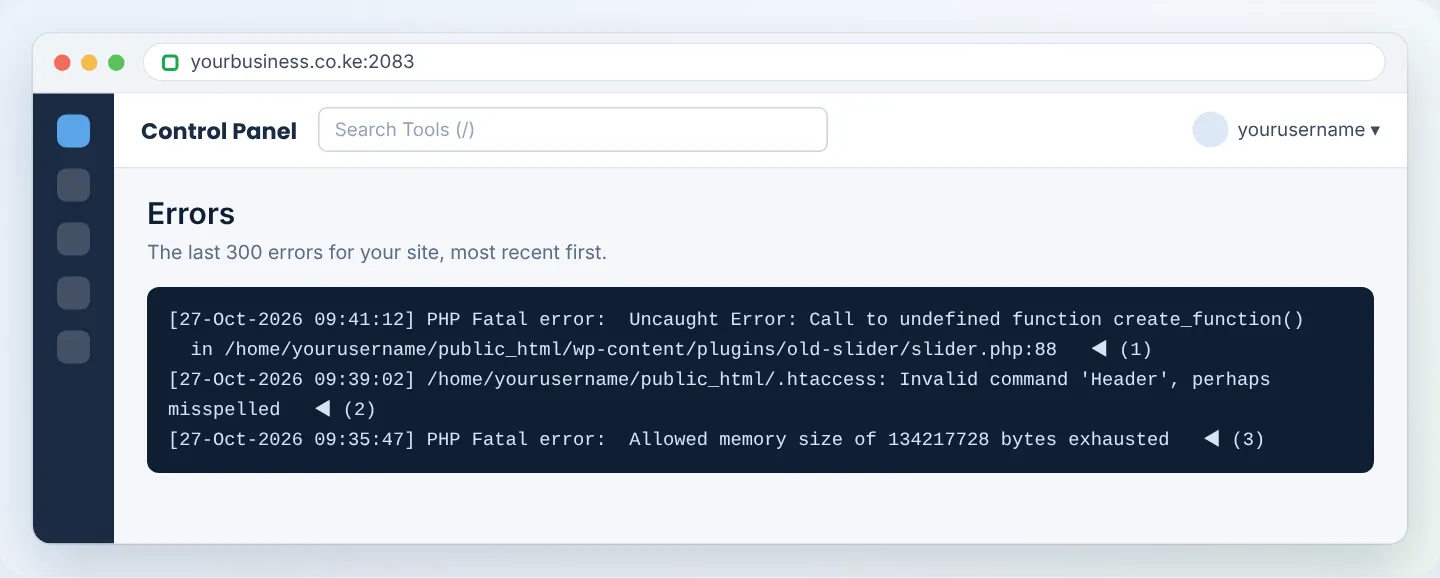
Match what you see to a cause below.
Cause 1: A broken .htaccess file
Log says “Invalid command”, “RewriteRule: bad flag” or nothing useful at all.
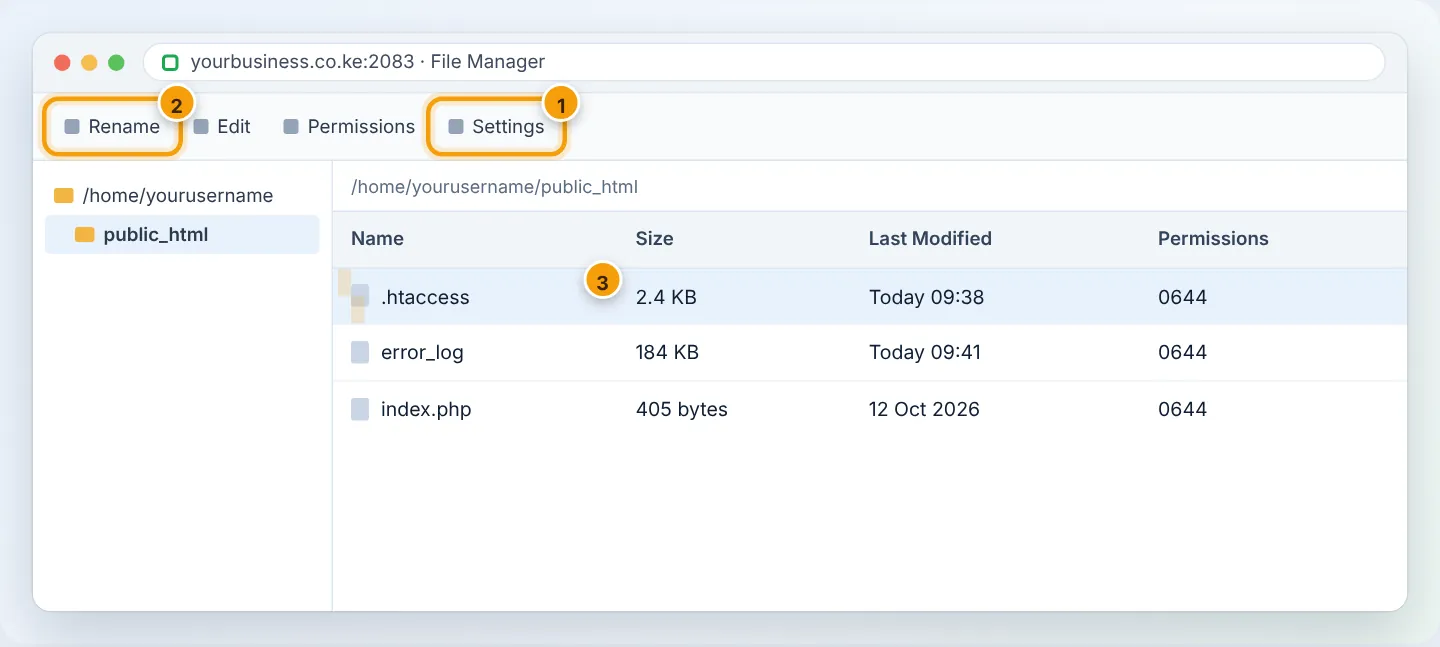
- In File Manager, open
public_html, find.htaccess, right-click → Rename →.htaccess-broken. - Reload your site. If it works, the file was the problem.
- For WordPress, create a fresh
.htaccesswith the default rules (or go to Settings → Permalinks and click Save — WordPress rewrites it):
# BEGIN WordPress
<IfModule mod_rewrite.c>
RewriteEngine On
RewriteBase /
RewriteRule ^index.php$ - [L]
RewriteCond %{REQUEST_FILENAME} !-f
RewriteCond %{REQUEST_FILENAME} !-d
RewriteRule . /index.php [L]
</IfModule>
# END WordPress
- Copy any extra rules you need from
.htaccess-brokenback in one at a time, testing after each.
Cause 2: PHP code error (plugin, theme or custom code)
Log says “PHP Fatal error”, “Parse error: syntax error” or “Call to undefined function”.
- The log line includes the file path. If it is inside
wp-content/plugins/plugin-name/, rename that plugin’s folder (e.g. toplugin-name-off) to disable it. - If it is inside
wp-content/themes/theme-name/, rename the theme folder — WordPress falls back to a default theme. - If you edited a file by hand, restore your previous version or fix the line mentioned.
Full WordPress walk-through: Fix the WordPress white screen of death.
Cause 3: PHP version mismatch
Log mentions functions that “do not exist” (create_function, each, mysql_connect) or syntax that older/newer PHP does not understand.
- Old code on new PHP → update the plugin/theme, or temporarily switch to an older PHP version while you fix it.
- New code on old PHP → switch to PHP 8.2/8.3.
Go to Software → Select PHP Version — see Change your PHP version.
Cause 4: Wrong file permissions
Our servers refuse to run PHP files that are writable by everyone (777) or folders with unsafe permissions.
- Folders → 755, files → 644,
wp-config.php→ 600 or 640. - In File Manager, select the item → Permissions, set the numbers, Change Permissions.
Cause 5: Memory or resource limits
Log says “Allowed memory size … exhausted”, or the 500 appears only when the site is busy (“Resource Limit Reached” / 508).
- Raise
memory_limitto 256M in Select PHP Version → Options. - Check Metrics → Resource Usage — if you hit CPU or entry-process limits regularly, enable caching (LiteSpeed Cache), block bad bots, or move up a plan.
Remove any php_value or php_flag lines from .htaccess — on our LiteSpeed servers PHP settings belong in Select PHP Version → Options. Old php_value lines copied from tutorials are a frequent cause of 500 errors.
Step 2: Confirm the fix
- Reload in a private window.
- Check
error_logagain — no new fatal errors should appear. - Delete the old
error_logonce fixed so new problems are easy to spot.
Troubleshooting summary
| Log message contains | Likely cause | Fix |
|---|---|---|
Invalid command, RewriteRule |
.htaccess | Rename and rebuild it |
PHP Fatal error + plugin path |
Plugin | Rename the plugin folder |
Call to undefined function |
PHP version | Update code or change version |
Allowed memory size … exhausted |
Memory | Raise memory_limit |
Permission denied / is writable by group |
Permissions | 644/755 |
| Nothing in the logs | Server-side issue | WhatsApp us with your domain and the time it happened |
Still stuck?
WhatsApp +254 104 666 000 (8am–10pm EAT) or open a ticket anytime with your domain and the time of the error. We can read server-level logs you cannot see.
Figures are simplified illustrations. Your screen may look slightly different depending on your theme and the version of cPanel or the app you use.
Still need help?
Our Kenyan support team is on WhatsApp — real people, not bots. Mon–Sat, 8am–10pm EAT. Tickets are open 24/7.