
Knowledge Base · Troubleshooting
How to Fix the WordPress White Screen of Death
A completely white page (or “There has been a critical error on this website”) is almost always caused by one plugin, the theme, or PHP running out of memory. You can find and fix it in File Manager even when you cannot log in to WordPress.

Step 1: Check the admin email for a recovery link
WordPress emails the site’s admin address with the subject “Your Site is Experiencing a Technical Issue”. It names the plugin or theme at fault and contains a special recovery mode link.
- Open the email (check spam). Note the plugin/theme named.
- Click the recovery link and log in. WordPress lets you in with the faulty item paused.
- Go to Plugins (or Appearance → Themes), deactivate the faulty item, then update or replace it.
No email? Continue below.
Step 2: Turn on debug logging
- In cPanel, open File Manager →
public_htmland editwp-config.php. - Find
define( 'WP_DEBUG', false );and replace it with:
define( 'WP_DEBUG', true );
define( 'WP_DEBUG_LOG', true );
define( 'WP_DEBUG_DISPLAY', false );
- Save, reload the broken page, then open
wp-content/debug.log. The last lines show the error and the file causing it.
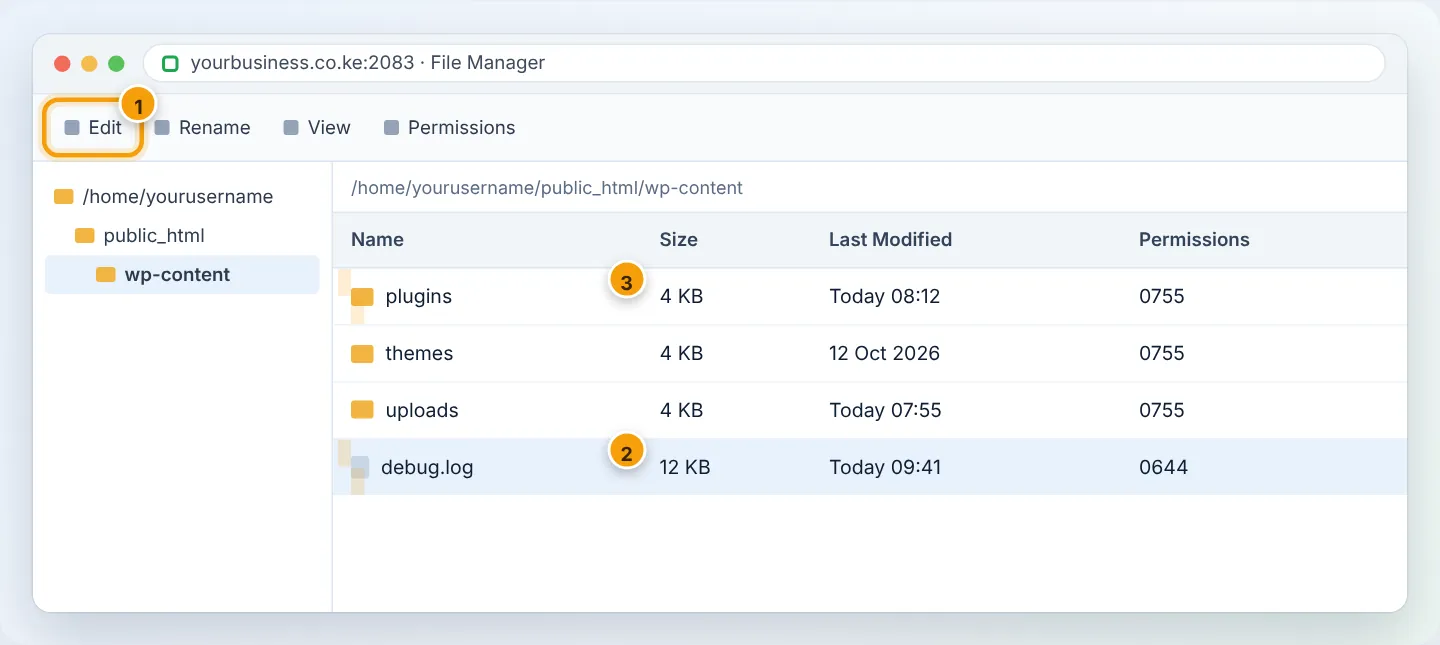
Set WP_DEBUG back to false and delete debug.log when you are done — log files can reveal file paths to attackers.
Step 3: Disable all plugins
If the log points to a plugin — or you are not sure:
- In File Manager, go to
public_html/wp-content. - Rename the folder
pluginstoplugins-off. - Reload the site. If it works, a plugin was the cause.
- Rename the folder back to
plugins(all plugins stay deactivated). - Log in to WordPress → Plugins and reactivate them one at a time, reloading the site after each. The one that brings back the white screen is the culprit — leave it off and update, replace or report it.
To disable just one known plugin, rename only its folder, e.g. plugins/old-slider → plugins/old-slider-off.
Step 4: Switch to a default theme
If plugins were not the cause:
- In
wp-content/themes, rename your active theme’s folder (e.g.mytheme→mytheme-off). - Make sure a default theme such as twentytwentyfour or twentytwentyfive exists in
themes. If not, download it from wordpress.org/themes and upload it. - Reload — WordPress falls back to the default theme. If the site appears, the problem is in your theme (often a recent edit to
functions.php).
Step 5: Raise the memory limit
If the log says “Allowed memory size … exhausted”:
- In cPanel → Software → Select PHP Version → Options, set
memory_limitto 256M (512M for large WooCommerce stores). - Optionally add to
wp-config.php:define( 'WP_MEMORY_LIMIT', '256M' );
See Change PHP version and settings.
Step 6: Check the PHP version
Errors like “Call to undefined function” after a PHP change mean old code. Switch PHP back one version to get online, then update the plugin/theme and switch forward again.
Step 7: Restore a backup (last resort)
If nothing helps, restore yesterday’s files and database from Files → File and Directory Restoration (paid plans) or your backup plugin — see Back up and restore WordPress.
Prevent it next time
- Update plugins one at a time, with a backup first — or test on a staging site.
- Delete plugins you do not use.
- Avoid “nulled” (pirated) themes and plugins — they often contain malware.
Troubleshooting summary
| debug.log says | Fix |
|---|---|
…/plugins/plugin-name/… |
Rename that plugin folder |
…/themes/theme-name/functions.php |
Undo your edit or switch theme |
Allowed memory size exhausted |
memory_limit 256M |
Call to undefined function mysql_… / create_function |
Update code or change PHP version |
Maximum execution time exceeded |
Raise max_execution_time; check heavy plugins |
Need a hand? WhatsApp +254 104 666 000 — we can look at the server logs for you.
Figures are simplified illustrations. Your screen may look slightly different depending on your theme and the version of cPanel or the app you use.
Still need help?
Our Kenyan support team is on WhatsApp — real people, not bots. Mon–Sat, 8am–10pm EAT. Tickets are open 24/7.