
Knowledge Base · Troubleshooting
How to Fix a 403 Forbidden Error
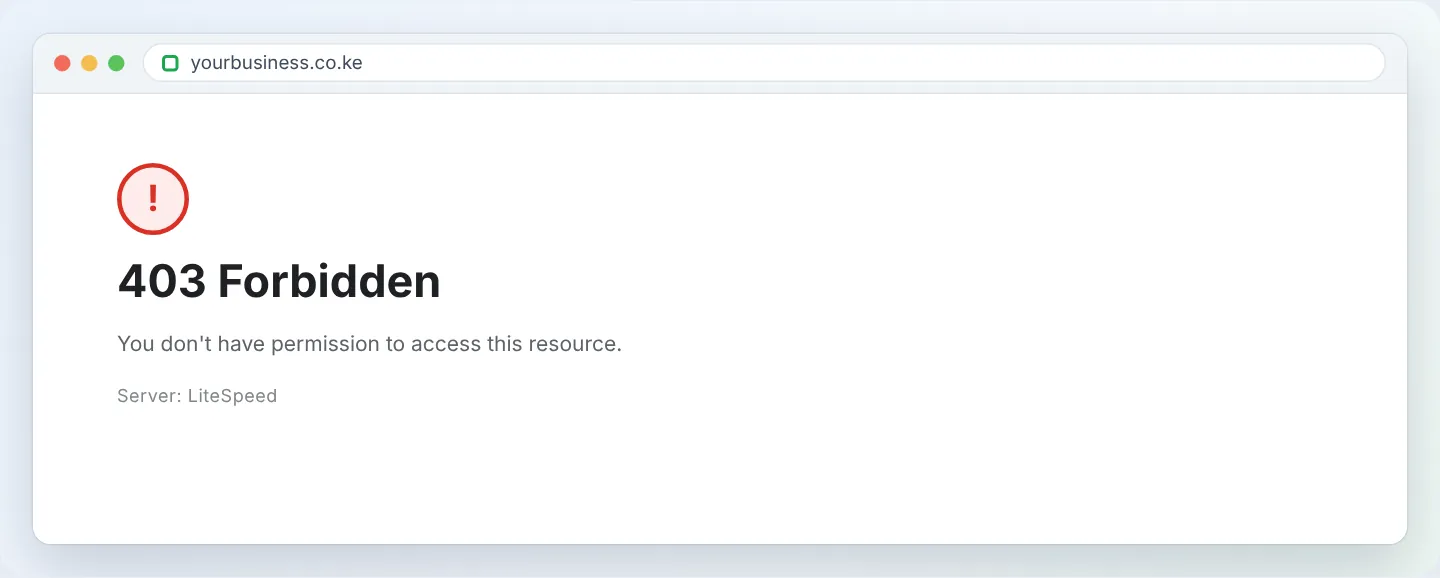
A 403 Forbidden error means the server found the page but is refusing to show it. Something is telling it “not allowed” — a missing homepage file, the wrong permissions, a security rule or a blocked IP. Work through these checks in order.
Quick question: who sees the 403?
- Only you (or only your office) → probably your IP is blocked by the firewall → jump to Step 5.
- Everyone, whole site → index file, permissions or
.htaccess→ Steps 1–3. - Only one folder or file → that folder’s permissions,
.htaccessor Directory Privacy → Steps 2–4.
Step 1: Check there is an index file
The server needs a homepage file directly inside public_html named index.html, index.htm or index.php. Without one — and with directory listing disabled for security — you get a 403.
- Open File Manager → public_html.
- Check the file exists and the name is exactly right (lowercase, not
Index.html, notindex.html.html). - If your files are inside a sub-folder like
public_html/mysite/, move them up — see Upload your website files.
Step 2: Fix file and folder permissions
| Item | Correct | Wrong values that cause 403/500 |
|---|---|---|
public_html folder |
750 or 755 | 700, 777 |
| Other folders | 755 | 700, 744, 777 |
| Files | 644 | 600 for web files, 400, 777 |
wp-config.php |
600 or 640 | 777 |
In File Manager: select the item → Permissions → enter the number (or tick the boxes) → Change Permissions.
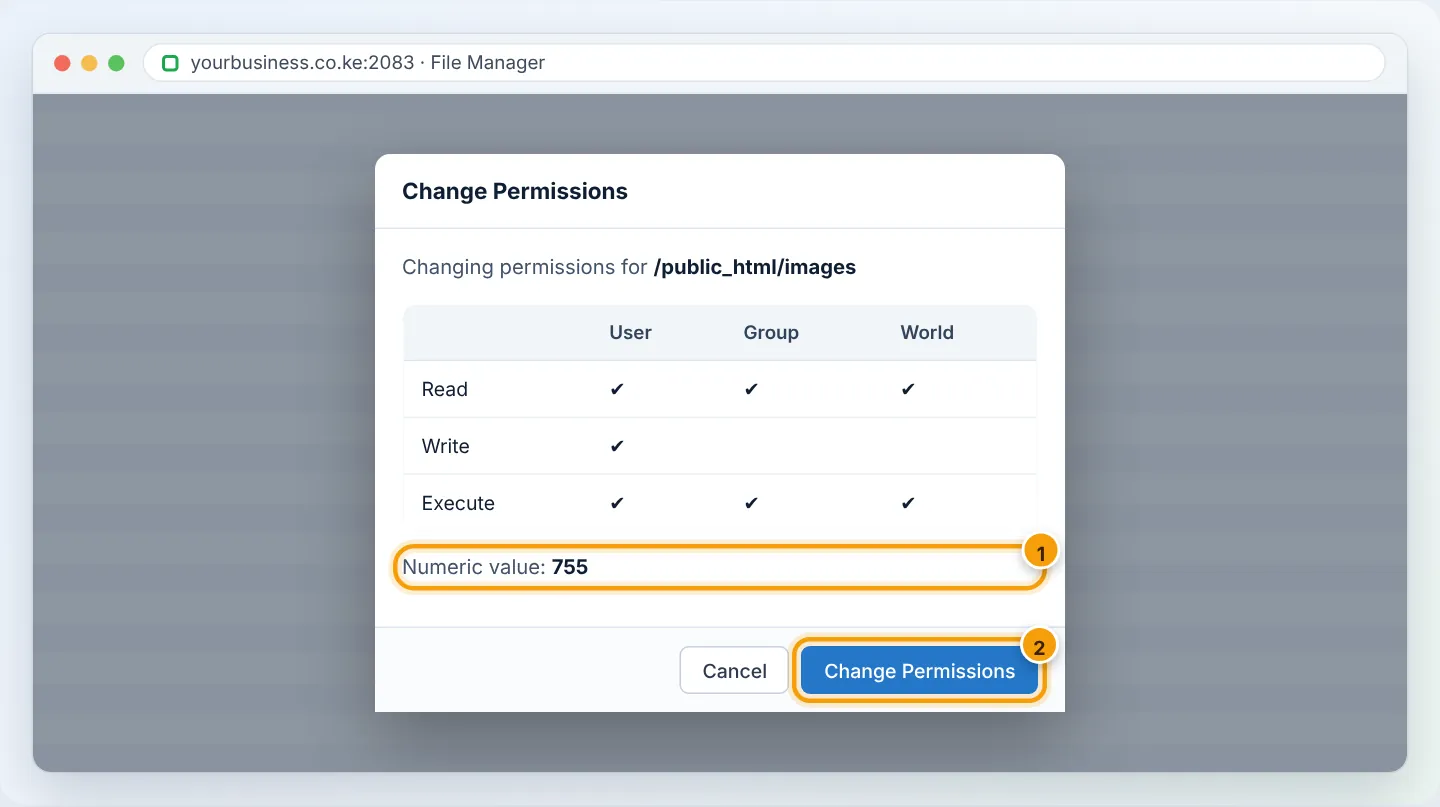
To fix a whole WordPress site at once, ask our support team — we can reset all permissions to safe values in seconds.
Step 3: Check .htaccess rules
.htaccess can deny access. In File Manager, enable Settings → Show Hidden Files, open public_html/.htaccess and look for lines like:
Deny from all
Require all denied
deny from 41.90.
<Files *.php> Order deny,allow  Deny from all </Files>
Quick test: rename .htaccess to .htaccess-test and reload. If the 403 disappears, the file is the cause — restore it and remove the offending line. Also check .htaccess files inside sub-folders.
Step 4: Check cPanel protections
- Files → Directory Privacy — a folder may be password protected; wrong credentials show 401/403. See Password-protect a folder.
- Security → IP Blocker — make sure you have not blocked your own IP or a whole range.
- Security → Hotlink Protection — if enabled, images loaded from other domains (or via a CDN) can return 403. Add the allowed domains or disable it.
- Advanced → Indexes — for a folder that intentionally has no index file (e.g. a downloads folder), choose Standard Indexing for that folder only.
Step 5: Your IP may be blocked by the firewall
Our servers automatically block IP addresses that make many failed logins (cPanel, FTP, email, WordPress) or trigger security rules. Everyone in the same office (sharing one IP) is affected.
Signs: the site works on mobile data but not on office Wi-Fi.
- Find your IP at whatismyip.com.
- WhatsApp +254 104 666 000 or open a ticket with the IP. We unblock it and tell you which login caused it.
- Fix the cause — usually an email app on someone’s phone with an old password retrying every few minutes.
Step 6: Security rules (ModSecurity) on one action
If the 403 appears only when you submit a form or save a page in WordPress, a web-application firewall rule may have flagged the content (for example code snippets in a post). Note the exact time and URL and send them to us — we will whitelist the rule safely for your site.
Troubleshooting summary
| Pattern | Cause | Fix |
|---|---|---|
| Whole site, everyone | Missing index file or public_html permissions |
Add/rename index; set 750/755 |
| One folder | Folder permission or its .htaccess |
755; check that .htaccess |
| Only from your office | Firewall IP block | Send us your IP |
| Only on form submit/save | Security rule | Send URL and time to support |
| Images from other sites | Hotlink protection | Allow domains or disable |
Our team can check server logs for the exact reason — WhatsApp us any time during support hours.
Figures are simplified illustrations. Your screen may look slightly different depending on your theme and the version of cPanel or the app you use.
Still need help?
Our Kenyan support team is on WhatsApp — real people, not bots. Mon–Sat, 8am–10pm EAT. Tickets are open 24/7.