
Knowledge Base · Hosting Setup Guides
How to Set Up Cron Jobs (Scheduled Tasks) in cPanel
A cron job runs a command on a schedule — every 15 minutes, every night at 2am, or on the first day of the month. It is how websites send scheduled emails, clear caches, generate reports and keep WordPress tasks on time.
How cron timing works
A cron schedule has five fields, read left to right:
*    *    *    *    *    command-to-run
│    │    │    │    └── day of week (0–6, Sunday = 0)
│    │    │    └─────── month (1–12)
│    │    └──────────── day of month (1–31)
│    └───────────────── hour (0–23, server time = EAT)
└────────────────────── minute (0–59)
* means “every”, */15 means “every 15”, and 1-5 means Monday to Friday.
| You want | Minute | Hour | Day | Month | Weekday |
|---|---|---|---|---|---|
| Every 15 minutes | */15 |
* |
* |
* |
* |
| Every hour on the hour | 0 |
* |
* |
* |
* |
| Every night at 2:30am | 30 |
2 |
* |
* |
* |
| Weekdays at 8am | 0 |
8 |
* |
* |
1-5 |
| 1st of every month at midnight | 0 |
0 |
1 |
* |
* |
Please do not schedule jobs every minute unless you really need to. Frequent heavy jobs use your plan’s CPU allowance and can slow your website. Every 5–15 minutes is enough for almost everything.
Step 1: Open Cron Jobs
In cPanel, go to Advanced → Cron Jobs (or search for cron).
Step 2: Set where cron output goes
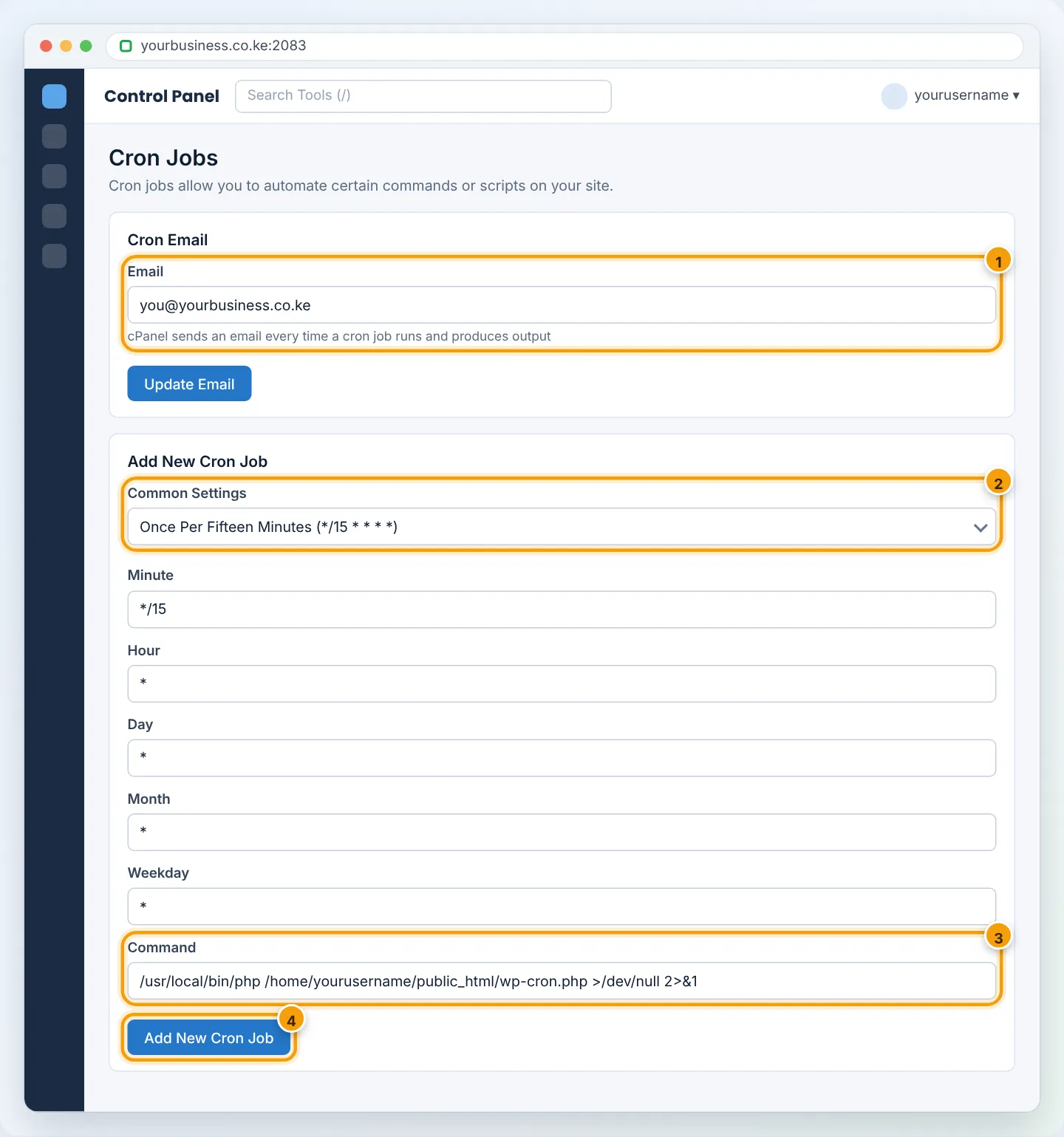
At the top, the Cron Email box receives the output of every job. Enter an address you check — useful while testing — and click Update Email. Once your job works, you can silence its output (see Step 4).
Step 3: Add the job
- Common Settings — choose a ready-made schedule (it fills in the five boxes), or type your own values.
- Command — the full command to run. Always use full paths (cron does not start in your website folder).
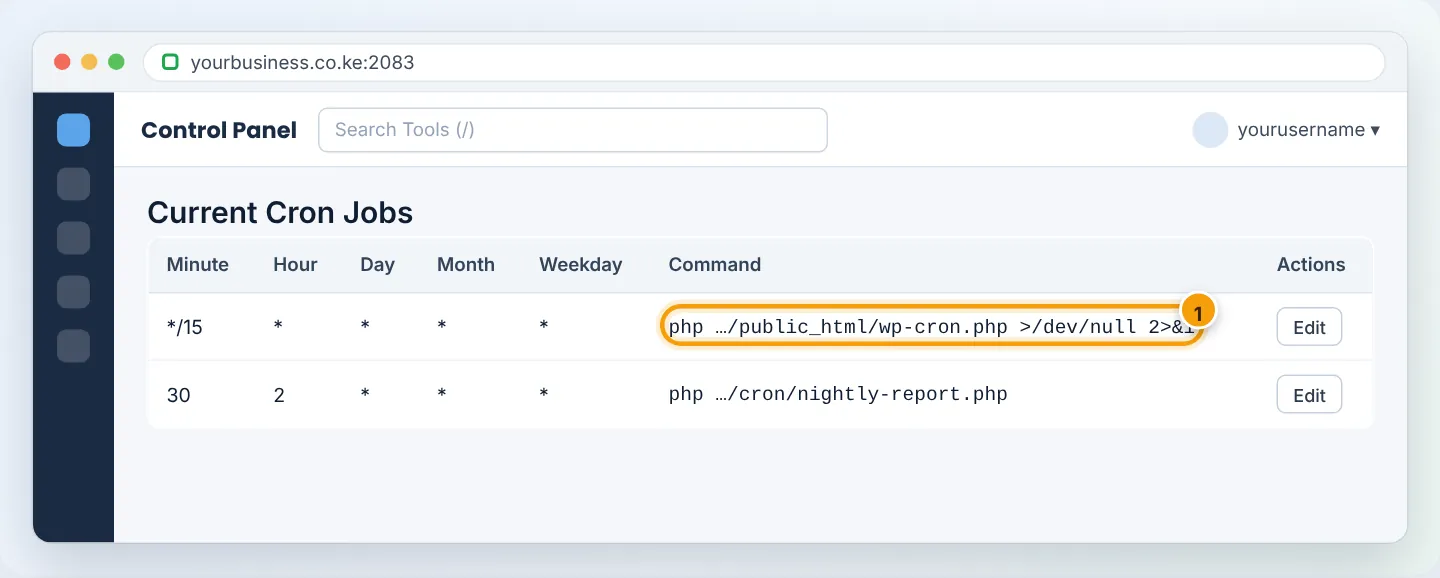
- Click Add New Cron Job. It appears under Current Cron Jobs, where you can Edit or Delete it.
Command examples
| Purpose | Command |
|---|---|
| Run a PHP script | /usr/local/bin/php /home/yourusername/public_html/cron/report.php |
| Call a URL (e.g. a plugin’s cron URL) | /usr/bin/curl -s "https://yourbusiness.co.ke/?run=cron" >/dev/null 2>&1 |
| Laravel scheduler | /usr/local/bin/php /home/yourusername/app/artisan schedule:run >/dev/null 2>&1 |
| Delete files older than 7 days in a temp folder | find /home/yourusername/tmp/exports -type f -mtime +7 -delete |
Your account’s home folder is shown in cPanel’s right-hand statistics panel as Home Directory (e.g. /home/yourusername). Use that exact path in commands. If a job uses a specific PHP version, use the path for that version — ask support and we will tell you the right one.
Step 4: Silence output once it works
Every run that prints anything sends an email. After testing, add >/dev/null 2>&1 to the end of the command to discard the output, or >> /home/yourusername/logs/cron.log 2>&1 to keep a log file instead.
Example: make WordPress scheduled tasks reliable
WordPress runs its scheduled tasks (publishing scheduled posts, sending WooCommerce emails, backup plugins) only when someone visits the site. On quiet sites, tasks run late. Replace it with a real cron job:
- In File Manager, edit
public_html/wp-config.phpand add this line above/* That's all, stop editing! */:
define('DISABLE_WP_CRON', true);
- Add a cron job that runs every 15 minutes:
/usr/local/bin/php /home/yourusername/public_html/wp-cron.php >/dev/null 2>&1
Check that it worked
- Leave the Cron Email set and wait for the next scheduled time. You should receive an email with the output (or an error message explaining the problem).
- For scripts that write files or send emails, check that the expected result happened.
- For WordPress, install the free WP Crontrol plugin and look at Tools → Cron Events — the “Next run” times should keep moving forward.
Troubleshooting
| Error in the cron email | Meaning | Fix |
|---|---|---|
/bin/sh: php: command not found |
Command used php without a path |
Use the full path, e.g. /usr/local/bin/php |
Could not open input file |
Wrong script path | Copy the path from File Manager’s address bar |
Permission denied |
Script is not executable or wrong owner | Run it with php … instead of calling the file directly; set file permission 644 |
| Job never seems to run | Timing fields wrong, or output silenced too early | Temporarily remove >/dev/null 2>&1 and set a 5-minute schedule to test |
| PHP version error (e.g. requires PHP 8.1) | Cron uses a different PHP version than the website | Ask us for the matching PHP path; see Change PHP version |
Frequently asked questions
Which time zone does cron use?
Our servers run on East Africa Time (EAT, UTC+3), so 0 8 * * * runs at 8:00am Nairobi time.
Is there a limit on cron jobs?
There is no fixed number, but each job uses your plan’s resources. Avoid overlapping heavy jobs — schedule them a few minutes apart.
Can cron send emails to my customers?
Yes, if your script sends them. Make sure your domain has SPF and DKIM set up so they are not marked as spam — see SPF, DKIM and DMARC.
Figures are simplified illustrations. Your screen may look slightly different depending on your theme and the version of cPanel or the app you use.
Still need help?
Our Kenyan support team is on WhatsApp — real people, not bots. Mon–Sat, 8am–10pm EAT. Tickets are open 24/7.