
Knowledge Base · Email Setup
How to Stop Your Emails Going to Spam (SPF, DKIM and DMARC)
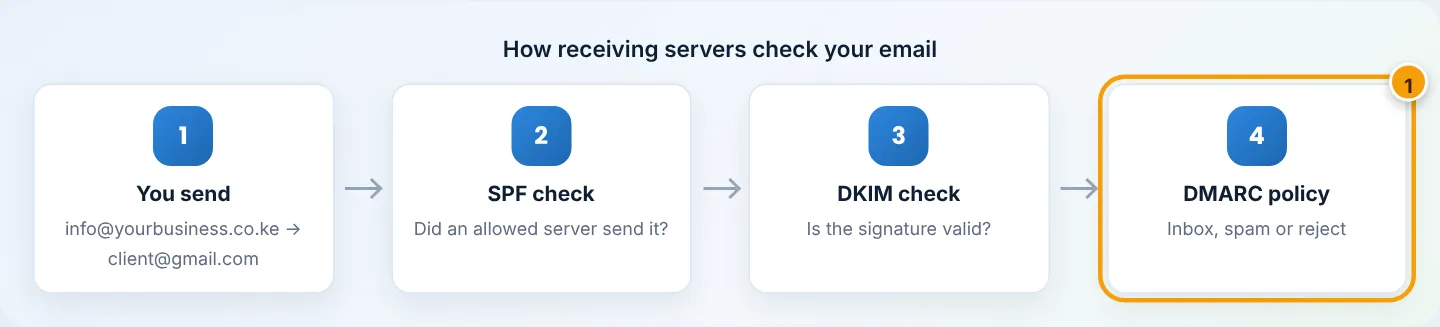
Gmail, Outlook and Yahoo now reject or junk emails from domains that cannot prove who they are. SPF, DKIM and DMARC are three DNS records that do that proving. cPanel can set up the first two for you in one click.
What each record does
| Record | Plain-language meaning | Example |
|---|---|---|
| SPF | “These servers are allowed to send email for my domain.” | v=spf1 +a +mx +ip4:203.0.113.25 ~all |
| DKIM | A tamper-proof signature on every email you send. | default._domainkey TXT v=DKIM1; k=rsa; p=MIIBI… |
| DMARC | “If an email fails SPF/DKIM, here is what to do — and send me reports.” | _dmarc TXT v=DMARC1; p=none; rua=mailto:dmarc@yourbusiness.co.ke |
Step 1: Open Email Deliverability
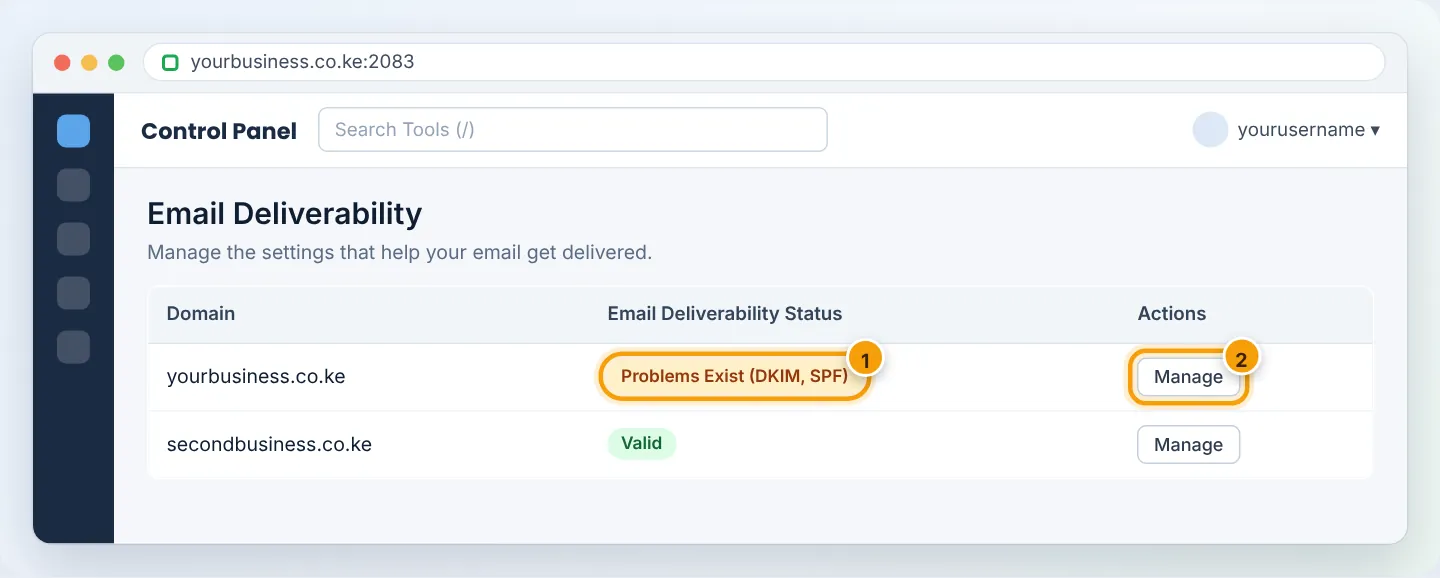
In cPanel, go to Email → Email Deliverability. Each domain shows a status:
- ✅ Valid — nothing to do.
- ⚠️ Problems Exist (DKIM, SPF) — click Manage.
Step 2: Install DKIM and SPF
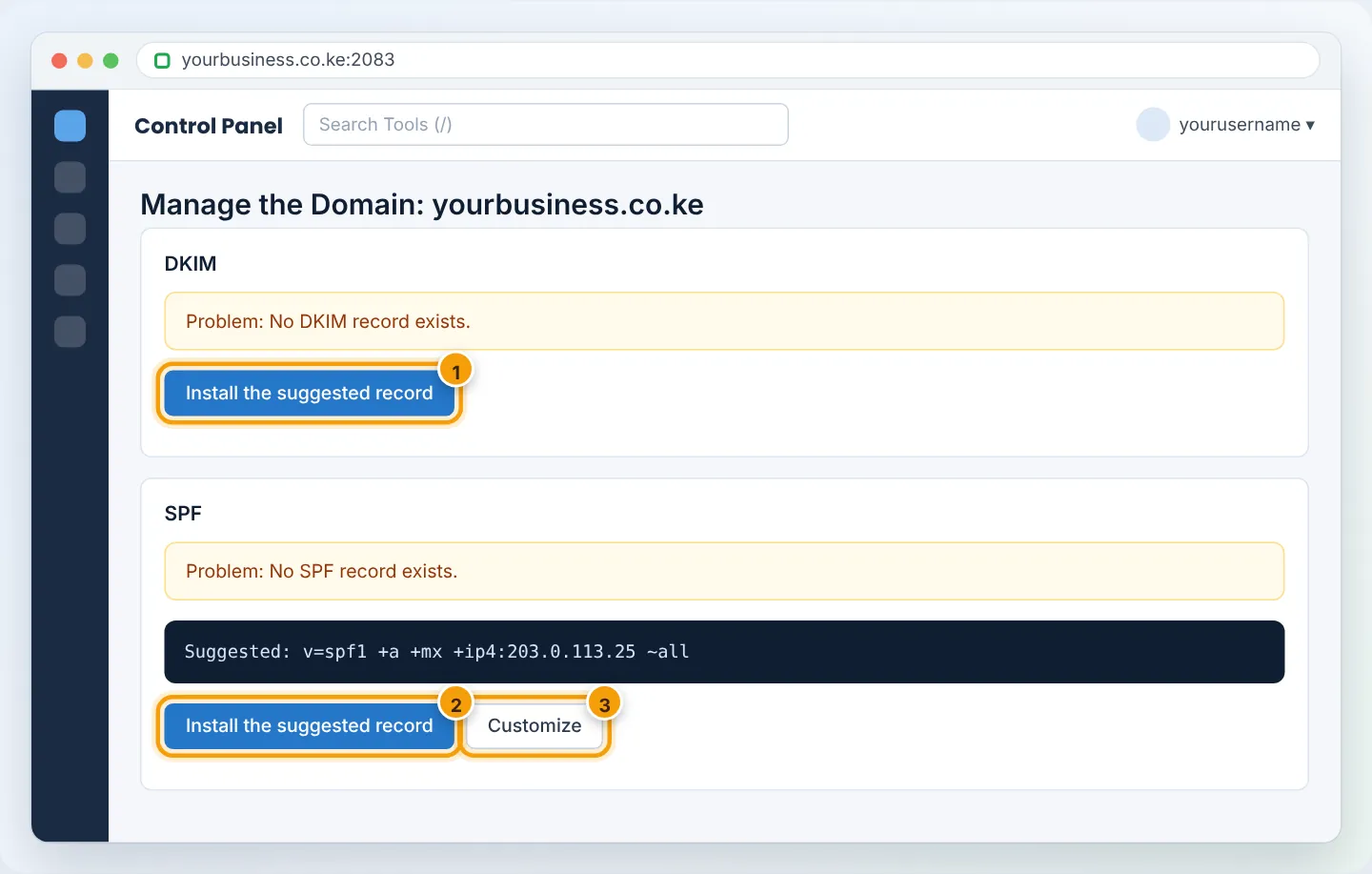
On the Manage page:
- Under DKIM, click Install the suggested record.
- Under SPF, click Install the suggested record. cPanel builds an SPF that includes your hosting server.
- Both should now show Valid.
If your domain’s DNS is not on our nameservers (e.g. Cloudflare), Email Deliverability shows the exact records to copy. Add them at your DNS provider instead.
Step 3: Add other services that send as your domain
If you also send from Google Workspace, Microsoft 365, Mailchimp, Brevo, an SMS-to-email gateway or a school/accounting system, they must be in the same SPF record. Click Customize under SPF and add their include. Examples:
| Service | Add to SPF |
|---|---|
| Google Workspace | include:_spf.google.com |
| Microsoft 365 | include:spf.protection.outlook.com |
| Mailchimp / Mandrill | include:servers.mcsv.net |
| Brevo (Sendinblue) | include:spf.brevo.com |
Result, for example: v=spf1 +a +mx +ip4:203.0.113.25 include:_spf.google.com ~all
A domain must have only one SPF record. Two v=spf1 TXT records = SPF fails for everything. Also keep under 10 include: lookups in total.
These services also give you their own DKIM record (usually a CNAME or TXT) — add it in Zone Editor.
Step 4: Add DMARC
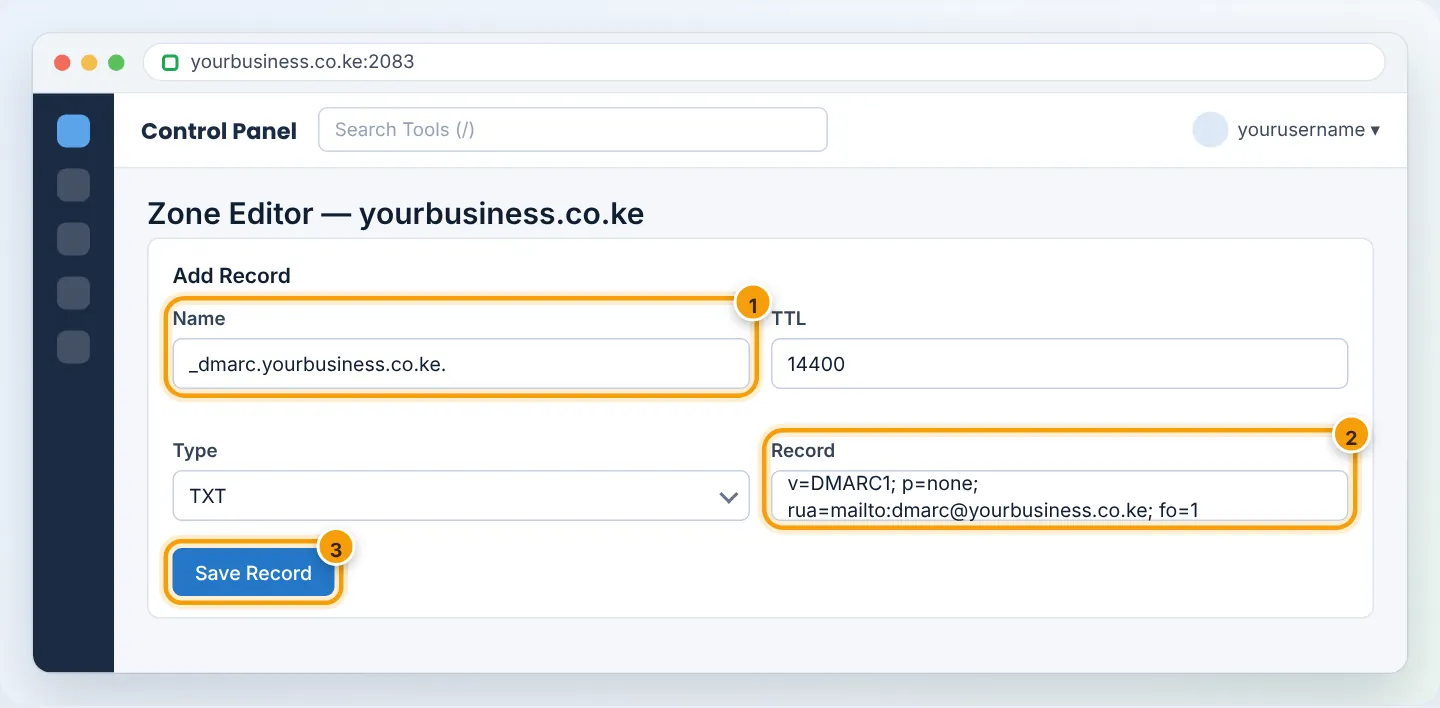
- Domains → Zone Editor → Manage (your domain) → + Add Record → TXT.
- Name:
_dmarc - Record:
v=DMARC1; p=none; rua=mailto:dmarc@yourbusiness.co.ke; fo=1 - Save Record. (Create the
dmarc@mailbox or forwarder to receive reports, or use a free DMARC report service’s address.)
Tighten DMARC over time
| When | Policy | Effect |
|---|---|---|
| Start | p=none |
Monitor only — nothing blocked; you receive reports |
| After 2–4 weeks with no legitimate failures | p=quarantine |
Failing mail goes to spam |
| When confident | p=reject |
Failing mail is refused — strongest protection against spoofing |
Step 5: Test your score
- Go to mail-tester.com and copy the test address shown.
- Send a normal email to it from your business mailbox (a real message, not just “test”).
- Click Then check your score. Aim for 9/10 or 10/10. It lists anything still missing.
You can also check records at mxtoolbox.com (SPF, DKIM, DMARC lookups). In Gmail, open a received message → ⋮ → Show original: SPF, DKIM and DMARC should all say PASS.
Other tips for the inbox
- Send from a real mailbox with a real name; avoid
noreply@for conversations. - Avoid ALL-CAPS subjects, lots of links, and attachments in first-contact emails.
- Do not send bulk marketing from your hosting mailbox — use a mailing service with its own SPF/DKIM.
- Keep website contact forms protected with CAPTCHA so they cannot be abused to send spam.
Troubleshooting
| Problem | Cause | Fix |
|---|---|---|
| “SPF PermError” / “too many DNS lookups” | Over 10 includes, or two SPF records | Merge into one record; remove unused services |
| DKIM “fail” in Gmail | Old DKIM record or message altered by a forwarder | Re-install suggested DKIM; avoid forwarding chains |
| Email Deliverability says DNS not authoritative | Domain uses external DNS | Add the shown records at your DNS provider |
| Still landing in spam with 10/10 | Content or new-domain reputation | Ask recipients to mark Not spam and reply; reputation builds over weeks |
Figures are simplified illustrations. Your screen may look slightly different depending on your theme and the version of cPanel or the app you use.
Still need help?
Our Kenyan support team is on WhatsApp — real people, not bots. Mon–Sat, 8am–10pm EAT. Tickets are open 24/7.