
Knowledge Base · Hosting Setup Guides
How to Password-Protect a Folder on Your Website
Want clients to preview a new design before launch, or keep reports and documents away from the public and search engines? Directory Privacy adds a login box in front of any folder on your website in about two minutes.
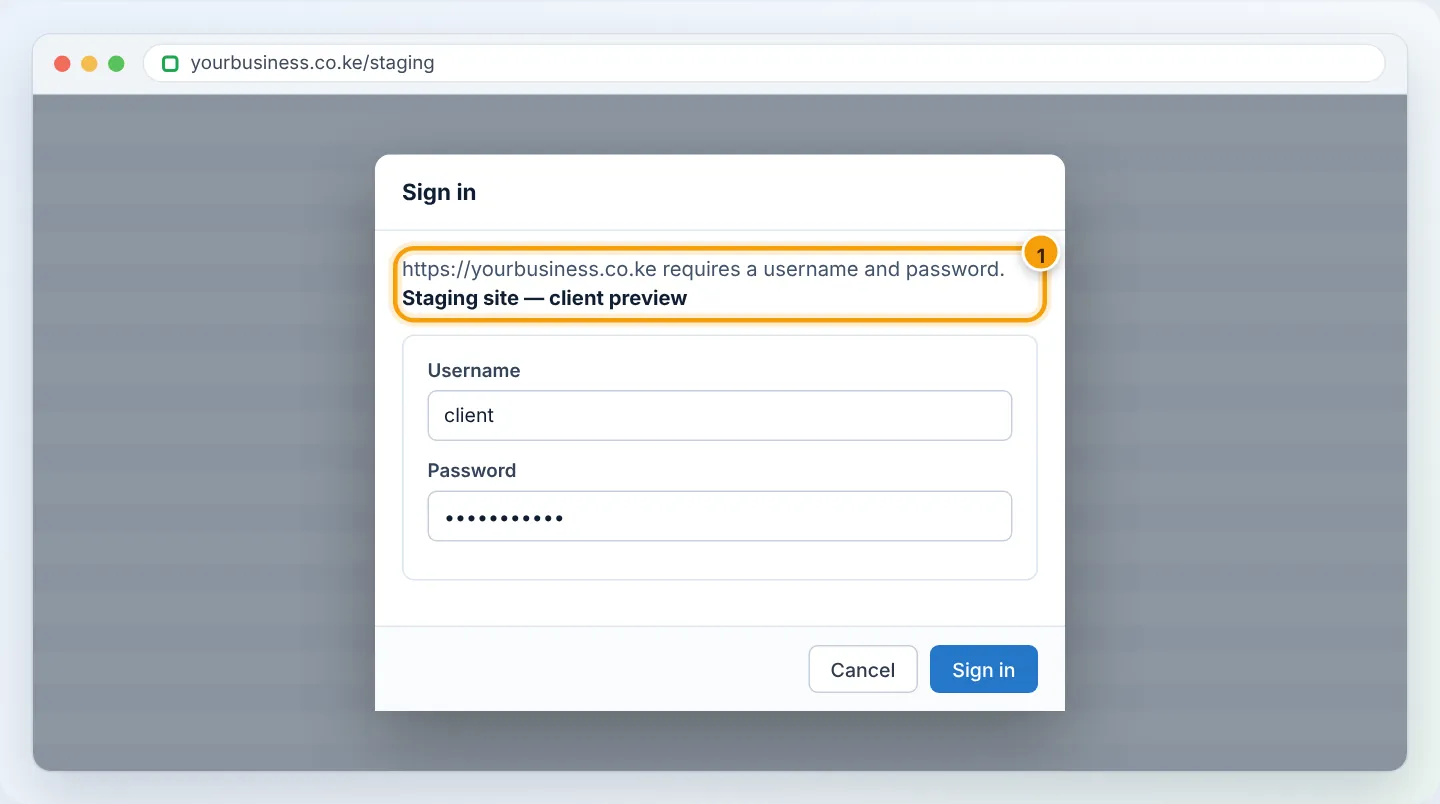
When a folder is protected, anyone opening a page inside it sees a browser login box. Only the usernames you create can get in. It protects everything inside the folder, including sub-folders, images and PDFs.
Good uses
| Folder | Why protect it |
|---|---|
/staging or staging.yourbusiness.co.ke |
Client previews before launch; keeps unfinished pages out of Google |
/reports, /documents |
Price lists, internal reports and board papers |
/admin of a custom-built system |
A second lock in front of the real login |
/downloads for paying customers |
Simple gated downloads |
Step 1: Open Directory Privacy
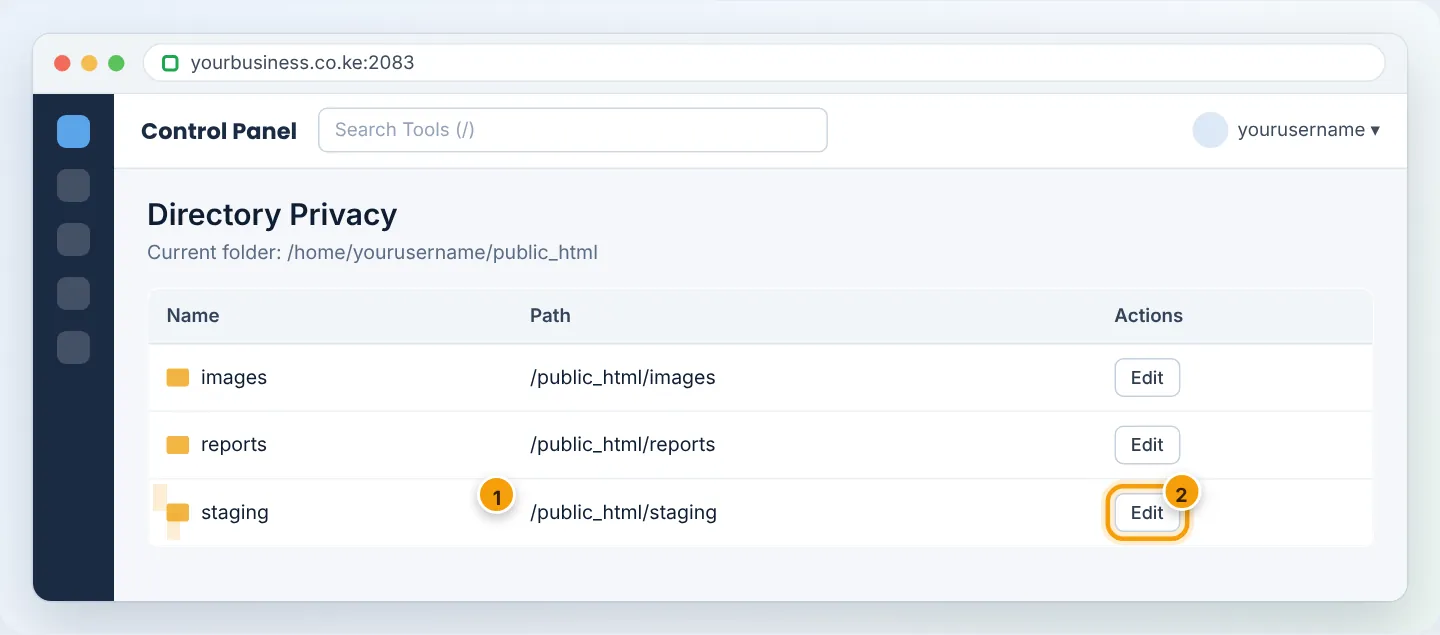
In cPanel, go to Files → Directory Privacy. You will see your home folder’s contents.
Step 2: Find the folder
Click folder names to open them (for example public_html → staging). When you see the folder you want to protect in the list, click Edit next to it.
Step 3: Turn on protection
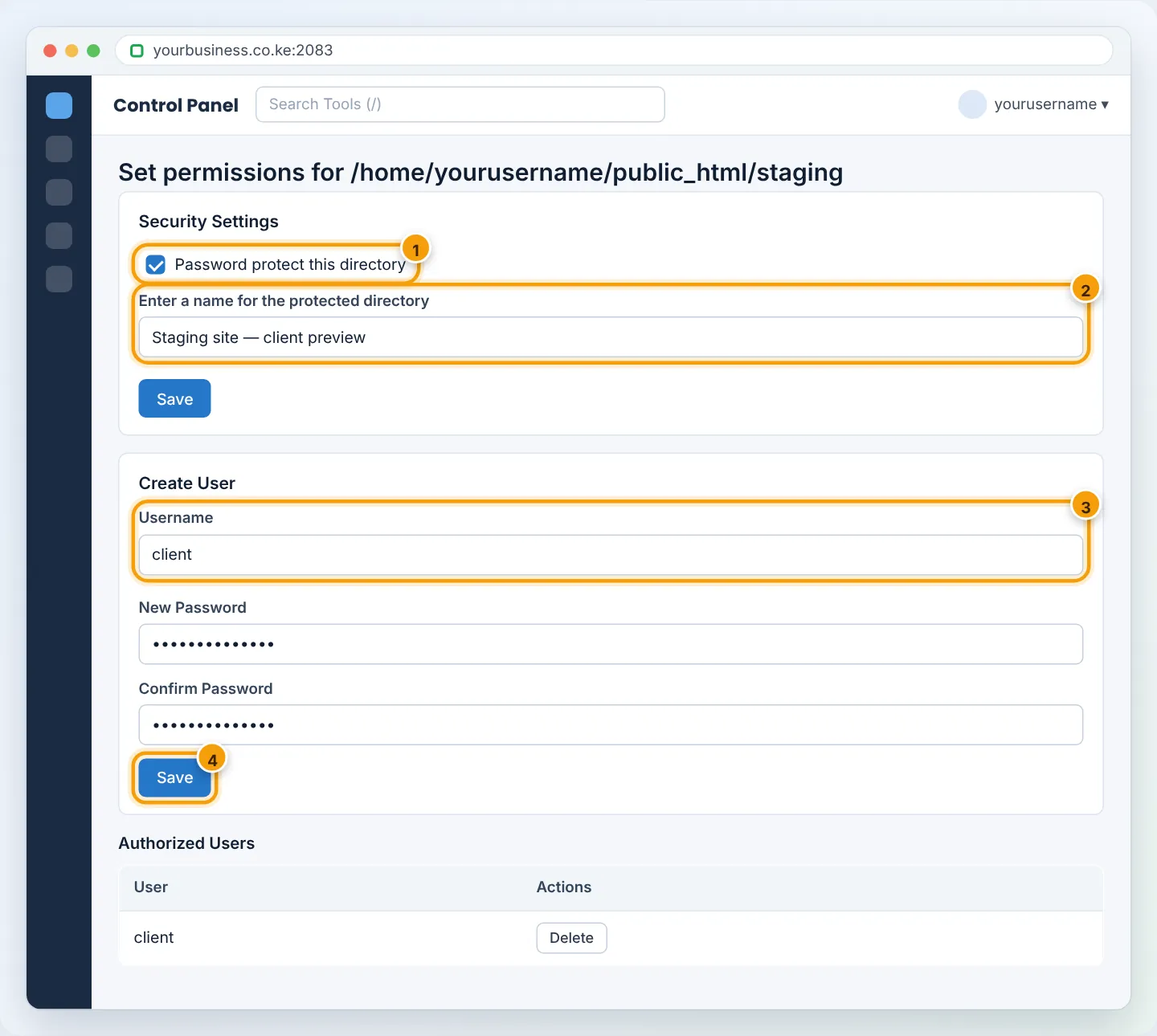
- Tick Password protect this directory.
- In Enter a name for the protected directory, type a label visitors will see, e.g. Staging site — client preview.
- Click Save.
Step 4: Create a user
Scroll down to Create User:
- Username — e.g.
clientor the person’s name. - New Password — click Password Generator for a strong one, and copy it.
- Click Save.
Create one user per person so you can remove access individually later.
Step 5: Test in a private window
Open https://yourbusiness.co.ke/staging in an incognito/private window. The login box should appear. Enter the username and password — the page should load.
Send the link, username and password to your client in separate messages (for example link by email, password by WhatsApp).
Removing access
- One person: in Directory Privacy → the folder → Authorized Users, click Delete next to their name.
- Everyone: untick Password protect this directory and click Save.
Protecting a WordPress staging site
If the protected folder contains WordPress, the login box appears before the WordPress login — that is fine. Two things to know:
- Do not protect your main site’s
wp-adminfolder this way unless you know how to allowadmin-ajax.php; some plugins stop working. Use a security plugin instead — see Secure your WordPress website. - WP Toolkit staging copies can be password-protected from WordPress Management → your staging site → Password protection, which does the same thing.
Troubleshooting
| Problem | Cause | Fix |
|---|---|---|
| Login box keeps reappearing | Wrong username or password, or a typo when creating | Delete the user and create it again |
| Whole website now asks for a password | You protected public_html itself |
Untick protection on public_html and protect only the sub-folder |
| 500 error after enabling | A conflicting rule in the folder’s .htaccess |
Rename that .htaccess temporarily, or ask support |
| Password box does not appear | Browser has saved the login | Test in a private window or another browser |
Frequently asked questions
Is this secure enough for sensitive files?
It is a good barrier and is encrypted when your site uses HTTPS. For highly confidential data (medical, payroll), use a proper document system with individual accounts and audit logs.
Will Google index protected pages?
No — search engines cannot get past the login box.
Figures are simplified illustrations. Your screen may look slightly different depending on your theme and the version of cPanel or the app you use.
Still need help?
Our Kenyan support team is on WhatsApp — real people, not bots. Mon–Sat, 8am–10pm EAT. Tickets are open 24/7.