
Knowledge Base · Hosting Setup Guides
How to Upload Your Website Files to Your Hosting
Built your website on your computer, received it from a designer as a .zip, or exported it from another host? Here is how to get those files online — step by step, with the exact folder they must go in.
Your website lives in a folder called public_html. Whatever is inside it is what visitors see at https://yourbusiness.co.ke. The homepage file must sit directly inside public_html and be called index.html or index.php.
Before you start
- Collect your files in one folder on your computer. A typical static site looks like this:
public_html/
├── index.html        ← homepage (required, exact name)
├── about.html
├── contact.html
├── css/style.css
├── js/main.js
└── images/logo.png
- Zip the folder if there are many files (right-click → Compress on Mac, Send to → Compressed (zipped) folder on Windows). Uploading one .zip and extracting it on the server is much faster than uploading hundreds of files.
- Check sizes. File Manager handles uploads up to a few hundred MB comfortably on a stable connection. For larger sites, use FTP with FileZilla.
- Remove the default page. New accounts may have a placeholder
index.htmlordefault.html. You will overwrite or delete it.
Method 1: Upload with File Manager
Step 1: Open File Manager and go to public_html
In cPanel, click Files → File Manager. In the left-hand folder tree, click public_html. The path bar at the top should read /home/yourusername/public_html.

Step 2: Upload your files or .zip
Click Upload. A new tab opens. Drag your .zip (or files) onto the page, or click Select File. Wait until each bar turns green and shows 100%, then click Go Back to “/home/yourusername/public_html”.

Step 3: Extract the .zip
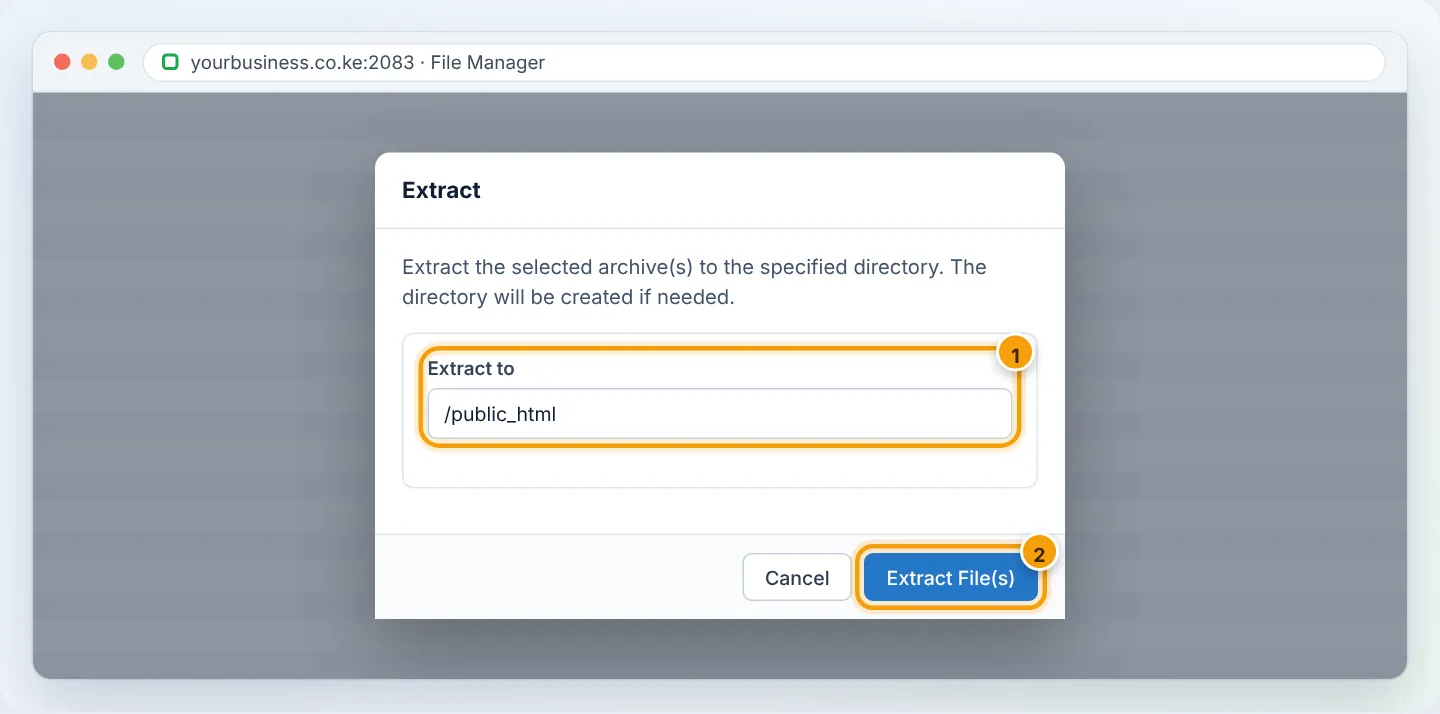
Back in File Manager, click Reload. Right-click your .zip and choose Extract. Confirm the destination is /public_html and click Extract File(s).
Step 4: Move files out of any extra folder
This is the most common mistake. If your zip contained a folder (for example mysite/), the files end up in public_html/mysite/ and your homepage only appears at yourbusiness.co.ke/mysite. Fix it:
- Double-click the extra folder to open it.
- Click Select All, then Move.
- Change the destination to
/public_htmland click Move File(s). - Go back up, and delete the now-empty folder and the .zip file.

Step 5: Visit your website
Open https://yourbusiness.co.ke in a private/incognito window. You should see your homepage. If you see the old placeholder page, press Ctrl + F5 (Windows) or Cmd + Shift + R (Mac) to bypass the cache.
Method 2: Upload with FTP (best for large sites)
FTP uploads whole folders, resumes after interruptions and is faster for thousands of files.
- Create an FTP login in cPanel → Files → FTP Accounts (or use your main cPanel username).
- In FileZilla, connect with Host
ftp.yourbusiness.co.ke, your FTP username and password, port 21, and Require explicit FTP over TLS. - In the right-hand (server) panel, open
public_html. In the left-hand (computer) panel, open your site folder. - Select everything on the left and drag it into
public_htmlon the right.
Full walkthrough with pictures: Connect to your hosting with FileZilla.
Correct permissions
Files must be readable by the web server. File Manager and FTP normally set these for you, but if you see a 403 error, select the items and click Permissions:
| Item | Permission | Meaning |
|---|---|---|
| Folders | 755 | Owner can write; everyone can open |
| Files (.html, .css, .js, images, .php) | 644 | Owner can write; everyone can read |
wp-config.php / files with passwords |
600 or 640 | Only you can read |
Never use 777 — it lets anyone on the server change your files and is blocked by our security system.
Troubleshooting
| What you see | Cause | Fix |
|---|---|---|
| “Index of /” list of files | No index.html/index.php directly in public_html |
Rename your homepage to index.html, or move it up out of the sub-folder |
| Old placeholder page still shows | Browser cache, or default.html still present |
Delete the placeholder file; hard-refresh the page |
| Pictures or styles missing | Wrong letter case or paths (Logo.PNG vs logo.png) |
Our servers are case-sensitive — make names and links match exactly |
| 403 Forbidden | Wrong permissions or missing index file | See Fix a 403 Forbidden error |
| Upload stops partway | Unstable connection or very large file | Use FTP, or split the upload into several smaller zips |
| “Disk quota exceeded” | Plan storage is full | Check Disk Usage and remove old backups or upgrade |
Frequently asked questions
Where do files for a second domain go?
Each addon domain or subdomain has its own folder, chosen when you add it (for example public_html/secondbusiness.co.ke or /secondbusiness.co.ke). See Hosting multiple websites.
Should I upload my site’s source files (e.g. React or Figma projects)?
Upload only the built website — the folder your tool produces for publishing (often called dist, build or out), which contains index.html.
Can AutoHost upload it for me?
Yes. Send the .zip to our support team or share a download link on WhatsApp and we will upload it free of charge for new customers.
Figures are simplified illustrations. Your screen may look slightly different depending on your theme and the version of cPanel or the app you use.
Still need help?
Our Kenyan support team is on WhatsApp — real people, not bots. Mon–Sat, 8am–10pm EAT. Tickets are open 24/7.