
Knowledge Base · Troubleshooting
Business Email Not Sending or Receiving — How to Fix It
Emails bouncing, disappearing or stuck in the Outbox cost real business. The good news: cPanel shows you exactly what happened to every message. This guide follows the same checks our support team uses, in order.
Step 0: Test in webmail first
Open https://yourbusiness.co.ke/webmail, log in with the full email address, and send a test to your Gmail — then reply to it.
- Works in webmail but not in your app → it is an app settings problem (go to Not sending — app settings below).
- Fails in webmail too → it is a server, DNS or reputation problem (start at Step 1).
Step 1: Use Track Delivery
cPanel logs every message. Go to Email → Track Delivery, type the other person’s address in Recipient Email, and click Run Report.
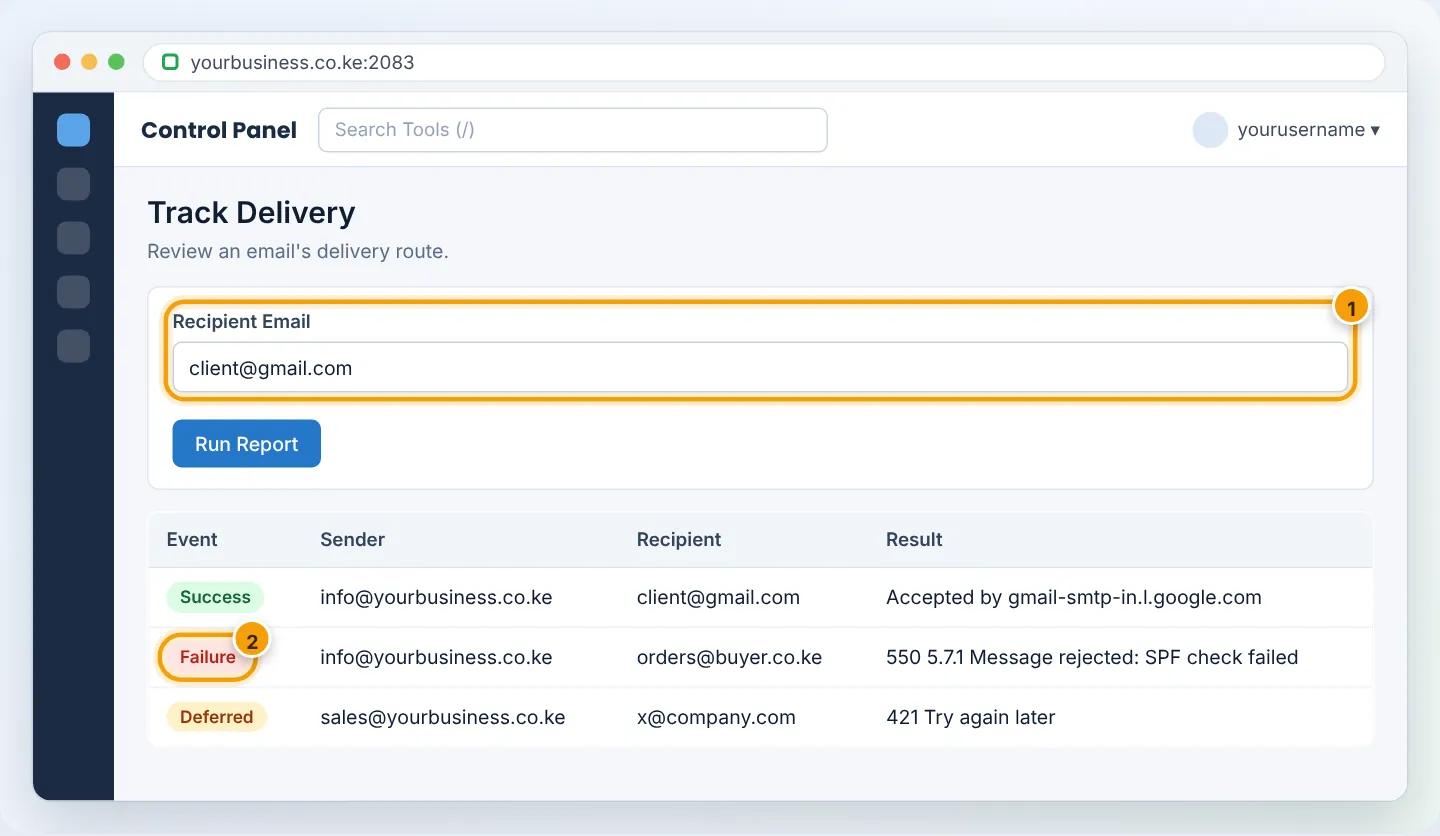
Read the Result column:
| Result | Meaning | Go to |
|---|---|---|
| Success — accepted by the other server | Delivered; if they cannot see it, it is in their spam | Ask them to check spam and mark Not spam |
Failure — SPF, DKIM, DMARC |
Your domain’s authentication is missing or wrong | Step 4 |
Failure — mailbox full, quota exceeded |
Recipient’s (or your) mailbox is full | Step 3 |
Failure — user unknown, no such user |
Address does not exist | Check spelling |
Failure — blocked, listed, spamhaus |
Reputation/blacklist | Step 5 |
| Deferred | Other server asked us to retry later | Usually resolves within hours |
Step 2: Not receiving — check MX records
Incoming mail goes wherever your domain’s MX records point.
- Look up your domain at mxtoolbox.com → MX Lookup.
- For email hosted with us, MX should point to your domain/mail server (e.g.
yourbusiness.co.keormail.yourbusiness.co.ke). - If it shows Google, Microsoft or an old host, email is going there. Fix it in Domains → Zone Editor (or at your DNS provider) — see Manage DNS records.
Also check Email → Email Routing: it should be Automatically Detect Configuration or Local Mail Exchanger for mail hosted with us. Remote means mail is meant to go to another provider.
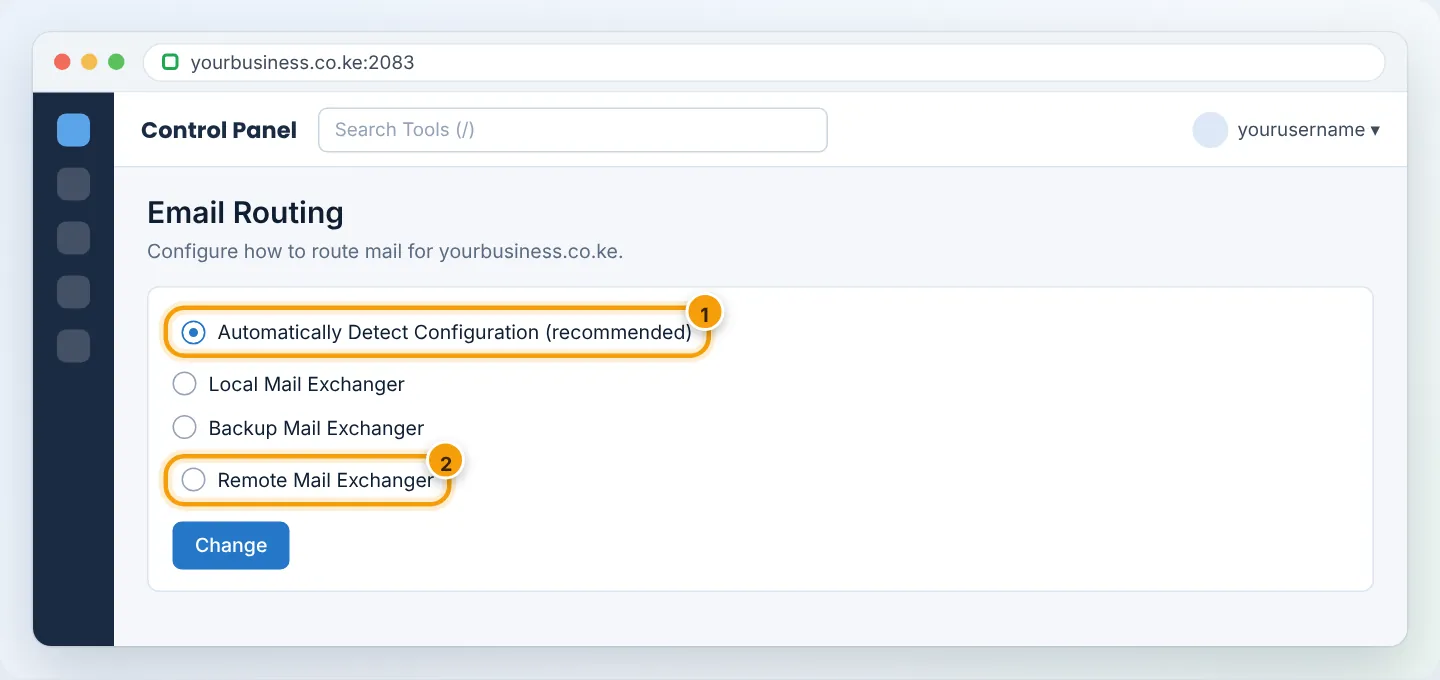
Step 3: Mailbox full
A full mailbox rejects new mail. In Email → Email Accounts, look at Storage Used / Allocated. If it is at or near 100%, increase the quota or delete old mail — see Fix a full mailbox.
Step 4: Emails rejected or landing in spam — SPF, DKIM, DMARC
Gmail, Outlook and Yahoo now reject or junk mail that is not authenticated.
- Go to Email → Email Deliverability.
- Your domain should show Valid for DKIM and SPF. If it shows Problems Exist, click Manage and then Install the suggested record for each.
- Add a DMARC record — full walkthrough in SPF, DKIM and DMARC.
- Send a test to mail-tester.com and aim for 9/10 or better.
Step 5: Blacklists
If rejections mention a blacklist (e.g. Spamhaus, Barracuda, SpamCop):
- Check at mxtoolbox.com/blacklists.aspx with your domain or server IP.
- If listed, WhatsApp us — we investigate the server, remove the cause and request delisting.
- Meanwhile, check that none of your mailboxes or website forms has been compromised and is sending spam: change email passwords and add a CAPTCHA to website forms.
Not sending — app settings (Outlook, phone, Gmail)
Compare your app with these settings:
| Setting | Correct value |
|---|---|
| Outgoing (SMTP) server | mail.yourbusiness.co.ke |
| Port / security | 465 SSL/TLS or 587 STARTTLS |
| Authentication | Required — same username/password as incoming |
| Username | The full email address |
Common symptoms: messages stuck in Outbox, or “Relaying denied” — outgoing authentication is off. “Connection timed out” on port 25 — use 465 or 587 instead (many Kenyan ISPs block 25).
Step-by-step app guides: Outlook, Android, iPhone.
Website contact forms not sending
- Make the form send from an address on your domain (e.g.
noreply@yourbusiness.co.ke) — not from the visitor’s Gmail address. Put the visitor’s address in Reply-To. - For WordPress, install WP Mail SMTP and configure it with a real mailbox and SMTP (port 465).
Troubleshooting summary
| Symptom | Most likely cause | Fix |
|---|---|---|
| Can receive, cannot send from app | SMTP authentication or port | Enable auth; use 465/587 |
| Nothing arrives | MX points elsewhere / domain expired | Fix MX; renew domain |
| Some senders bounce “mailbox full” | Quota reached | Increase quota / clean up |
| Mail to Gmail goes to spam | Missing DKIM/SPF/DMARC | Email Deliverability → install records |
| Sudden bounces mentioning blacklist | Compromised account or form | Change passwords; contact support |
Still not working?
Open a ticket or WhatsApp +254 104 666 000 with: the sender, the recipient, the time sent and a screenshot of any bounce message.
Figures are simplified illustrations. Your screen may look slightly different depending on your theme and the version of cPanel or the app you use.
Still need help?
Our Kenyan support team is on WhatsApp — real people, not bots. Mon–Sat, 8am–10pm EAT. Tickets are open 24/7.