
Knowledge Base · Email Setup
How to Set Up Business Email on Android (Gmail, Samsung Email, Outlook)
Get your business email on your phone in five minutes. Android's Gmail app works with any email provider, including AutoHost — your mail stays synced with webmail and your computer.
Your settings
| Setting | Value |
|---|---|
| Account type | Personal (IMAP) |
| Username | Full address, e.g. info@yourbusiness.co.ke |
| Incoming server | mail.yourbusiness.co.ke · port 993 · SSL/TLS |
| Outgoing server | mail.yourbusiness.co.ke · port 465 · SSL/TLS (or 587 · STARTTLS) |
| Require sign-in (outgoing) | On — same username and password |
Method 1: Gmail app (recommended)
Step 1: Add another account
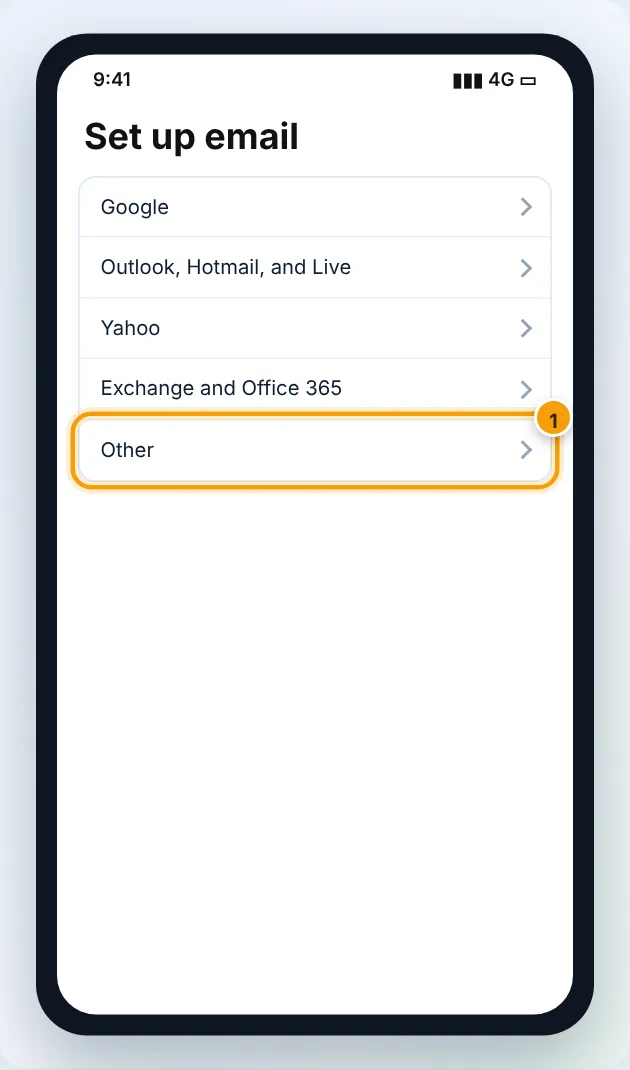
Open Gmail → tap your profile picture (top right) → Add another account → Other.
Step 2: Enter your email and choose IMAP
Type your full address → Next → choose Personal (IMAP) → enter the mailbox password → Next.
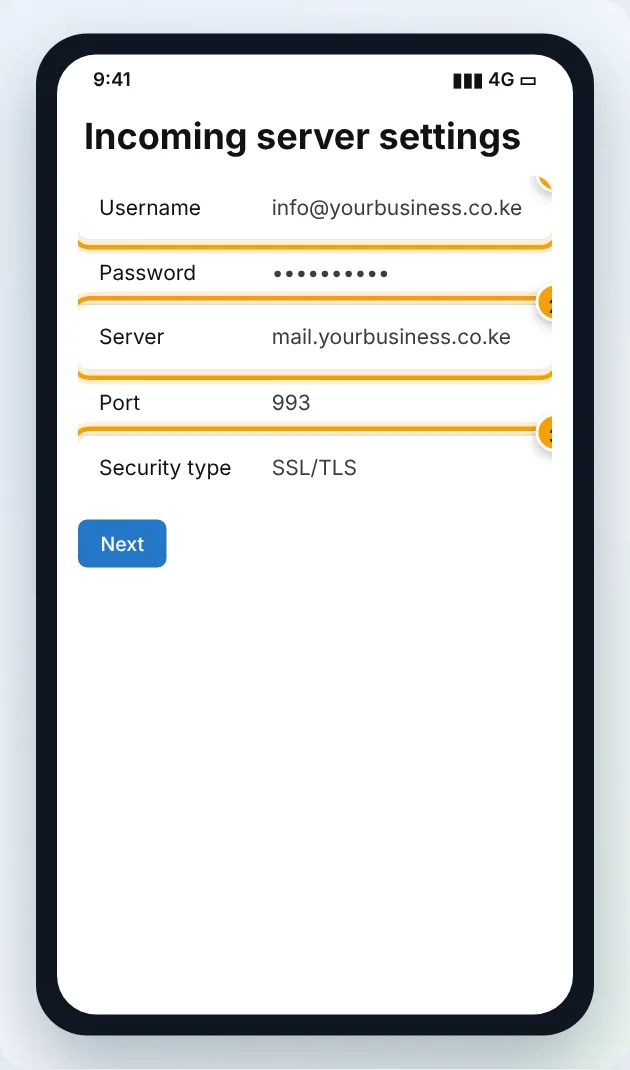
Step 3: Incoming server settings
- Username: your full email address
- Password: mailbox password
- Server:
mail.yourbusiness.co.ke
Tap Next. (If asked, set Security type: SSL/TLS and Port: 993.)
Step 4: Outgoing server settings
- Require sign-in: On
- Username / Password: same as incoming
- SMTP server:
mail.yourbusiness.co.ke - Port 465, SSL/TLS (or 587, STARTTLS)
Tap Next.

Step 5: Account options
Choose Sync frequency (Every 15 minutes is a good balance for data and battery), tick Notify me when email arrives, then give the account a name (e.g. Business — info@) and Next. Done.
Method 2: Samsung Email
- Open Samsung Email (or Settings → Accounts and backup → Manage accounts → Add account → Email).
- Enter email and password → Manual setup → IMAP account.
- Fill in the incoming and outgoing settings from the table (Security SSL, ports 993 / 465).
- Sign in.
Method 3: Outlook app
See the mobile section of Set up email in Outlook.
Test it
Send yourself an email from another account and reply from the phone. Then check the reply appears in Sent in webmail.
Send from your business address
The Gmail app sends from the account you are currently viewing. Tap your profile picture, switch to the business inbox, then compose — or tap the From line in a new message and choose info@yourbusiness.co.ke.
Troubleshooting
| Problem | Cause | Fix |
|---|---|---|
| “Couldn’t sign in” / authentication failed | Wrong password or short username | Use the full address; check password in webmail |
| Can receive but not send | Outgoing sign-in off, or wrong port | Turn on Require sign-in; use 465 SSL/TLS or 587 STARTTLS |
| Certificate warning | Server name not on certificate | Use the server hostname from Email Accounts → Connect Devices |
| Mail arrives late | Sync set to manual / long interval, battery saver | Set sync to 15 min or Push; exclude app from battery optimisation |
| Office Wi-Fi works, home does not (or reverse) | Firewall on that network, or your IP blocked after failed logins | Try mobile data; WhatsApp us your IP if blocked |
If a phone keeps trying an old password, our firewall may block your whole office’s IP after repeated failures. When you change an email password, update it on every device straight away.
Figures are simplified illustrations. Your screen may look slightly different depending on your theme and the version of cPanel or the app you use.
Still need help?
Our Kenyan support team is on WhatsApp — real people, not bots. Mon–Sat, 8am–10pm EAT. Tickets are open 24/7.