
Knowledge Base · Billing & Payments
How to Add a Payment Method and Turn On Auto-Pay
A saved payment method means renewals are paid on time, even when you're busy or travelling — so your website and email never go offline for a forgotten invoice.
How auto-pay works
When a renewal invoice is created, the system charges your default saved card automatically. You receive the invoice and a receipt by email. If the charge fails (expired card, insufficient funds), the invoice stays Unpaid and you’re notified, so you can pay it another way — for example with M-Pesa.
Step 1: Open Payment Methods
Log in at portal.autohost.co.ke → Billing → Payment Methods.
Step 2: Add a card
Click Add New Card, enter the card details and the billing address, and click Save Changes. Visa, Mastercard and American Express are accepted.
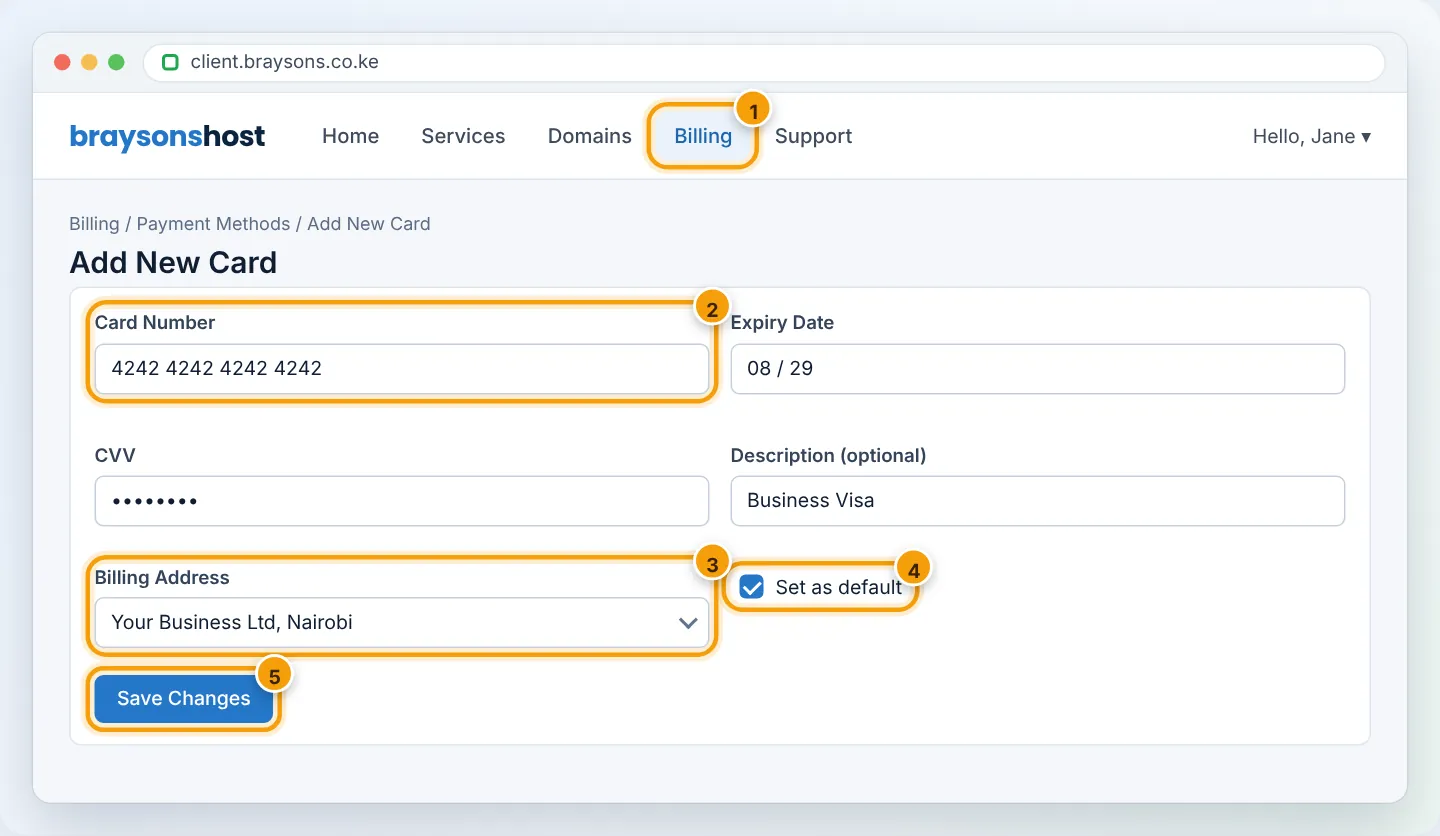
Card details are stored by our payment processor in tokenised form — AutoHost never sees or stores your full card number. Your bank may ask you to approve the first charge with an OTP or in your banking app.
Step 3: Set the default method
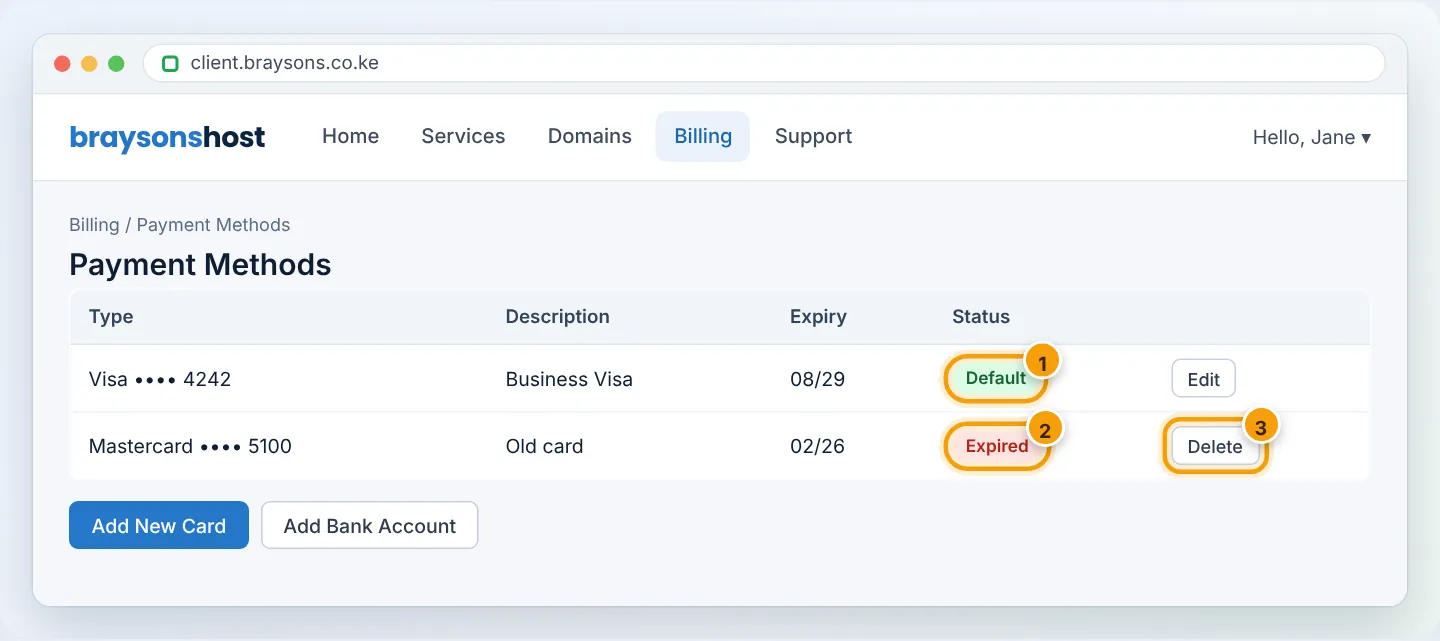
On Billing → Payment Methods, click Set as Default next to the card that should pay renewals. Each service can also have its own preferred method under Services → My Services → (service) → Payment Method.
Removing or replacing a card
Got a new card? Add it, set it as Default, then Delete the old one. If a card is the only method on file and you delete it, auto-pay stops — renewals will need paying manually.
M-Pesa and auto-pay
M-Pesa payments are made per invoice — open the invoice and click Pay Now to get the prompt on your phone. To make sure you never miss one:
- keep your mobile number current in your profile so WhatsApp reminders reach you, and
- add a billing contact so invoices also go to a colleague or accountant.
Using account credit
If you have credit on your account (from an overpayment or downgrade), it’s applied to new invoices automatically. Your balance shows on the client area home page.
Troubleshooting
| Problem | Cause | Fix |
|---|---|---|
| Card declined | Online/international payments disabled, or limit reached | Enable online payments in your banking app; try again or use M-Pesa |
| Renewal not auto-charged | No default card, or card expired | Add a valid card and Set as Default; pay the current invoice manually |
| Charged twice | Manual payment plus auto-charge | Open a Billing ticket — we credit or refund the duplicate |
| Can’t delete card | It’s the only/default method for a service | Add another method and set it as default first |
Figures are simplified illustrations. Your screen may look slightly different depending on your theme and the version of cPanel or the app you use.
Still need help?
Our Kenyan support team is on WhatsApp — real people, not bots. Mon–Sat, 8am–10pm EAT. Tickets are open 24/7.