
Knowledge Base · Billing & Payments
How to Pay Your Hosting Invoice With M-Pesa (STK Push or Paybill)
M-Pesa is the quickest way to pay for hosting and domains. You can pay from the invoice page and simply enter your PIN when the prompt appears on your phone, or pay through the Lipa na M-Pesa Paybill menu. Both take under two minutes.
Before you start
- Have the phone with the M-Pesa line you will pay from nearby, unlocked.
- Make sure the line has enough balance (or Fuliza) for the full invoice amount, including 16% VAT.
- Find the invoice number — it is in the invoice email and in the client area.
Method 1: M-Pesa prompt from the invoice (recommended)
Step 1: Open the unpaid invoice
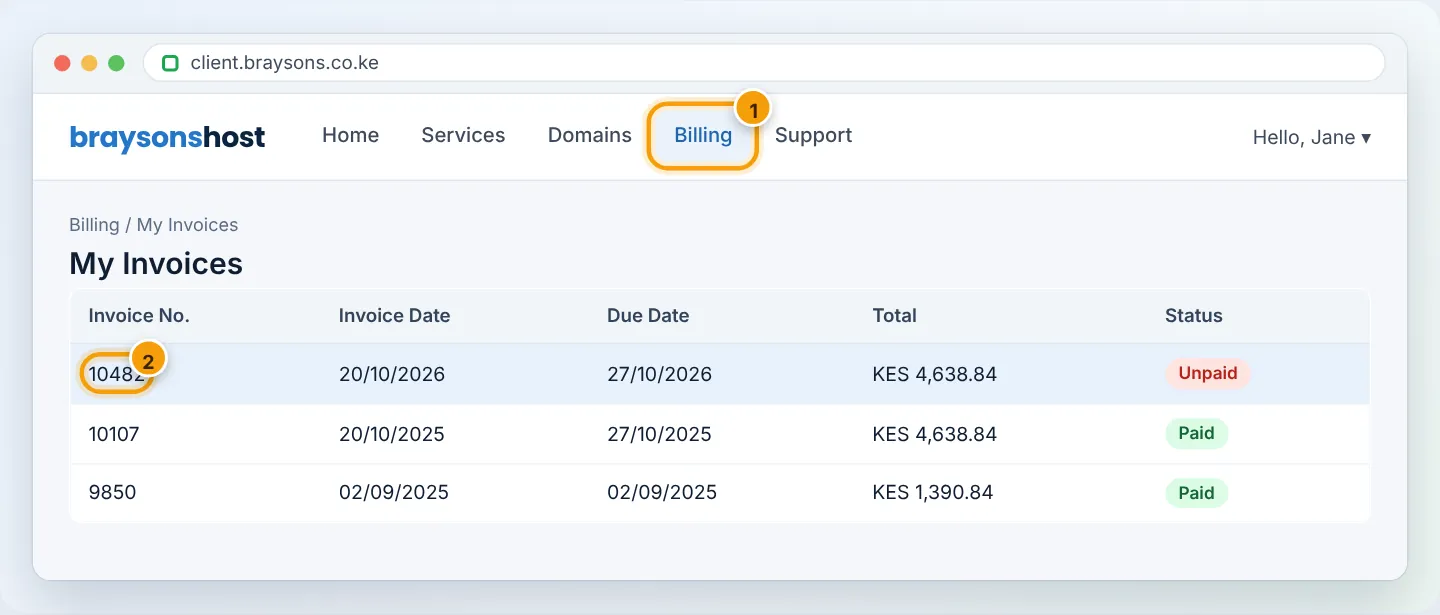
Log in at portal.autohost.co.ke → Billing → My Invoices. Unpaid invoices are marked Unpaid in red. Click the invoice (or Pay Now on the dashboard banner).
Step 2: Choose M-Pesa and enter your number
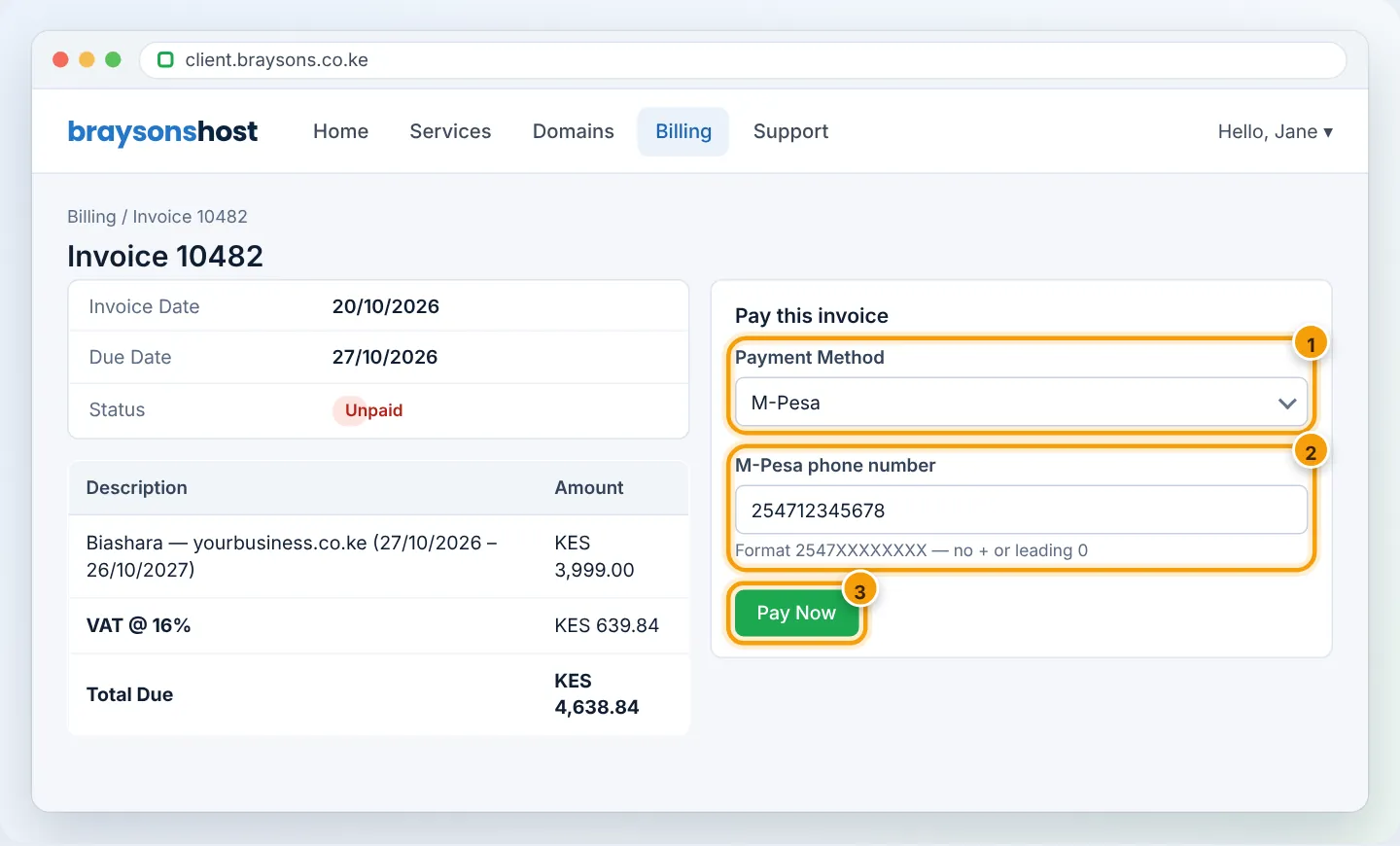
On the invoice, set Payment Method to M-Pesa. Enter the phone number that should receive the prompt — in the format 2547XXXXXXXX or 2541XXXXXXXX (no +, no leading 0) — and click Pay Now.
Step 3: Enter your PIN on your phone
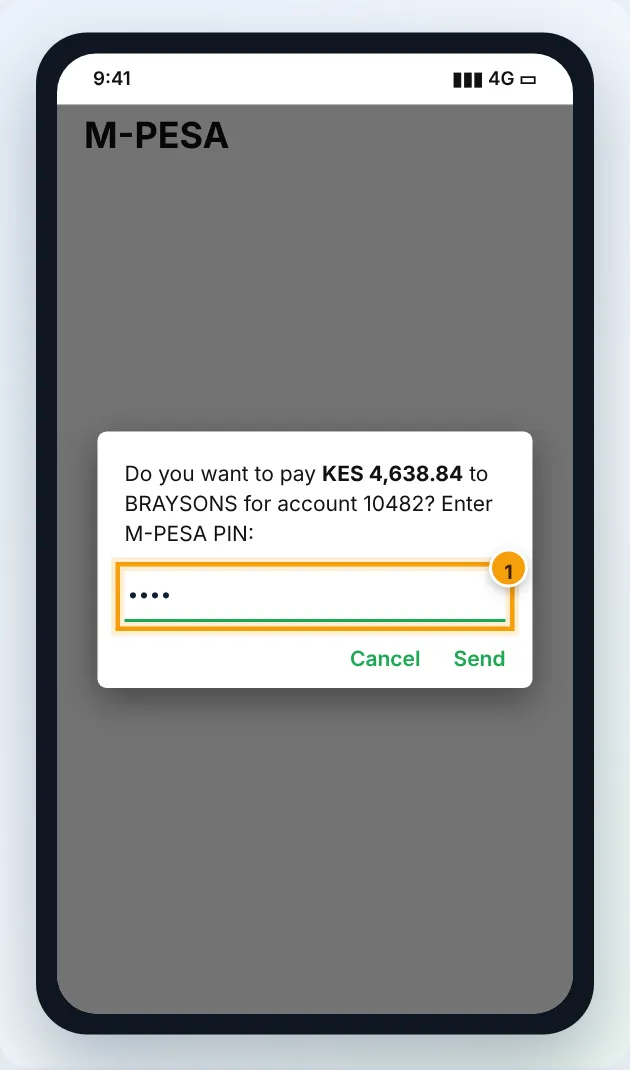
Within a few seconds your phone shows a Lipa na M-PESA prompt with the amount and business name. Check the amount, enter your M-Pesa PIN, and press OK/Send.
Step 4: Wait for confirmation
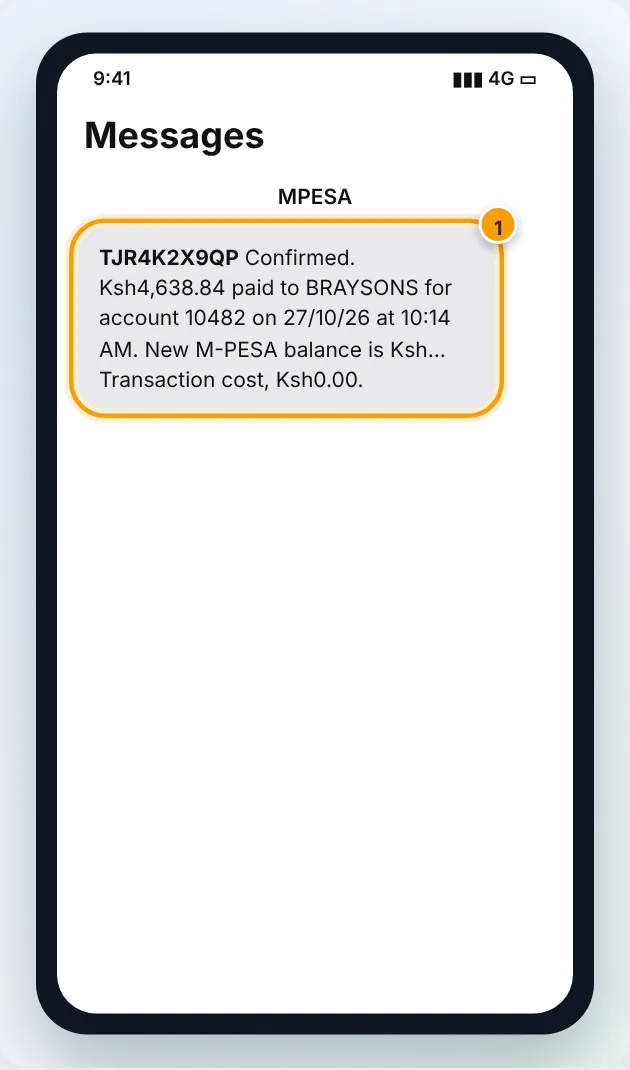
You will receive the M-Pesa SMS, and the invoice page changes to Paid — usually within a minute (refresh the page if needed). A payment receipt is emailed to you, and the service is activated or renewed automatically.
No prompt appeared? Make sure the phone is on and has signal, the number was typed in 254 format, and you did not have another M-Pesa menu open. Wait one minute, then click Pay Now again. Prompts expire after about a minute if not answered.
Method 2: Lipa na M-Pesa Paybill
Use this if the prompt doesn’t arrive, or you are paying from someone else’s phone.
- Open M-PESA → Lipa na M-PESA → Pay Bill.
- Business number: the Paybill number shown on your invoice (under Payment instructions).
- Account number: your invoice number (e.g.
10482) — this is how the payment is matched to your account. - Amount: the exact total on the invoice.
- Enter your PIN and confirm.
Always use the invoice number as the account number. A payment with a wrong or missing account number cannot be matched automatically, and we have to trace it by hand. Never pay to a number someone sends you on WhatsApp or SMS — use only the Paybill shown on your invoice in the client area.
Paying several invoices at once
Billing → Mass Payment lets you tick several unpaid invoices (for example, hosting plus a domain) and pay them in one M-Pesa transaction.
Other ways to pay
| Method | Where |
|---|---|
| Visa / Mastercard / American Express | Invoice → Payment Method → Card |
| PayPal | Invoice → Payment Method → PayPal |
| Bank transfer (Equity, KCB, Co-op) | Details on the invoice; allow time to clear, and send us the slip |
| Airtel Money | Ask support for details before paying |
To pay automatically next time, see Add a payment method.
Payment not reflecting?
- Wait 15 minutes and refresh the invoice.
- Check that the M-Pesa SMS shows the right business name, amount and account number.
- Still unpaid? Open a Billing ticket or WhatsApp +254 104 666 000 with: your invoice number, the M-Pesa transaction code (e.g.
TJR4K2X9QP), the amount and the phone number you paid from. We match it manually and activate the service.
Troubleshooting
| Problem | Cause | Fix |
|---|---|---|
| “Invalid phone number” | Wrong format | Use 2547XXXXXXXX — no +, spaces or leading 0 |
| Prompt says “Request cancelled by user” | Prompt timed out or Cancel pressed | Click Pay Now again and respond within a minute |
| “Insufficient funds” | Balance below total | Top up or use Fuliza; the total includes VAT |
| Paid twice by mistake | Duplicate payment | Open a Billing ticket — we add it as credit or refund it |
| Paid the wrong invoice number | Mismatched account number | Ticket or WhatsApp with the transaction code |
Figures are simplified illustrations. Your screen may look slightly different depending on your theme and the version of cPanel or the app you use.
Still need help?
Our Kenyan support team is on WhatsApp — real people, not bots. Mon–Sat, 8am–10pm EAT. Tickets are open 24/7.