
Knowledge Base · Billing & Payments
How to Upgrade or Downgrade Your Hosting Plan
Your website grows; your hosting should too. You can move to a bigger plan in a few clicks, with no file moves and no downtime — and move down later if you need less.
Compare the plans
| Starter | Business | Corporate | Enterprise | |
|---|---|---|---|---|
| Yearly | KES 1,699 | KES 3,999 | KES 5,999 | KES 7,999 |
| Monthly | KES 169 | KES 399 | KES 599 | KES 799 |
| NVMe storage | 35 GB | 60 GB | 150 GB | 250 GB |
| Addon domains | 3 | 10 | 15 | 20 |
| Subdomains | 50 | 100 | 150 | 250 |
| Databases | 100 | 200 | Unlimited | Unlimited |
| Email accounts | Unlimited | Unlimited | Unlimited | Unlimited |
Prices exclude 16% VAT. Upgrading from the free plan? Order a paid plan and ask us to move your site — migration is free.
Signs it’s time to upgrade
- Disk usage above about 80% — see Check disk usage.
- You need more addon domains for new websites.
- Resource Usage in cPanel shows you hitting CPU, memory or process limits, or the site slows at busy times.
- You’re launching a shop, a big campaign, or adding many staff mailboxes.
Step 1: Open your service
portal.autohost.co.ke → Services → My Services → click your hosting plan. In the left menu, under Actions, click Upgrade/Downgrade.

Step 2: Choose the new plan
All plans are listed. Click Choose Product under the new plan, keeping the same billing cycle (or ask us to change it — see below).
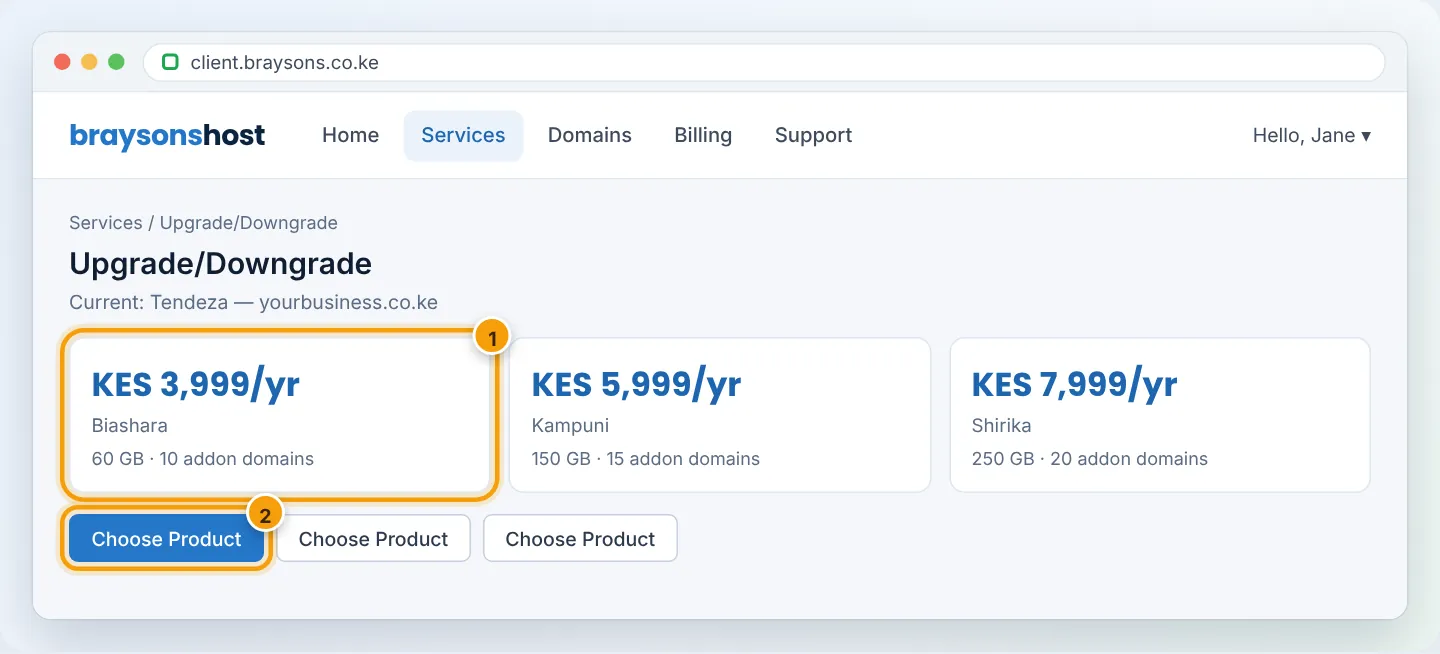
Step 3: Review the price and pay
The summary shows the amount due now. When upgrading mid-cycle you pay only the difference for the time left until your next due date — not a full new period. Click Continue, then pay the invoice (e.g. with M-Pesa).
Example: you’re on Starter yearly (KES 1,699) with half the year left and move to Business (KES 3,999). The difference is KES 2,300 per year; for half a year that’s about KES 1,150 + VAT now. From the next due date you pay the full Business price.
Step 4: The change applies automatically
Once the invoice is paid, the new limits apply to your cPanel within minutes. Same server, same files, same email — no downtime and nothing to move.
Downgrading
Downgrades use the same Upgrade/Downgrade page. Before you downgrade, make sure you fit within the smaller plan:
- disk usage below the new storage limit,
- no more addon domains, subdomains or databases than the new plan allows.
If your account is over the smaller plan’s limits, the downgrade may fail or features can stop working (for example, new email can’t be stored when the disk is full). Clean up first. If you’re unsure, open a Billing ticket and we’ll check for you.
Downgrades and upgrades are not refundable as cash; any credit due from a downgrade is applied to your account for future invoices.
Changing monthly ↔ yearly
Switching billing cycle is done by our billing team so your dates line up — open a Billing ticket before your next due date. Moving to yearly on Business, Corporate or Enterprise gets you a free .co.ke domain for the first year.
Troubleshooting
| Problem | Cause | Fix |
|---|---|---|
| Upgrade/Downgrade link missing | Unpaid invoice on the service, or service suspended | Pay outstanding invoices first |
| New limits not showing in cPanel | Invoice not yet paid | Pay; wait a few minutes; log out and in |
| Site still slow after upgrading | Cause isn’t resources | See Fix a slow website |
Figures are simplified illustrations. Your screen may look slightly different depending on your theme and the version of cPanel or the app you use.
Still need help?
Our Kenyan support team is on WhatsApp — real people, not bots. Mon–Sat, 8am–10pm EAT. Tickets are open 24/7.