
Knowledge Base · Email Setup
How to Set Up Your Business Email in Microsoft Outlook
Outlook is the most popular email app in Kenyan offices. This guide connects your AutoHost mailbox to every version of Outlook using IMAP, so your mail stays in sync between your computer, phone and webmail.
Your settings
Replace yourbusiness.co.ke with your domain and use the mailbox’s own password (not your cPanel password).
| Setting | Value |
|---|---|
| Account type | IMAP |
| Email / username | Full address, e.g. info@yourbusiness.co.ke |
| Incoming server | mail.yourbusiness.co.ke · port 993 · SSL/TLS |
| Outgoing (SMTP) server | mail.yourbusiness.co.ke · port 465 · SSL/TLS (or 587 · STARTTLS) |
| Outgoing authentication | Required — same username and password |
cPanel can show your exact settings: Email → Email Accounts → Connect Devices next to the mailbox. If mail.yourbusiness.co.ke gives a certificate warning, use the server hostname shown there instead.
Outlook for Windows (new Outlook / Outlook for Microsoft 365)
- Open Outlook → Settings (gear icon) → Accounts → Email accounts → Add account.
- Type your email address → Continue.
- If Outlook suggests a provider, choose IMAP (or click Choose a different provider → IMAP).
- Click Show more / Advanced settings and enter the incoming and outgoing details from the table above.
- Enter the password → Continue. Outlook tests the connection and adds the account.
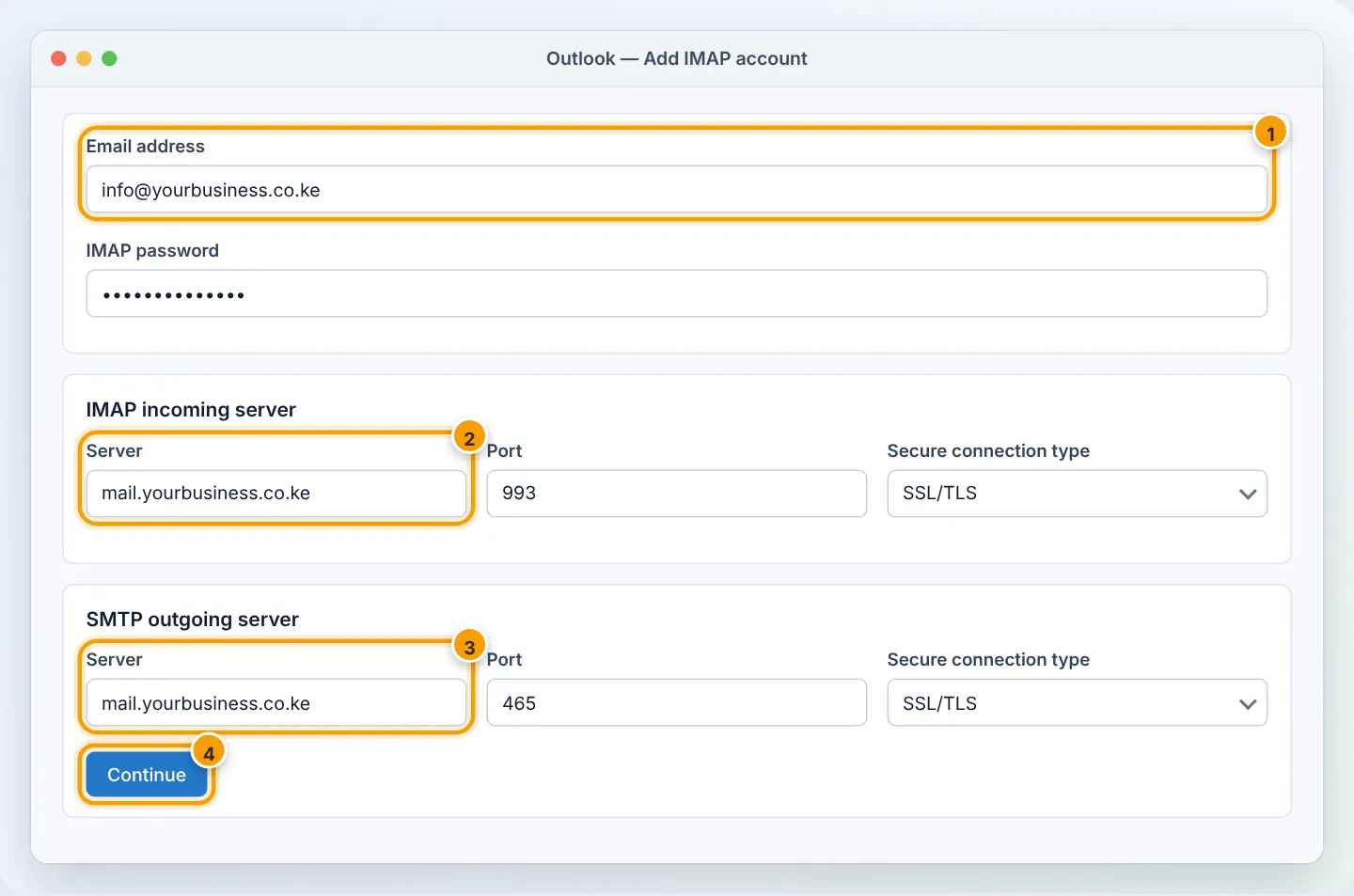
Outlook for Windows (classic Outlook 2016, 2019, 2021)
- File → Add Account.
- Type your email address, click Advanced options, tick Let me set up my account manually → Connect.
- Choose IMAP.
- Enter Incoming mail:
mail.yourbusiness.co.ke, port 993, encryption SSL/TLS. Outgoing mail:mail.yourbusiness.co.ke, port 465, SSL/TLS → Next. - Enter the password → Connect → Done.
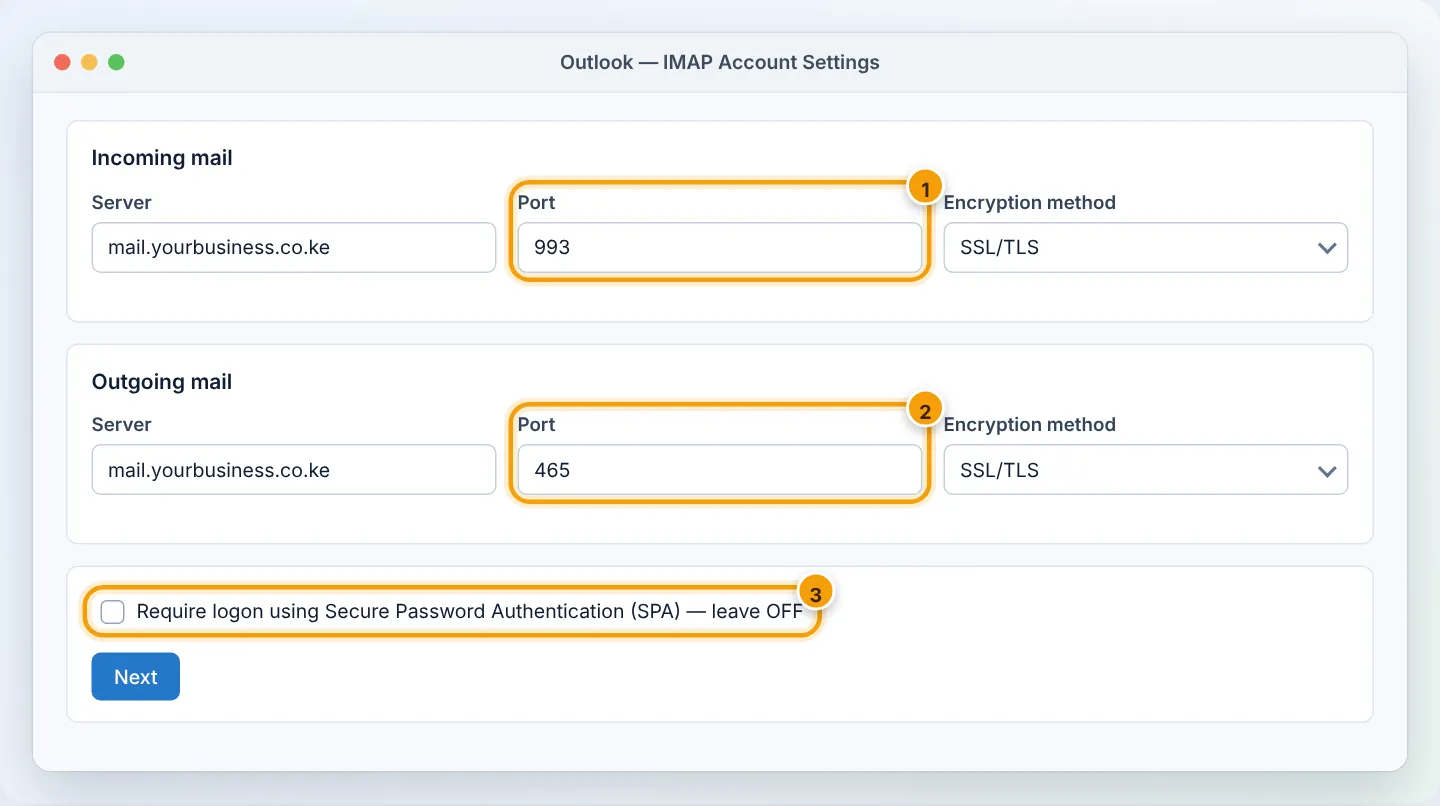
Outlook for Mac
- Outlook → Settings → Accounts → + → New Account.
- Type the email address → Continue. If it asks for a provider, choose IMAP/POP.
- Type: IMAP. Enter username (full address), password, incoming
mail.yourbusiness.co.keport 993 Use SSL, outgoingmail.yourbusiness.co.keport 465 Use SSL. - Add Account.
Outlook mobile app (Android / iPhone)
- Open Outlook → profile picture → Settings (⚙) → Add mail account → Add an email account.
- Type the email address → Continue → choose IMAP.
- Turn on Advanced settings and fill in the same servers and ports → ✓.
For the phone’s built-in mail apps see Android and iPhone.
Test it
Send an email from Outlook to your personal Gmail, and reply to it. If both arrive, you are done. Check that Sent items appear in webmail too — that confirms IMAP sync.
Moving from POP or an old provider
If you previously used POP (mail downloaded to one computer only), add the account again as IMAP and drag old folders from the POP account into the IMAP account to upload them, then remove the POP account. Ask us if you need help moving large mailboxes.
Troubleshooting
| Outlook says | Cause | Fix |
|---|---|---|
| “Log onto incoming mail server (IMAP): The server responded: Authentication failed” | Wrong password or username not the full address | Test the password in webmail; reset it in cPanel |
| Sending fails: “Your outgoing (SMTP) e-mail server has reported an error — 550 relaying denied” | Outgoing authentication off | Tick My outgoing server requires authentication (same as incoming) |
| “The server you are connected to is using a security certificate that cannot be verified” | Server name not on the certificate | Use the hostname from Connect Devices, or run AutoSSL for mail. |
| Stuck in Outbox / timeouts | Port 25 used, or network blocks the port | Use 465 (SSL/TLS) or 587 (STARTTLS) |
| Folders missing (Sent, Trash) | Folder mapping | Right-click folders → Subscribe, or set Sent/Trash mapping in account settings |
| Account keeps asking for password | Password changed in cPanel | Update it in Outlook account settings |
Frequently asked questions
IMAP or POP?
IMAP. It keeps mail on the server so it appears on all devices and is included in our backups. POP downloads mail to one device and is easy to lose.
Can I use Microsoft 365 Outlook with AutoHost email?
Yes — the steps above work in Outlook from Microsoft 365. If you want your mailboxes hosted by Microsoft instead, see Connect Google Workspace or Microsoft 365.
Figures are simplified illustrations. Your screen may look slightly different depending on your theme and the version of cPanel or the app you use.
Still need help?
Our Kenyan support team is on WhatsApp — real people, not bots. Mon–Sat, 8am–10pm EAT. Tickets are open 24/7.