
Knowledge Base · Domain Management
How to Transfer Your Domain to AutoHost
Keeping your domain and hosting with one provider means one bill, one renewal date and one support team. Transferring is safe: your website and email keep working throughout, and the transfer usually also renews the domain for a year.
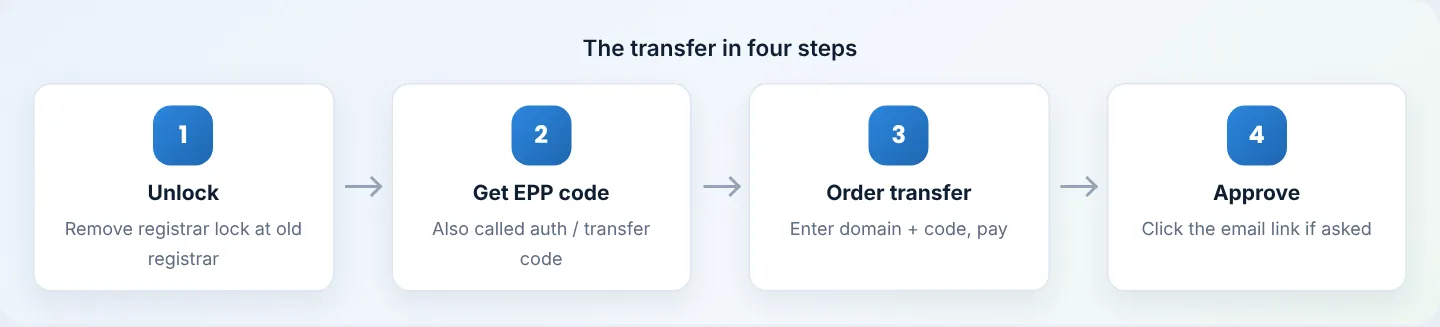
Before you start
- The domain must be active, not expired or in redemption. Renew it first if needed.
- Recently registered or transferred domains often cannot move again for 60 days (this is the rule for .com/.net and most global domains).
- You need access to the registrant email — approval and EPP codes are sent there. If that email no longer works, update the domain’s contact details at the old registrar first.
- Your nameservers stay the same during the transfer, so your website and email keep working.
Transfer prices for each extension are on Domain Pricing (the Transfer column). For most extensions the transfer adds a year to the expiry date.
Step 1: Unlock the domain at your current registrar
Log in to the current registrar, open the domain and turn Registrar Lock / Domain Lock / Transfer Lock off. Some registrars call it “Allow transfer”.
Step 2: Get the EPP / auth code
At the same registrar, request the EPP code (also called Auth code, Transfer key or Authorization code). It is a string like aK9#t2Pz!Lm4 and is either shown on screen or emailed to the registrant email.
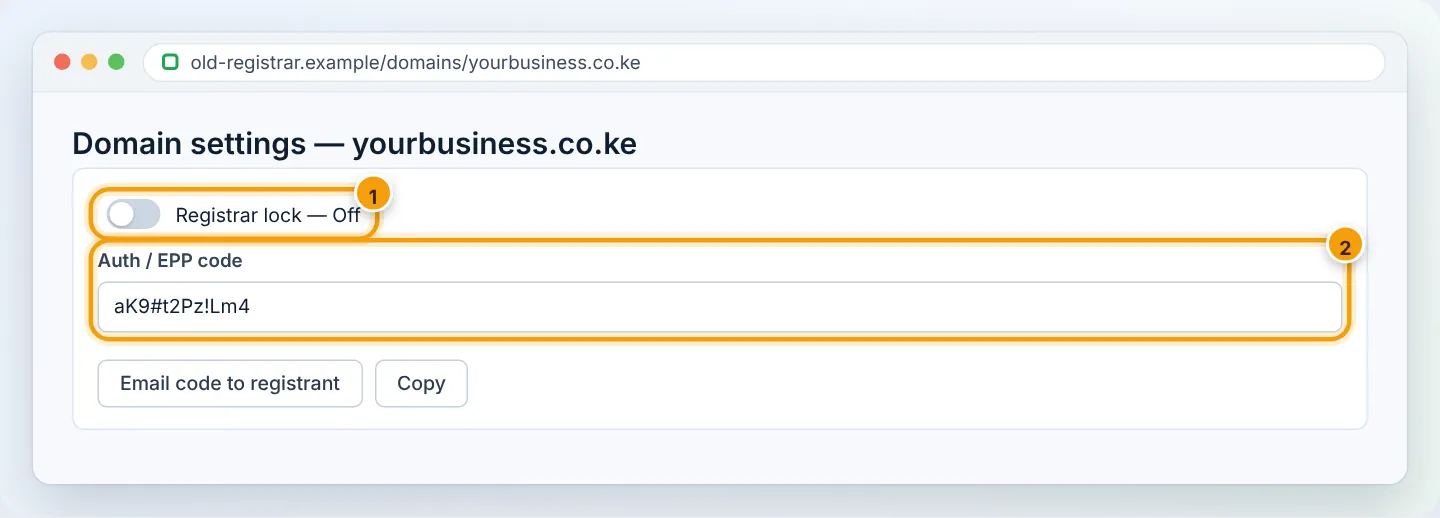
For .ke domains, some registrars send the code only by email to the registrant, or ask for a written request. If yours refuses or delays, contact us — as a KeNIC-accredited registrar we can advise on the KeNIC procedure.
Step 3: Order the transfer at AutoHost
- Go to Register Domain and choose Transfer (or in the client area: Domains → Transfer Domains to Us).
- Enter your domain and click Transfer.
- Paste the EPP code when asked.
- Keep the nameservers as they are (if your hosting is staying put) or set
ns1.asushost.cam/ns2.asushost.camif your website is already on AutoHost. - Checkout and pay.

Step 4: Approve the transfer
Depending on the extension, you may receive an email asking you to approve the transfer. Click the approval link (usually valid for 5 days). Some old registrars also send a “transfer request — reject?” email: ignore it or click approve/accept to speed things up.
Step 5: Wait for completion
| Extension | Typical time |
|---|---|
| .co.ke, .ke and other .ke | Usually up to 5–7 days |
| .com, .net, .org and other global domains | Up to 5–7 days (faster if the old registrar approves) |
Track it in the client area under Domains → My Domains (status Pending Transfer → Active). You will get an email when it completes.
After the transfer
- Turn on Auto Renew and check the new expiry date — see Manage your domain in the client area.
- Make sure contact details are correct under Manage → Contact Information.
- Cancel the domain’s auto-renewal at the old registrar (the domain is no longer there, but some keep billing add-ons).
Troubleshooting
| Problem | Cause | Fix |
|---|---|---|
| “Invalid authorization code” | Typo, extra space, or code expired | Copy it again; request a fresh code |
| “Domain is locked” | Lock still on at old registrar | Turn off registrar lock and retry |
| Transfer stays pending | Waiting for approval email or old registrar | Check registrant inbox and spam; ask the old registrar to release |
| Approval email never arrives | Registrant email outdated | Update the email at the old registrar, then restart the transfer |
| “Transfer not allowed within 60 days” | Domain registered/transferred recently | Wait until 60 days have passed |
Frequently asked questions
Will my website go offline?
No. Nameservers and DNS do not change during the transfer.
Do I lose the time left on my registration?
No — remaining time is kept, and for most extensions the transfer adds a year.
Can you do the transfer for me?
Yes. Send us the domain and EPP code on WhatsApp or a ticket and we will handle it.
Figures are simplified illustrations. Your screen may look slightly different depending on your theme and the version of cPanel or the app you use.
Still need help?
Our Kenyan support team is on WhatsApp — real people, not bots. Mon–Sat, 8am–10pm EAT. Tickets are open 24/7.