
Knowledge Base · Troubleshooting
How to Fix “Error Establishing a Database Connection”
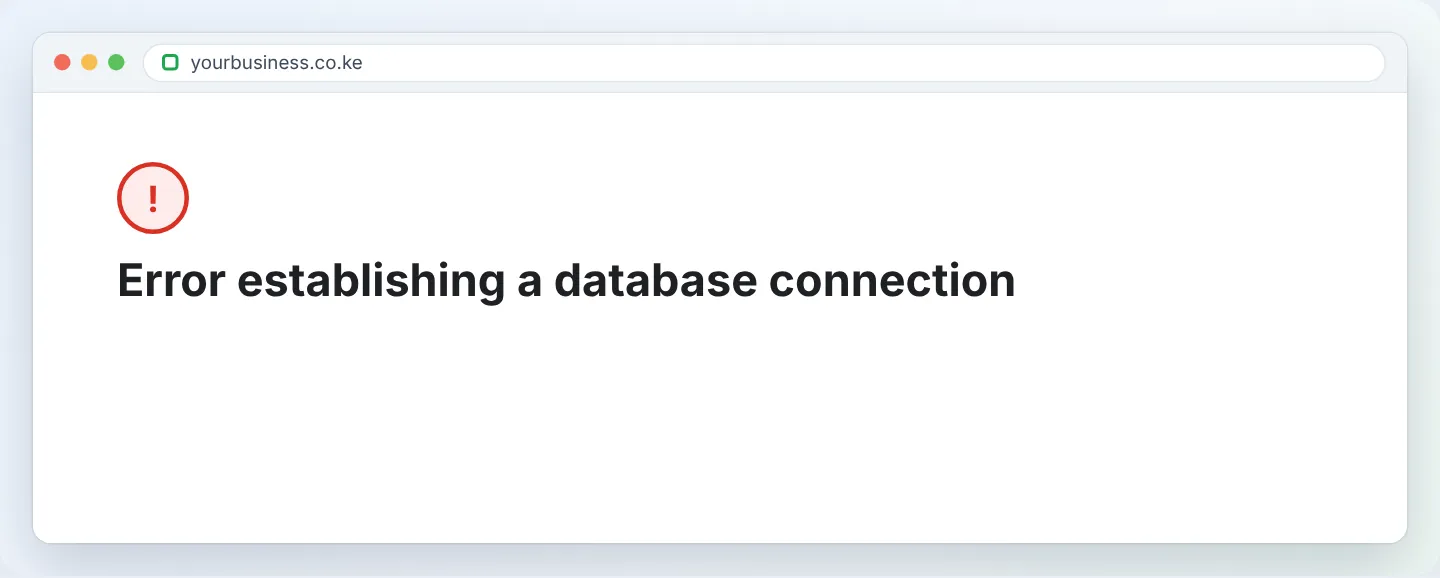
This WordPress error means the website cannot log in to its MySQL database. In nine cases out of ten, the database name, user or password in wp-config.php does not match what exists in cPanel — often right after a migration or password change. Here is how to compare and fix them.
Step 1: Read the details in wp-config.php
- In cPanel, open File Manager → public_html (or the folder of the affected site).
- Right-click
wp-config.php→ View (or Edit). - Note these four lines:
define( 'DB_NAME', 'yourbusi_wp' );
define( 'DB_USER', 'yourbusi_wpuser' );
define( 'DB_PASSWORD', 'S0me-Pass!' );
define( 'DB_HOST', 'localhost' );
Other applications keep the same details in .env (Laravel) or config.php.
Step 2: Compare with cPanel
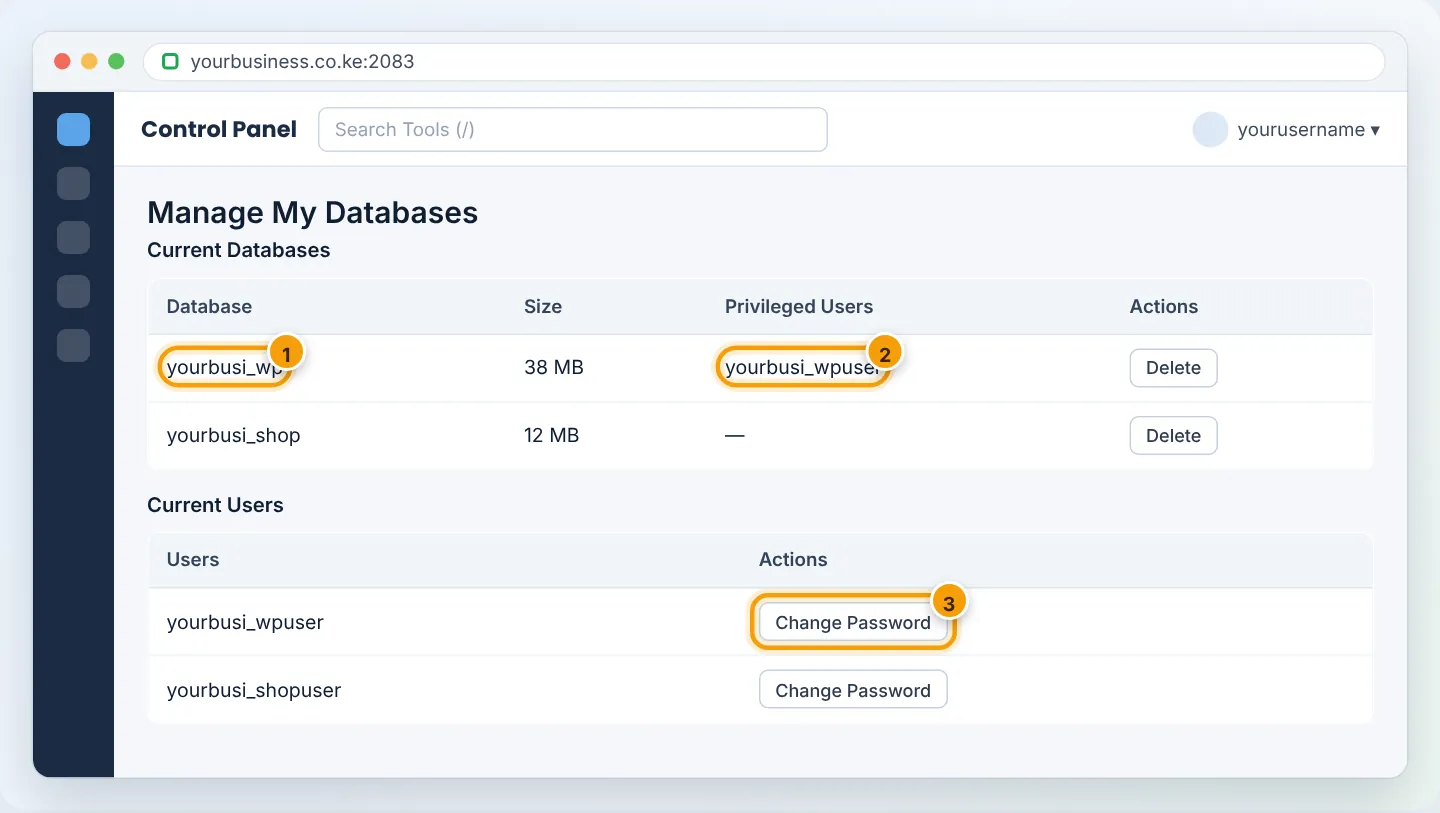
Open Databases → Manage My Databases and check:
- Current Databases: is there a database with exactly the
DB_NAME(including theyourbusi_prefix)? - In the same row, under Privileged Users, is the
DB_USERlisted? - Current Users: does that user exist?
Step 3: Fix what does not match
| What you found | Fix |
|---|---|
Names differ (e.g. old host prefix olduser_wp) |
Edit wp-config.php to the exact names in cPanel |
| User exists but is not a privileged user of the database | Add User To Database (bottom of the page) → choose user and database → ALL PRIVILEGES → Make Changes |
| Unsure of the password | Current Users → Change Password → generate a new one → paste the same into DB_PASSWORD |
| Database does not exist | Create it and import your .sql backup — see Import with phpMyAdmin |
DB_HOST is not localhost |
Change it to localhost |
Save wp-config.php and reload the site.
Copy passwords carefully — no spaces before or after, and keep the quotes in wp-config.php. If the password contains a single quote ', generate a new password without one.
Step 4: Check the database is not damaged
If the details are correct but the error remains (or the admin area says “One or more database tables are unavailable”):
- Manage My Databases → Modify Databases → Check Database — choose the database.
- If problems appear, use Repair Database.
- WordPress also has a built-in repair: add
define( 'WP_ALLOW_REPAIR', true );towp-config.php, visithttps://yourbusiness.co.ke/wp-admin/maint/repair.php, click Repair Database, then remove the line.
Step 5: Check resource limits
If the error appears sometimes (busy periods) and fixes itself, your account may be hitting its limit on simultaneous connections or memory. Check Metrics → Resource Usage for faults, enable caching (LiteSpeed Cache), and look for bots hammering the site. See Fix a slow-loading website.
Step 6: Still failing?
If credentials are correct and the database is healthy, there may be a server-side issue. WhatsApp +254 104 666 000 — we check the MySQL service status immediately.
Troubleshooting summary
| Symptom | Cause | Fix |
|---|---|---|
| Right after a migration | Credentials from old host | Update wp-config.php to new names/password |
| After changing a database password | wp-config.php not updated | Paste the new password |
| “Access denied for user” in error_log | User not linked or wrong password | Add user to database; reset password |
| “Unknown database” | Database missing / wrong name | Create or fix the name; import backup |
| Comes and goes | Resource limits | Caching; check Resource Usage |
Figures are simplified illustrations. Your screen may look slightly different depending on your theme and the version of cPanel or the app you use.
Still need help?
Our Kenyan support team is on WhatsApp — real people, not bots. Mon–Sat, 8am–10pm EAT. Tickets are open 24/7.